How to Convert MP4 to MP3 with ffmpeg
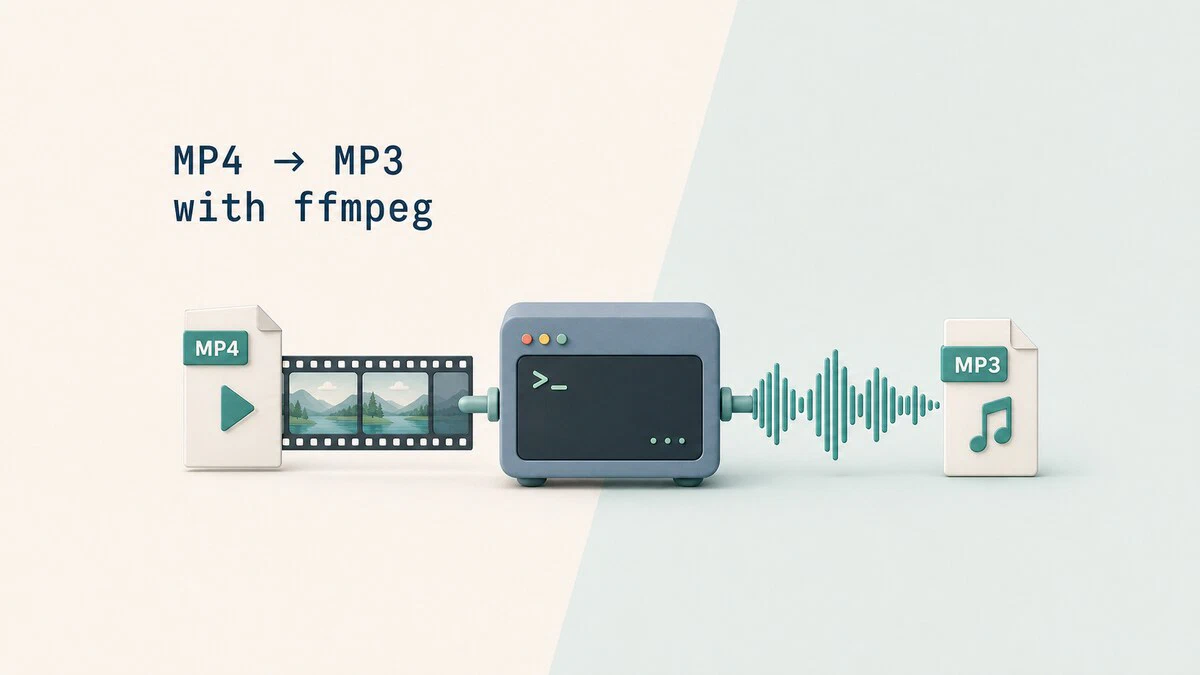
A recorded lecture, a podcast published as video, a concert clip you only ever listen to: sometimes all you want from an MP4 is its audio track. ffmpeg does this in one command, with full control over the output quality.
This guide shows how to convert MP4 to MP3 with ffmpeg, pick sensible quality settings, extract audio without any quality loss, and convert files in bulk.
Prerequisites
You need ffmpeg installed. On Ubuntu, Debian, and derivatives:
sudo apt update
sudo apt install ffmpeg
These commands install both ffmpeg and ffprobe. For version-specific instructions, see our guides on installing ffmpeg on Ubuntu
and Debian
.
Converting MP4 to MP3
The simplest form gives ffmpeg an input, selects the LAME MP3 encoder, and names the output file:
ffmpeg -i video.mp4 -c:a libmp3lame audio.mp3This decodes the audio track from video.mp4, encodes it as MP3 with default settings, and writes audio.mp3. The video stream is dropped automatically, since an MP3 file cannot contain one.
For better control, the recommended form adds two options:
ffmpeg -i video.mp4 -vn -c:a libmp3lame -q:a 2 audio.mp3The -vn flag explicitly discards the video stream, -c:a libmp3lame selects the LAME MP3 encoder, and -q:a 2 selects variable bitrate (VBR) quality level 2. This level typically averages around 190 kb/s, although the actual bitrate depends on the audio.
Choosing the Quality
The MP3 encoder accepts a VBR quality scale from 0 (best) to 9 (smallest). These approximate bitrates vary with the source:
-q:a 0- Around 245 kb/s; highest quality VBR, for music you care about.-q:a 2- Around 190 kb/s; the common sweet spot.-q:a 5- Around 130 kb/s; fine for speech and podcasts.-q:a 7- Around 100 kb/s; small files, audible compression on music.
If you need a constant bitrate instead, for example for a device that struggles with VBR, use -b:a:
ffmpeg -i video.mp4 -vn -c:a libmp3lame -b:a 192k audio.mp3Keep in mind that encoding cannot add quality back: if the source audio is a 96 kb/s stream, encoding it at 320 kb/s only produces a larger file, not a better-sounding one.
Extracting Audio Without Quality Loss
Converting to MP3 always re-encodes, which costs a small amount of quality. If you only need the original audio track, check its codec before deciding whether to convert it:
ffprobe -v error -select_streams a:0 -show_entries stream=codec_name -of default=noprint_wrappers=1:nokey=1 video.mp4aacAAC audio is common in MP4 files and can be copied into an .m4a container without re-encoding:
ffmpeg -i video.mp4 -map 0:a:0 -c:a copy audio.m4aThe -map 0:a:0 option selects the first audio stream, and -c:a copy moves the compressed audio without decoding or encoding it. The audio data remains unchanged, and the operation usually finishes much faster than an MP3 conversion. If ffprobe reports another codec, use a compatible container or convert the audio instead.
Converting Part of a File
To convert only a section, combine the conversion with a start time and a duration:
ffmpeg -ss 00:05:30 -i video.mp4 -t 00:06:30 -vn -c:a libmp3lame -q:a 2 clip.mp3The -ss option starts at 5:30, and -t 00:06:30 converts the next six minutes and thirty seconds, ending at 12:00. This is handy for pulling one song out of a concert recording or one answer out of a long interview.
Batch Converting Multiple Files
ffmpeg takes one input at a time, so converting a directory of MP4 files uses a small bash for loop
:
shopt -s nullglob
for f in *.mp4; do
  ffmpeg -n -i "$f" -vn -c:a libmp3lame -q:a 2 "${f%.mp4}.mp3"
done
The nullglob setting skips the loop when the directory contains no MP4 files. The ${f%.mp4} expansion strips the .mp4 extension so each MP3 keeps the original filename, while -n prevents existing files from being overwritten. The quotes around the variables keep filenames with spaces intact.
Troubleshooting
Unknown encoder ’libmp3lame’
Your ffmpeg build lacks the LAME MP3 encoder, which happens with some minimal or codec-restricted packages. Check for it with ffmpeg -hide_banner -encoders | grep -w libmp3lame, then install an FFmpeg package that includes the encoder.
Output file has no sound
The source may carry multiple audio tracks and the wrong one was picked. Inspect the file with ffprobe -hide_banner video.mp4, then select the track explicitly with -map, for example -map 0:a:1 for the second audio stream.
Could not write the M4A output header
The source audio codec is not compatible with the M4A container. Use a container that supports the original codec, or replace -c:a copy with -c:a aac -b:a 192k to create a compatible M4A file.
The output file already exists
FFmpeg asks before replacing an existing file. Use a different output name, add -n to keep the existing file, or add -y only when you intend to overwrite it.
Conclusion
One command covers the everyday case: ffmpeg -i video.mp4 -vn -c:a libmp3lame -q:a 2 audio.mp3, with -q:a trading size against quality. For more conversion, compression, and inspection examples, see our ffmpeg command guide
.
Tags
Linuxize Weekly Newsletter
A quick weekly roundup of new tutorials, news, and tips.
About the authors

Dejan Panovski
Dejan Panovski is the founder of Linuxize, an RHCSA-certified Linux system administrator and DevOps engineer based in Skopje, Macedonia. Author of 1000+ Linux tutorials with 20+ years of experience turning complex Linux tasks into clear, reliable guides.
View author page