ffmpeg Command in Linux: Convert, Compress, and Extract Media
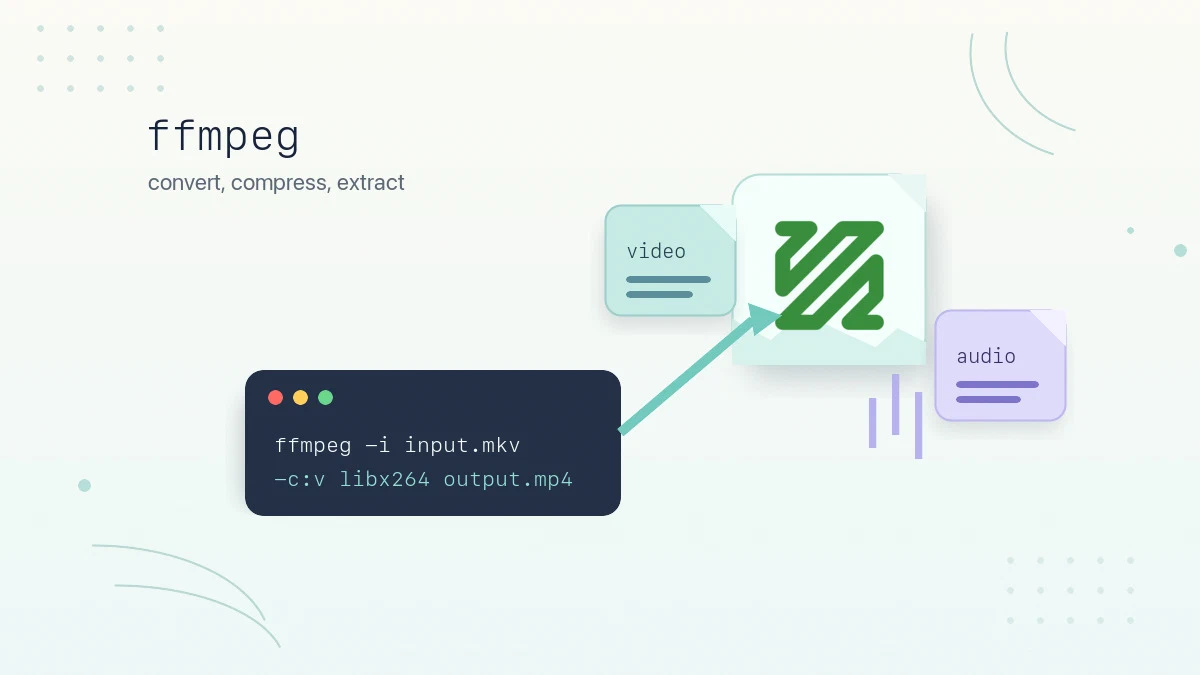
Sooner or later every Linux user ends up with a media file in the wrong shape: a video that is too large to share, an MKV that a TV refuses to play, or a lecture recording you only want as audio. ffmpeg handles all of these from the command line. It reads and writes virtually every audio and video format in existence, and once you know a handful of recipes, one tool covers them all.
This guide explains how to use ffmpeg to inspect media files, convert between formats, compress video, extract audio, trim clips, and process files in batches.
Installing ffmpeg
On Ubuntu, Debian, and derivatives, ffmpeg is available in the standard repositories:
sudo apt update
sudo apt install ffmpeg
On Fedora, the ffmpeg-free package in the default repositories covers many common tasks, but it has a smaller codec set than a full FFmpeg build. Start with the default package:
sudo dnf install ffmpeg-freeVerify the installation by checking the version:
ffmpeg -versionffmpeg Command Syntax
The general syntax of the ffmpeg command is as follows:
ffmpeg [GLOBAL_OPTIONS] -i INPUT [OUTPUT_OPTIONS] OUTPUTTwo details of this layout matter. First, option order: options placed before -i apply to the input, and options placed after it apply to the output. Second, ffmpeg infers the output container from the file extension, so writing output.mp4 is enough to request an MP4 file.
The options you will use constantly are the codec selectors:
-c- Set the codec for all streams;-c copycopies streams without re-encoding.-c:v- Set the video codec, for examplelibx264.-c:a- Set the audio codec, for exampleaac.-vn/-an- Drop the video or audio stream entirely.
Inspecting a Media File
Before converting anything, look at what the file contains. The ffprobe tool ships with ffmpeg and prints the container and stream details:
ffprobe -hide_banner input.mp4Input #0, mov,mp4,m4a,3gp,3g2,mj2, from 'input.mp4':
Duration: 00:12:34.56, start: 0.000000, bitrate: 4523 kb/s
Stream #0:0[0x1](und): Video: h264 (High) (avc1 / 0x31637634), yuv420p(progressive), 1920x1080, 4387 kb/s, 30 fps
Stream #0:1[0x2](und): Audio: aac (LC) (mp4a / 0x6134706D), 48000 Hz, stereo, fltp, 128 kb/sThe output tells us this file is an MP4 container with two streams: H.264 video at 1080p and AAC stereo audio. Knowing the streams matters because a media file is really two separate things: the container (MP4, MKV, WebM) is just a wrapper, while the codecs (H.264, AAC, VP9, Opus) define how the actual audio and video are encoded. Many “conversions” only need a new wrapper, which brings us to the first recipe.
Converting Between Formats
If the codecs inside the file are already compatible with the target container, you can change the container without re-encoding. This is called remuxing, it is lossless, and it finishes in seconds:
ffmpeg -i input.mkv -c copy output.mp4The -c copy option copies the existing streams into the new container untouched. This is the right way to turn an MKV with H.264 video into an MP4 that a TV or phone will accept.
When the codecs themselves need to change, drop -c copy and let ffmpeg re-encode. For example, to convert an MP4 to a WebM with VP9 video and Opus audio:
ffmpeg -i input.mp4 -c:v libvpx-vp9 -crf 32 -b:v 0 -c:a libopus output.webmRe-encoding is slow compared to remuxing because every frame is decoded and encoded again, so reach for -c copy first and re-encode only when the format actually requires it.
Extracting Audio and Converting to MP3
To pull the audio track out of a video without touching its quality, drop the video with -vn and copy the audio stream:
ffmpeg -i video.mp4 -vn -c:a copy audio.m4aSince the AAC stream is copied as-is, the extraction is instant and lossless. The .m4a extension matches the AAC audio inside.
To get an MP3 instead, re-encode the audio with the LAME encoder:
ffmpeg -i video.mp4 -vn -c:a libmp3lame -q:a 2 audio.mp3The -q:a option controls variable bitrate quality on a scale from 0 (best) to 9 (smallest); -q:a 2 averages around 190 kb/s and is transparent for most content.
For more quality settings, partial extraction, and batch processing, see our guide to converting MP4 to MP3 with ffmpeg
.
Compressing Video
The most effective way to shrink a video is re-encoding it with H.264 in Constant Rate Factor mode:
ffmpeg -i input.mp4 -c:v libx264 -crf 23 -preset slow -c:a aac -b:a 128k output.mp4Two options control the trade-offs here:
-crf- Quality target from 0 to 51; lower is better quality and larger files. 23 is the default, 18 is close to visually lossless, and values up to 28 are acceptable for casual sharing. As a rule of thumb, adding 6 roughly halves the file size.-preset- Encoding speed fromultrafasttoveryslow. Slower presets spend more CPU time to achieve better compression at the same quality;slowis a good default when file size matters.
For even smaller files at the cost of encoding time and some device compatibility, use H.265 with a higher CRF:
ffmpeg -i input.mp4 -c:v libx265 -crf 28 -c:a copy output.mp4H.265 at CRF 28 often looks comparable to H.264 at CRF 23 while producing a smaller file, especially for high-resolution video. Older devices and some browsers cannot play H.265, so H.264 remains the safer choice for wide distribution.
Resizing and Scaling Video
Scaling is done with the scale video filter. To resize a video to 1280 pixels wide while keeping the aspect ratio:
ffmpeg -i input.mp4 -vf scale=1280:-2 -c:a copy output.mp4The -2 tells ffmpeg to compute the height automatically and round it to an even number, which avoids errors with common H.264 and yuv420p output. Swapping the values (scale=-2:720) targets a height of 720 pixels instead. Since only the video changes, the audio is copied through with -c:a copy.
Cutting and Trimming Video
To cut a clip from a longer video, combine a start position with an end position or duration:
-ss- Start position, as seconds orHH:MM:SS.-to- End position.-t- Duration, as an alternative to-to.
The fast way places -ss before the input and copies the streams:
ffmpeg -ss 00:01:00 -to 00:02:30 -i input.mp4 -c copy clip.mp4This extracts the segment between 1:00 and 2:30 in under a second, because nothing is re-encoded. The trade-off is precision: with -c copy the cut can only start on a keyframe, so the actual start may land up to a few seconds off. When you need a frame-exact cut, re-encode instead:
ffmpeg -ss 00:01:00 -to 00:02:30 -i input.mp4 -c:v libx264 -crf 18 -c:a aac clip.mp4Extracting Images from Video
To grab a single frame as an image, seek to the position and request one video frame:
ffmpeg -ss 00:00:10 -i input.mp4 -frames:v 1 thumbnail.jpgThis writes the frame at the 10-second mark to thumbnail.jpg, which is a quick way to generate a video thumbnail. To extract a sequence of frames, use the fps filter; the following saves one frame per second with numbered filenames:
ffmpeg -i input.mp4 -vf fps=1 frame_%03d.pngThe %03d in the output name becomes a zero-padded counter, producing frame_001.png, frame_002.png, and so on.
Batch Converting Files
For a directory of files, wrap the conversion command in a shell loop. The following bash for loop converts every MKV in the current directory to MP4:
for f in *.mkv; do ffmpeg -i "$f" -c:v libx264 -crf 23 -c:a aac "${f%.mkv}.mp4"; doneThe ${f%.mkv} expansion strips the old extension so each output file keeps the original name. Quote the variables as shown so filenames with spaces survive the loop.
Quick Reference
For a printable quick reference, see the ffmpeg cheatsheet .
| Task | Command |
|---|---|
| Change container losslessly | ffmpeg -i in.mkv -c copy out.mp4 |
| Convert video to MP3 | ffmpeg -i in.mp4 -vn -c:a libmp3lame -q:a 2 out.mp3 |
| Compress with H.264 | ffmpeg -i in.mp4 -c:v libx264 -crf 23 -preset slow -c:a aac -b:a 128k out.mp4 |
| Compress with H.265 | ffmpeg -i in.mp4 -c:v libx265 -crf 28 -c:a copy out.mp4 |
| Resize to 1280 wide | ffmpeg -i in.mp4 -vf scale=1280:-2 -c:a copy out.mp4 |
| Fast trim (keyframe cut) | ffmpeg -ss 00:01:00 -to 00:02:30 -i in.mp4 -c copy clip.mp4 |
| Single frame at 10s | ffmpeg -ss 00:00:10 -i in.mp4 -frames:v 1 thumb.jpg |
| Inspect streams | ffprobe -hide_banner in.mp4 |
Troubleshooting
Unknown encoder libx264, libx265, or libmp3lame
Your FFmpeg package was built without that encoder. Check the available encoders with ffmpeg -encoders, then install a fuller FFmpeg build from your distribution. On Fedora, this usually means enabling RPM Fusion and installing the full ffmpeg package instead of ffmpeg-free.
Could not write header for output file
This often happens when you try to copy streams into a container that does not support them. For example, not every MKV stream can be remuxed into MP4 with -c copy. Re-encode the incompatible stream, or choose a container that supports the original codecs.
The output file already exists
FFmpeg asks before overwriting existing files. Add -y only when you are sure the output can be replaced, or write to a new filename while testing.
FAQ
Does converting with -c copy lose quality?
No. Stream copy moves the encoded audio and video into a new container byte for byte, so the result is identical to the source. Quality is only affected when re-encoding, that is, whenever a codec is specified instead of copy.
Which CRF value should I use?
For H.264, start at 23 and adjust by eye: 18 to 20 for material you care about, 26 to 28 when size matters more than fidelity. For H.265, add about 5 to get a comparable result, so 28 is the usual starting point.
Why is my trimmed clip starting at the wrong time?
With -c copy, cuts snap to the nearest keyframe, which can shift the start by a few seconds depending on how the source was encoded. Re-encode the clip to cut on the exact frame.
Conclusion
A small set of ffmpeg recipes covers almost everything you do with media files day to day: remux with -c copy when only the container is wrong, re-encode with a sensible CRF when size or codec must change, and combine -ss, -vf scale, and -vn for trimming, resizing, and audio extraction. For distribution-specific installation details, see our guides on installing ffmpeg on Ubuntu
and Debian
.
Tags
Linuxize Weekly Newsletter
A quick weekly roundup of new tutorials, news, and tips.
About the authors

Dejan Panovski
Dejan Panovski is the founder of Linuxize, an RHCSA-certified Linux system administrator and DevOps engineer based in Skopje, Macedonia. Author of 1000+ Linux tutorials with 20+ years of experience turning complex Linux tasks into clear, reliable guides.
View author page