How to Install Anaconda on Ubuntu 18.04

Anaconda is the most popular python data science and machine learning platform, used for large-scale data processing, predictive analytics, and scientific computing. Anaconda distribution ships with more than 1,000 data packages, the conda command-line tool and with a desktop graphical user interface called Anaconda Navigator.
This tutorial will guide you through the steps of downloading and installing Anaconda Python Distribution on Ubuntu 18.04.
Installing Anaconda
At the time of writing this article, the latest stable version of Anaconda is version 5.2. Before downloading the Anaconda installer script visit the Anaconda Downloads page and check if there is a new version of Anaconda for Python 3 available for download.

Follow the steps below to install Anaconda on Ubuntu 18.04:
Download the Anaconda Installation Script.
Change to the
tmpdirectory and download the Anaconda installation script withwgetorcurl:Terminalcd /tmp curl -O https://repo.anaconda.com/archive/Anaconda3-5.2.0-Linux-x86_64.shThe download may take some time depending on your connection speed.
Verify the Data Integrity of the Script.
Use the
sha256sumcommand to verify the script checksum:Terminalsha256sum Anaconda3-5.2.0-Linux-x86_64.shYou should see an output like the following:
output09f53738b0cd3bb96f5b1bac488e5528df9906be2480fe61df40e0e0d19e3d48 Anaconda3-5.2.0-Linux-x86_64.shMake sure the hash printed from the command above matches the one available at the Anaconda with Python 3 on 64-bit Linux page for your appropriate Anaconda version.
urlhttps://docs.anaconda.com/anaconda/install/hashes/Anaconda3-5.2.0-Linux-x86_64.sh-hash.html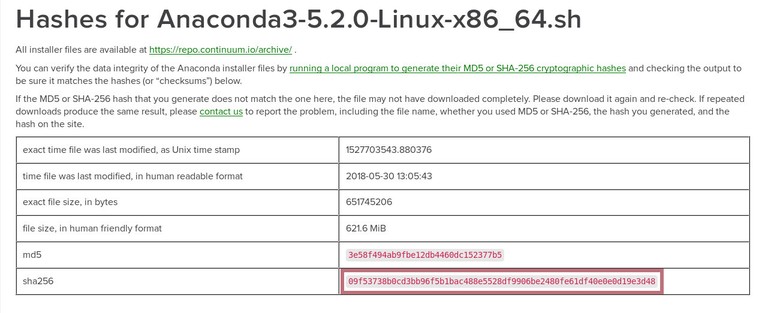
Run the Anaconda Installation Script
To start the Anaconda installation process run the installation script:
Terminalbash Anaconda3-5.2.0-Linux-x86_64.shYou should see an output like the following:
outputWelcome to Anaconda3 5.2.0 In order to continue the installation process, please review the license agreement. Please, press ENTER to continuePress
ENTERto continue and then pressENTERto scroll through the license. Once you’re done reviewing the license, you’ll be asked to approve the license terms:outputDo you approve the license terms? [yes|no]Type
yesto accept the license and you’ll be prompted to choose the installation location.outputAnaconda3 will now be installed into this location: /home/linuxize/anaconda3 - Press ENTER to confirm the location - Press CTRL-C to abort the installation - Or specify a different location belowThe default location is fine for most users, press
ENTERto confirm the location and installation process will continue.The installation may take some time and once it is completed, the following output will be displayed:
outputInstallation finished. Do you wish the installer to prepend the Anaconda3 install location to PATH in your /home/linuxize/.bashrc ? [yes|no]If you want to use the
condacommand typeyespressENTERand you’ll be presented the following output:outputAppending source /home/linuxize/anaconda3/bin/activate to /home/linuxize/.bashrc A backup will be made to: /home/linuxize/.bashrc-anaconda3.bak For this change to become active, you have to open a new terminal. Thank you for installing Anaconda3!The installer will also ask you whether you would like to download and install Visual Studio Code.
outputAnaconda is partnered with Microsoft! Microsoft VSCode is a streamlined code editor with support for development operations like debugging, task running and version control. To install Visual Studio Code, you will need: - Administrator Privileges - Internet connectivity Visual Studio Code License: https://code.visualstudio.com/license Do you wish to proceed with the installation of Microsoft VSCode? [yes|no]You can find more information about Visual Studio on the editor website . If you want to install Visual Studio Code type
yesotherwise typeno.To activate the Anaconda installation load the new
PATHenvironment variable which was added by the Anaconda installer into the current shell session with the following command:Terminalsource ~/.bashrcVerify the Installation
You can verify your Anaconda installation using the
condacommand. For example to display information about current conda install type:Terminalconda infooutputactive environment : None user config file : /home/linuxize/.condarc populated config files : conda version : 4.5.4 conda-build version : 3.10.5 python version : 3.6.5.final.0 base environment : /home/linuxize/anaconda3 (writable) channel URLs : https://repo.anaconda.com/pkgs/main/linux-64 https://repo.anaconda.com/pkgs/main/noarch https://repo.anaconda.com/pkgs/free/linux-64 https://repo.anaconda.com/pkgs/free/noarch https://repo.anaconda.com/pkgs/r/linux-64 https://repo.anaconda.com/pkgs/r/noarch https://repo.anaconda.com/pkgs/pro/linux-64 https://repo.anaconda.com/pkgs/pro/noarch package cache : /home/linuxize/anaconda3/pkgs /home/linuxize/.conda/pkgs envs directories : /home/linuxize/anaconda3/envs /home/linuxize/.conda/envs platform : linux-64 user-agent : conda/4.5.4 requests/2.18.4 CPython/3.6.5 Linux/4.15.0-22-generic ubuntu/18.04 glibc/2.27 UID:GID : 1000:1000 netrc file : None offline mode : False

Updating Anaconda
Updating the Anaconda is a pretty straight forward process, first update the conda tool with:
conda update condaWhen prompted to confirm the update, type y to proceed.
Once conda is updated, proceed with the Anaconda update:
conda update anacondaSame as with the previous command, when prompted, type y to proceed.
You should regularly update your Anaconda installation.
Uninstalling Anaconda
If you want to uninstall Anaconda from your Ubuntu system, follow the steps below:
Remove the Anaconda install directory.
To remove the entire Anaconda installation directory type:
Terminalrm -rf ~/anaconda3Edit the PATH environment variable.
Edit the
~/.bashrcfile and remove the Anaconda directory from the PATH environment variable:~/.bashrcsh# added by Anaconda3 installer export PATH="/home/linuxize/anaconda3/bin:$PATH"Remove the hidden files.
The following
rmcommand will remove the hidden files and folders that have been created in your user home directory:Terminalrm -rf ~/.condarc ~/.conda ~/.continuum
Conclusion
Now that you have downloaded and installed Anaconda your Ubuntu system, you can check the official Getting started with conda guide.
If you hit a problem or have feedback, leave a comment below.
Linuxize Weekly Newsletter
A quick weekly roundup of new tutorials, news, and tips.
About the authors

Dejan Panovski
Dejan Panovski is the founder of Linuxize, an RHCSA-certified Linux system administrator and DevOps engineer based in Skopje, Macedonia. Author of 800+ Linux tutorials with 20+ years of experience turning complex Linux tasks into clear, reliable guides.
View author page