How to Open a Port in the Firewall on Linux
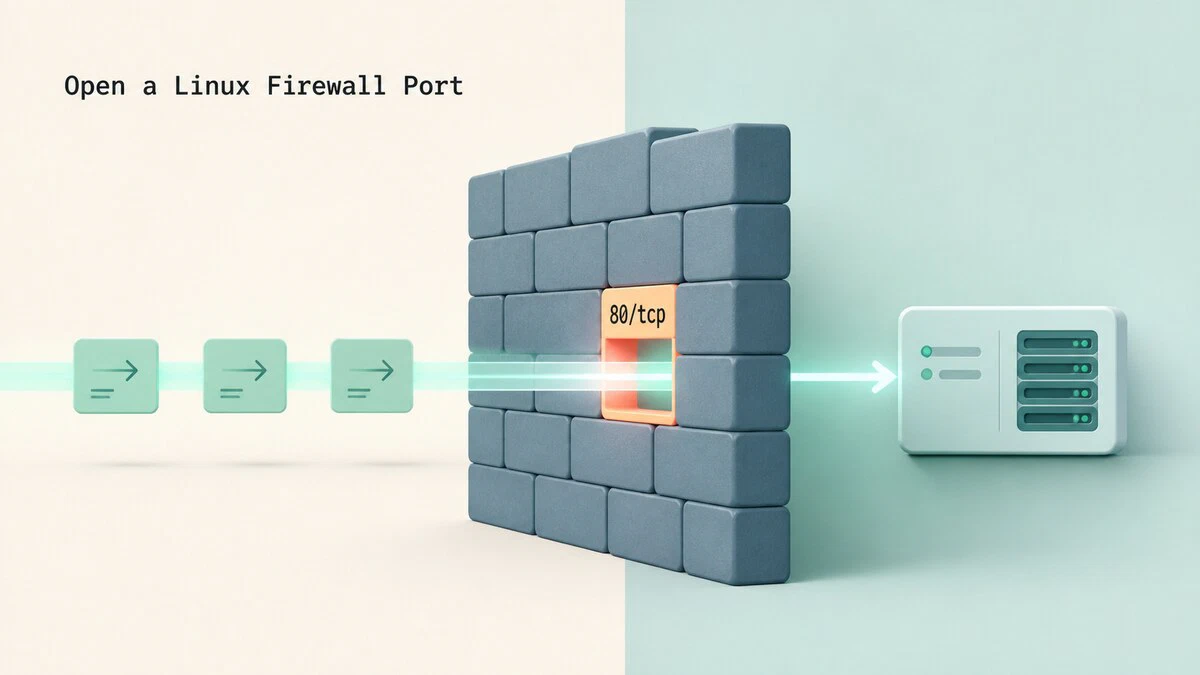
When a service works locally but cannot be reached from another machine, the host firewall is one of the first places to check. Opening the port tells the firewall to accept matching traffic, but it does not start the service or change the address on which it listens.
This guide shows how to open a port with ufw, firewalld, nftables, and legacy iptables rules, make the change persistent, and test the connection from another host.
Quick Reference
For a printable quick reference, see the ufw cheatsheet , firewalld cheatsheet , and iptables cheatsheet .
| Task | Command |
|---|---|
| Check ufw | sudo ufw status |
| Check firewalld | sudo firewall-cmd --state |
| Find the active firewalld zone | sudo firewall-cmd --get-active-zones |
| Open TCP port 80 with ufw | sudo ufw allow 80/tcp |
| Open TCP port 80 with firewalld | sudo firewall-cmd --zone=public --add-port=80/tcp |
| Add a permanent firewalld rule | sudo firewall-cmd --permanent --zone=public --add-port=80/tcp |
| Inspect nftables rules | sudo nft -a list ruleset |
| Open TCP port 80 with iptables | sudo iptables -I INPUT 1 -p tcp --dport 80 -j ACCEPT |
| Check the local listener | sudo ss -ltnp 'sport = :80' |
| Test from another host | nc -zv server.example.com 80 |
The firewalld example uses the public zone. Replace it with the zone attached to your incoming network interface. Raw nftables rules use administrator-defined table and chain names, so inspect the ruleset before changing it.
Check Whether the Service Is Listening
Before changing the firewall, confirm that the service is listening on the expected TCP port. This example checks port 80:
sudo ss -ltnp 'sport = :80'If the command returns no output, nothing is listening on that port. Start or reconfigure the service before changing the firewall. If the local address is 127.0.0.1:80 or [::1]:80, the service accepts only local connections. Configure it to listen on the server’s network address, such as 0.0.0.0:80 or [::]:80, when remote access is required.
For a UDP service, replace -ltnp with -lunp. The ss command guide
covers socket filters and listener output in more detail.
Identify the Active Firewall
Use the firewall manager that is already active on the system. Do not add raw nftables or iptables rules alongside ufw or firewalld, because the manager may replace or reorder them during a reload.
On Ubuntu and systems configured with ufw, check its status:
sudo ufw statusUse the ufw section when the output begins with Status: active. An inactive ufw configuration is not enforcing its saved rules.
On Fedora, RHEL, and derivatives, check firewalld:
sudo firewall-cmd --stateIf the command prints running, use the firewalld section. When neither manager is active, check whether the system loads a raw nftables configuration:
sudo systemctl is-active nftablesAn active result means the nftables service is running. If all three checks are inactive or unavailable, the machine may not have an active host firewall. A cloud firewall, security group, or router can still block incoming traffic before it reaches the server.
Opening a Port with ufw
Ubuntu uses ufw as its default firewall configuration tool, and it is also available on Debian. To allow TCP traffic on port 80, run:
sudo ufw allow 80/tcpThe rule takes effect immediately when ufw is active and remains in place after a reboot. Replace tcp with udp when the application uses UDP.
You can also use a service name from /etc/services. The following rule opens the standard HTTP port:
sudo ufw allow httpDo not expose a database or an administration port to every source unless the service is meant to be public. To allow one address to reach PostgreSQL on port 5432, use:
sudo ufw allow proto tcp from 203.0.113.10 to any port 5432Replace 203.0.113.10 with the client address. You can also provide a CIDR range, such as 192.168.1.0/24, when a trusted network needs access.
For a TCP port range, separate the first and last ports with a colon:
sudo ufw allow 6000:6007/tcpList the rules with their numbers to confirm the change:
sudo ufw status numberedStatus: active
To Action From
-- ------ ----
[ 1] 80/tcp ALLOW IN Anywhere
[ 2] 80/tcp (v6) ALLOW IN Anywhere (v6)The two entries allow port 80 over IPv4 and IPv6. For more examples, including deleting a rule, see the ufw command guide .
ufw over SSH, allow the SSH service or its custom port first. Otherwise, sudo ufw enable can block the connection and leave you dependent on console access.Opening a Port with firewalld
firewalld organizes rules into zones, and each network interface or source is assigned to a zone. Find the zone that receives the incoming connection before adding the rule:
sudo firewall-cmd --get-active-zonespublic
interfaces: enp1s0This server uses the public zone for traffic arriving on enp1s0. Open TCP port 80 in the runtime configuration so the change takes effect immediately:
sudo firewall-cmd --zone=public --add-port=80/tcpAdd the same rule to the permanent configuration so it survives a reload or reboot:
sudo firewall-cmd --permanent --zone=public --add-port=80/tcpRunning both commands avoids reloading the entire firewall and does not disturb unrelated runtime-only rules. If your interface belongs to another zone, replace public in both commands.
For standard services, a named service is easier to read than a port number. These commands allow HTTP immediately and permanently:
sudo firewall-cmd --zone=public --add-service=http
sudo firewall-cmd --permanent --zone=public --add-service=http
A port range works the same way, except that firewalld separates the two ports with a hyphen rather than the colon ufw expects. These commands open TCP ports 6000 through 6007:
sudo firewall-cmd --zone=public --add-port=6000-6007/tcp
sudo firewall-cmd --permanent --zone=public --add-port=6000-6007/tcp
Query the active zone to confirm that the port rule is present:
sudo firewall-cmd --zone=public --query-port=80/tcpyesWhen you add http as a named service, verify it with sudo firewall-cmd --zone=public --query-service=http instead.
Opening a Port with nftables
Use raw nft commands only when nftables itself manages the firewall. ufw and firewalld can also use nftables as a backend, but their rules should still be changed through ufw or firewall-cmd.
Unlike iptables, nftables does not create standard table and chain names. Display the current ruleset, including rule handles, before adding anything:
sudo nft -a list rulesetThe following example assumes the ruleset contains an inet table named filter and an input chain named input. It inserts an allow rule at the beginning of that chain so an existing catch-all drop rule cannot match first:
sudo nft insert rule inet filter input tcp dport 80 acceptSubstitute the family, table, and chain names shown on your system. The command changes the running ruleset immediately, but it does not update the configuration loaded during boot.
On Debian, persistent nftables rules are normally stored in /etc/nftables.conf. Add the equivalent rule inside the existing input chain, before its final drop or reject rule:
tcp dport 80 acceptValidate the complete file before loading it:
sudo nft --check --file /etc/nftables.confIf the check produces no error, apply the file and enable the service at boot:
sudo nft --file /etc/nftables.conf
sudo systemctl enable nftables
Some systems split the rules across files included from /etc/nftables.conf. In that case, edit the file that defines the input chain rather than adding a second copy of the chain.
Opening a Port with iptables
iptables is the legacy interface and is often a compatibility front end for nftables on current distributions. Prefer ufw, firewalld, or native nftables for a new firewall, but use iptables syntax when maintaining an existing iptables ruleset.
Insert an IPv4 rule at the top of the INPUT chain to allow TCP port 80:
sudo iptables -I INPUT 1 -p tcp --dport 80 -j ACCEPTUsing -I INPUT 1 places the rule before a later rule that drops unmatched traffic. List the chain with rule numbers to verify its position:
sudo iptables -L INPUT -n --line-numbersThe running rule disappears after a reboot unless the system restores it. On Ubuntu and Debian, install the persistence package and save the current ruleset:
sudo apt install iptables-persistent
sudo netfilter-persistent save
The iptables command affects IPv4 only. If the service also accepts IPv6 connections, add the equivalent rule with ip6tables and save again:
sudo ip6tables -I INPUT 1 -p tcp --dport 80 -j ACCEPT
sudo netfilter-persistent save
See the iptables command guide when you need to inspect, remove, or reorder existing rules.
Verifying the Port Is Reachable
After applying the firewall rule, check the local listener again:
sudo ss -ltnp 'sport = :80'Then test from another machine that should be allowed through the firewall. Replace the hostname and port with your server details:
nc -zv server.example.com 80A successful connection confirms that the service is listening and the network path permits the traffic. A timeout usually points to a firewall, routing, or upstream network filter. Connection refused usually means the host is reachable but nothing accepts the connection on that address and port.
For additional remote tests with nmap, netcat, and Bash, see how to check open ports in Linux
.
Troubleshooting
The firewall rule exists, but the port is still unreachable
Run sudo ss -ltnp 'sport = :80' and inspect the local address. A service bound only to 127.0.0.1 or ::1 cannot accept remote connections.
The ufw rule does not filter any traffic
Check sudo ufw status. Rules are saved while ufw is inactive, but they are not enforced until you enable the firewall.
The firewalld rule is in the wrong zone
Compare sudo firewall-cmd --get-active-zones with the zone used in the command. Add the rule to the zone attached to the incoming interface or source.
The rule uses the wrong protocol
TCP and UDP rules are separate. Check the application’s documentation or use ss -ltnp for TCP and ss -lunp for UDP before adding the rule.
A cloud server still blocks the port
Cloud security groups and provider firewalls operate outside the Linux host. Allow the same port and source in the provider control panel. A server behind a router may also need a port-forwarding rule before internet clients can reach it.
Conclusion
Open only the port, protocol, and source range the service needs. Check both the local listener and a remote connection after every change, and remove temporary rules when the service no longer requires them.
Linuxize Weekly Newsletter
A quick weekly roundup of new tutorials, news, and tips.
About the authors

Dejan Panovski
Dejan Panovski is the founder of Linuxize, an RHCSA-certified Linux system administrator and DevOps engineer based in Skopje, Macedonia. Author of 1000+ Linux tutorials with 20+ years of experience turning complex Linux tasks into clear, reliable guides.
View author page