How to Show Line Numbers in Vim and Vi

When editing code, configuration files, or scripts in Vim, line numbers make it easier to jump to a specific line, review errors, and discuss changes with another person.
Vim does not show line numbers by default. You can enable them for the current session with :set number, or show them in every file you open by adding set number to your .vimrc file.
This guide explains how to show, hide, and toggle line numbers in Vim and Vi, and how to make your choice the default.
Quick Reference
For a printable quick reference, see the Vim cheatsheet .
| Task | Command |
|---|---|
| Show absolute line numbers | :set number |
| Hide absolute line numbers | :set nonumber |
| Toggle absolute line numbers | :set number! |
| Show relative line numbers | :set relativenumber |
| Hide relative line numbers | :set norelativenumber |
| Show hybrid line numbers | :set number relativenumber |
| Check current absolute setting | :set number? |
| Find what changed a setting | :verbose set number? |
| Show line numbers by default | Add set number to ~/.vimrc |
| Show line numbers by default in classic vi | Add set number to ~/.exrc |
| Show line numbers by default in Neovim | Add vim.opt.number = true to ~/.config/nvim/init.lua |
Absolute Line Numbers
Absolute line numbering displays the actual line number next to each line of text.
To activate the line numbering, set the number flag:
Press the
Esckey to switch to normal mode.Press
:(colon) and the cursor will move at the bottom left corner of the screen. Typeset numberorset nuand hitEnter.vi:set number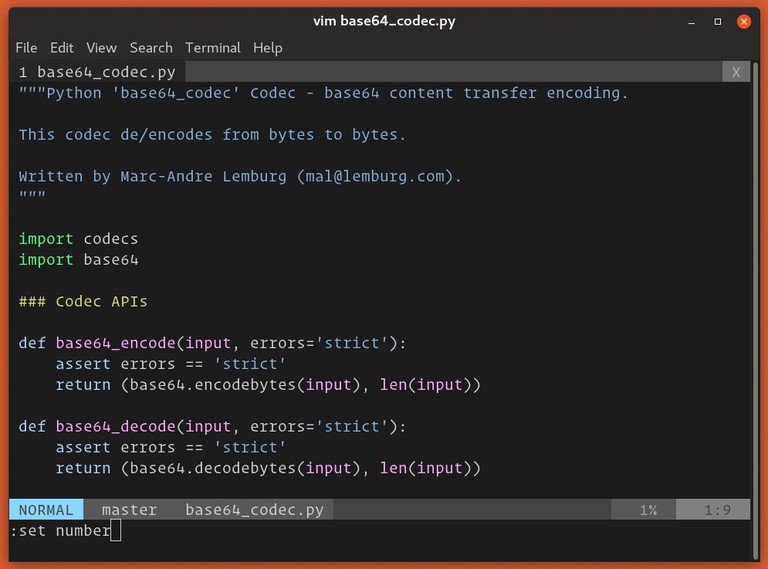
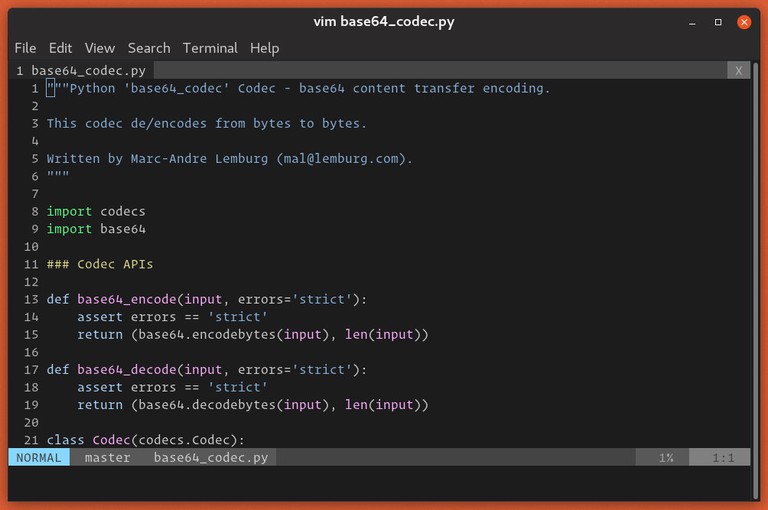
Line numbers will be displayed at the left side of the screen:


To disable absolute line numbers, run the :set nonumber or set nonu commands:
:set nonumberYou can also toggle the line numbers with :set number! or :set nu!:
:set number!All of these commands apply to the current Vim session only. Once you close the editor, the setting is gone. To keep the numbers for every file you open, see Show Line Numbers by Default .
Relative Line Numbers
When the relative line numbering is enabled, the current line is shown as 0. The lines above and below from the current line are incrementally numbered (1, 2, 3, etc.).
Relative line numbers were added in Vim 7.3 and are also available in Neovim. Classic vi supports number but not relativenumber. BusyBox vi supports neither option.
Relative line mode is handy because many Vim operations, such as moving up/down and deleting lines work on relative line numbers.
For example, to delete the current line and the ten lines below it
, use d10j. Vim includes both ends of a linewise motion, so the command removes 11 lines in total. Relative numbers let you see the 10 target before you run the command.
To enable the relative line numbering, switch to the command mode and enter :set relativenumber or :set rnu:
:set relativenumber
To disable the relative line numbering, type :set norelativenumber or set nornu:
:set norelativenumberTo toggle the relative line numbering, use the :set relativenumber! or :set rnu! command:
:set relativenumber!You can check the current setting with:
:set relativenumber?Hybrid Line Numbers
In Vim 7.4 and later, enabling both the absolute and relative line numbers at the same time sets up the hybrid line number mode.
Hybrid line numbering is the same as the relative line numbering with the only difference being that the current line instead of showing 0 shows its absolute line number.
To turn on the hybrid line numbering, run both the number and relativenumber commands:
:set number relativenumberThe short version is:
:set nu rnu
Vim prints the number on the cursor line left-aligned in the column, while the relative numbers around it stay right-aligned. That small difference is what tells you at a glance which line you are on.
The same can be achieved by running the commands one by one:
:set number
:set relativenumber
To disable hybrid mode, turn off both the absolute and relative numbering:
:set nonumber norelativenumberShow Line Numbers by Default
Commands such as :set number apply only to the current Vim session. To show line numbers every time you open Vim, add the setting to your .vimrc file.
Open the Vim configuration file:
vim ~/.vimrcMost systems do not ship a ~/.vimrc, so Vim opens an empty buffer and writes the file when you save. This is the usual reason a setting does not survive a restart: the command was typed at the : prompt but never made it into a configuration file.
Add this line to enable absolute line numbers by default:
set numberIf you prefer relative line numbers, add:
set relativenumberFor hybrid numbering, where the current line shows its absolute number and nearby lines show relative numbers, add both settings:
set number
set relativenumber
To toggle line numbers with a key, add a mapping like this:
nnoremap <F2> :set number!<CR>Write the file and quit with :x, then reopen any file to confirm the numbers are there. If you are new to the editor, saving and exiting Vim
covers the write and quit commands in detail.
Classic Vi
Classic vi reads ~/.exrc instead of ~/.vimrc. Add the same setting to that file:
set numberThis enables absolute line numbers in vi implementations that provide the number option. BusyBox vi does not provide it, so it cannot show a line-number column.
Neovim
Neovim does not read ~/.vimrc by default. On Linux, it looks for init.lua or init.vim in $XDG_CONFIG_HOME/nvim. When XDG_CONFIG_HOME is not set, the directory defaults to ~/.config/nvim. Run :echo stdpath('config') inside Neovim to confirm the active directory.
The examples below use the default ~/.config/nvim path. Create the directory if it is missing, then set the options through vim.opt:
vim.opt.number = true
vim.opt.relativenumber = true
Neovim also supports Vimscript configuration. The syntax in init.vim is the same one you would write in .vimrc:
set numberKeep one file or the other. Neovim refuses to start with both in place and reports E5422: Conflicting configs.
System-Wide Settings
To turn line numbers on for every user on the machine, edit the system configuration file rather than your own. On Debian and Ubuntu that file is /etc/vim/vimrc, and on Fedora and RHEL it is /etc/vimrc:
sudo vim /etc/vim/vimrcVim reads the system file first and your personal ~/.vimrc after it, so any user can still turn the numbers back off.
Troubleshooting
Line numbers disappear after you close Vim:set number lasts only for the current session. Put set number in ~/.vimrc so the option is applied at startup, and check that the file is really there with ls -l ~/.vimrc.
The setting is in .vimrc but Vim ignores it
Run :verbose set number? inside Vim. It prints the current value along with the file and line that set it last. If the answer points at a plugin or a file under /usr/share/vim, something loaded after your .vimrc and overrode the option.
Numbers show in Vim but not under sudosudo vim runs the editor as root, and with the usual env_reset sudo configuration HOME points at root’s home directory, so Vim reads /root/.vimrc instead of yours. Use sudoedit /path/to/file to edit the file as yourself with your own settings.
Relative numbers are not availablerelativenumber needs Vim 7.3 or later. Classic vi supports absolute line numbers through number, while BusyBox vi supports neither numbering option. If :set number also fails, use Vim instead of the cut-down vi implementation.
The number column takes up too much space
The column is four characters wide by default and grows on its own once a file passes 999 lines. Narrow it with :set numberwidth=3, or widen it up to 20 for very long files.
Conclusion
Use :set number when you need absolute line numbers for the current Vim session. Add set number to ~/.vimrc when you want Vim to show line numbers every time it starts. Relative numbers pay off most with range commands, such as commenting multiple lines in Vim
.
Tags
Linuxize Weekly Newsletter
A quick weekly roundup of new tutorials, news, and tips.
About the authors

Dejan Panovski
Dejan Panovski is the founder of Linuxize, an RHCSA-certified Linux system administrator and DevOps engineer based in Skopje, Macedonia. Author of 1000+ Linux tutorials with 20+ years of experience turning complex Linux tasks into clear, reliable guides.
View author page