How to Uninstall Software Packages on Ubuntu

Sometimes you might install an application on Ubuntu, and after trying it, you decide the app is not for you. In this case, you will probably want to uninstall the package.
This guide covers uninstalling packages through the command line using apt and through the graphical Ubuntu Software application.
Only the root user or a user with sudo
privileges can uninstall packages on Ubuntu.
Uninstalling Packages Using Ubuntu Software
If the command-line is not your thing, you can uninstall applications through the Ubuntu Software application. This tool provides a graphical interface to find, install, and remove apps.
In the Activities screen, search for “Ubuntu Software” and click on its icon to open it.
To get a list of all installed applications, click on the “Installed” tab at the top navigation bar.
Scroll down until you find the application you want to uninstall and click on the “Remove” button next to it.
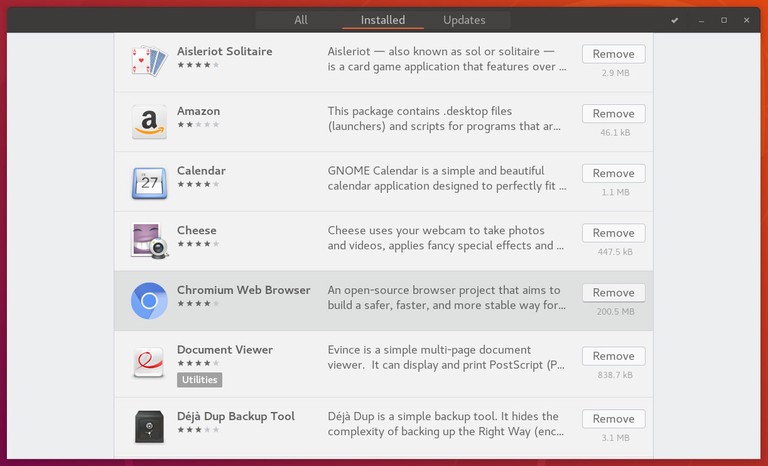

The Ubuntu Software tool shows only installed applications that have a graphical user interface (GUI). If you cannot find the package that you want to uninstall, then you should remove the package from the command line.
Uninstalling Packages using the Command Line
Everything you can do using the GUI tools, you can do from the command line. In fact, the command line gives you more options and control for uninstalling the software packages.
You can open your terminal either by using the Ctrl+Alt+T keyboard shortcut or by clicking on the terminal icon.
Before uninstalling the software package, you must first find the exact package name. To get a list of all installed packages on your system, run:
apt list --installedThe command will print a long list of the installed packages. It might be a good idea to pipe the output to less
to make it easier to read. Or you can use grep
to filter the results.
On Ubuntu, Debian, and related Linux distributions, you can install, update, uninstall, and otherwise manage software packages using the apt
and apt-get command-line utilities. The syntax of both commands is identical.
To remove an installed package, run the following command:
sudo apt remove package_nameReplace package_name with the name of the package you want to remove.
The older apt-get command works the same way:
sudo apt-get remove package_nameYou can also uninstall multiple packages by separating their names with spaces:
sudo apt remove package1 package2The remove command uninstalls the package but may leave system-wide configuration files behind. If you also want to remove those configuration files, use purge instead of remove:
sudo apt purge package_nameUninstall Snap Packages
If the application you want to uninstall is not listed when running apt list --installed, it was probably installed as a snap package.
To list all installed snap packages, run the following command:
snap listOnce you know the exact package name you can uninstall it by typing:
sudo snap remove package_nameUninstall Unused Packages
Whenever you install a new package that depends on other packages, the package dependencies will be installed too. When the package is uninstalled, the dependency packages will stay on the system. These leftover packages are no longer used by anything else and can be removed.
You can remove the unneeded packages with:
sudo apt autoremoveConclusion
We have shown you how to remove packages on Ubuntu using apt from the command line and through the Ubuntu Software application. Use apt purge when you want to remove configuration files along with the package, and apt autoremove to clean up unused dependencies.
Linuxize Weekly Newsletter
A quick weekly roundup of new tutorials, news, and tips.
About the authors

Dejan Panovski
Dejan Panovski is the founder of Linuxize, an RHCSA-certified Linux system administrator and DevOps engineer based in Skopje, Macedonia. Author of 1000+ Linux tutorials with 20+ years of experience turning complex Linux tasks into clear, reliable guides.
View author page