How to Select All in Vim: Copy, Delete, or Yank Every Line
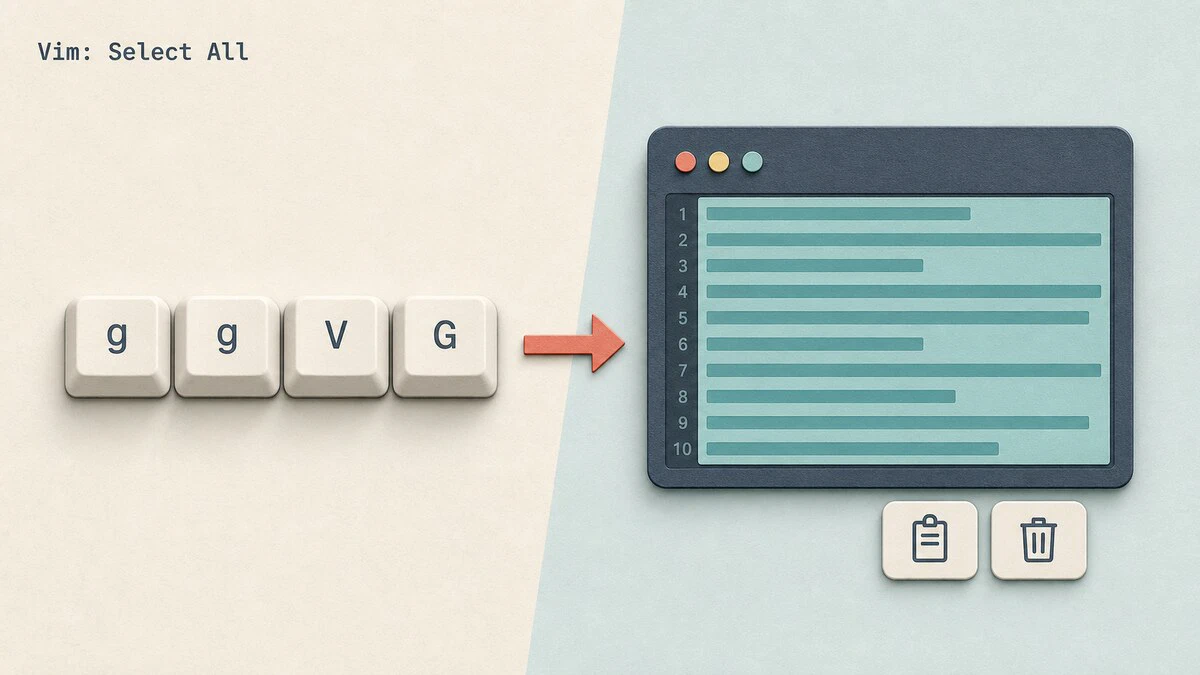
Sooner or later you will need to grab the entire contents of a file open in Vim, whether to paste a config file into a support ticket, move a script into another editor, or wipe everything and start over. In most editors that is Ctrl+A followed by Ctrl+C. Vim does not work that way, and pressing Ctrl+A increments the next number at or after the cursor instead of selecting text.
The quickest way to select all text in Vim is the ggVG command sequence in normal mode. This guide explains how it works and how to copy, delete, or run other commands on every line in the file, including copying the whole file to the system clipboard.
Selecting All Text with ggVG
To select all text in Vim, make sure you are in normal mode (press Esc if you are not), then type ggVG. The sequence is three separate commands executed one after another:
gg- Move the cursor to the first line of the fileV- Start line-wise visual modeG- Jump to the last line, extending the selection over the whole file
Every line in the file is now highlighted. From here, Vim waits for an operator: press y to yank (copy) the selection, d to delete it, or any other visual mode command. To cancel the selection without doing anything, press Esc.
Copying (Yanking) All Lines
With the whole file selected, press y to yank it into Vim’s default register. The full sequence is ggVGy. You can then paste the text elsewhere in the same Vim session with p.
Visual mode is not required, though. If you already know you want to copy everything, the ex command :%y does the same thing without moving the cursor:
:%yThe % range means “all lines”, so :%y yanks the entire file into the default register in one step. The normal mode equivalent is ggyG, which yanks from the first line to the last without entering visual mode.
To duplicate the whole file below itself, run :%y followed by G and p: yank all lines, jump to the end, and paste.
Copying All Lines to the System Clipboard
Yanked text normally stays inside Vim. To paste the file into a browser, email, or another application, copy it to the system clipboard using the "+ register:
ggVG"+y- Select all, then yank the selection to the system clipboardgg"+yG- Yank all lines to the system clipboard without visual mode:%y+- Yank all lines to the system clipboard with an ex command
After any of these, paste into the other application with the regular paste shortcut for your desktop environment.
"+ register requires native clipboard support or an active clipboard provider, such as OSC 52. Check for native support with vim --version | grep -ow '[+-]clipboard'. If the output shows -clipboard, you can add native support by installing a build such as vim-gtk3 on Debian and Ubuntu systems or vim-X11 on Fedora. On Fedora, start Vim with the vimx command to use the clipboard.If installing another Vim build is not an option, you can pipe the buffer to a clipboard utility instead. On X11 systems with xclip installed:
:%w !xclip -selection clipboardThis writes the whole buffer to the xclip command, which places it on the clipboard. On Wayland, use wl-copy from the wl-clipboard package the same way:
:%w !wl-copyBoth utilities need a graphical session on the machine where Vim runs. On a remote server you reach over SSH, there is usually no such session, and the text does not reach the clipboard on your own computer. Vim 9.1.1984 and newer can copy to the local clipboard through the terminal using OSC 52.
For more on registers, clipboard setup, and copying over SSH, see How to Copy, Cut and Paste in Vim .
Deleting All Lines
To select everything and delete it, use ggVGd, or skip visual mode with ggdG (move to the first line, then delete to the last line). The fastest option is again the ex command with the % range:
:%dAll lines are removed and the file is left with a single empty line. If you run :%d by accident, press u to undo
the change. The deleted text also lands in the default register, so you can paste it into another file with p.
To delete every line without replacing the current contents of the unnamed register, send the deleted text to the black hole register:
:%d _This preserves whatever was already available for pasting with p.
For ranges, patterns, and more deletion commands, see How to Delete Lines in Vim .
Running Other Commands on the Whole File
Selecting all text is not limited to copy and delete. With ggVG active, any visual mode operator applies to the entire file:
ggVG=- Re-indent every line (same asgg=G)ggVGu- Convert the whole file to lowercaseggVGU- Convert the whole file to uppercaseggVG>- Shift every line one indent level to the right
For find and replace across the whole file, you do not need a selection at all: the substitute command takes the same % range, as in :%s/old/new/g. See Vim Find and Replace
for the full syntax.
Selecting All in Vi
On most Linux distributions and on macOS, the vi command starts Vim. On Debian and Ubuntu, vi runs either the full vim package or a smaller build called vim.tiny, and Fedora and RHEL use vim-minimal. All of them support ggVG and the other commands in this guide.
The "+ register is the exception. The default Linux builds do not include clipboard support, so use the xclip or wl-copy commands shown above to copy the file out of vi.
Alpine Linux, including Alpine-based Docker images, uses BusyBox vi. It does not support visual mode, and pressing V shows the 'V' is not implemented message. Use the commands that do not need visual mode instead:
ggyG- Yank all linesggdG- Delete all lines:%y- Yank all lines with an ex command:%d- Delete all lines with an ex command
BusyBox vi has no access to the system clipboard. To copy the whole file, save the file and exit the editor, print the file with cat
, and select the output in your terminal.
Quick Reference
For a printable quick reference, see the Vim cheatsheet .
| Command | Description |
|---|---|
ggVG | Select all lines |
ggVGy | Select all and yank (copy) |
ggVGd | Select all and delete |
ggVG"+y | Select all and copy to the system clipboard |
ggyG | Yank all lines without visual mode |
ggdG | Delete all lines without visual mode |
:%y | Yank all lines (ex command) |
:%y+ | Yank all lines to the system clipboard |
:%d | Delete all lines |
:%d _ | Delete all lines without replacing the unnamed register |
gg=G | Re-indent the whole file |
:%s/old/new/g | Replace across the whole file |
u | Undo the last change |
Conclusion
Use ggVG when you want to see the whole-file selection before choosing an operator. When the action is already clear, the % range is shorter, as in :%y, :%d, or :%s/old/new/g. For selecting a smaller block to comment out, see How to Comment Out Multiple Lines in Vim
.
Tags
Linuxize Weekly Newsletter
A quick weekly roundup of new tutorials, news, and tips.
About the authors

Dejan Panovski
Dejan Panovski is the founder of Linuxize, an RHCSA-certified Linux system administrator and DevOps engineer based in Skopje, Macedonia. Author of 1000+ Linux tutorials with 20+ years of experience turning complex Linux tasks into clear, reliable guides.
View author page