What Is /dev/null in Linux
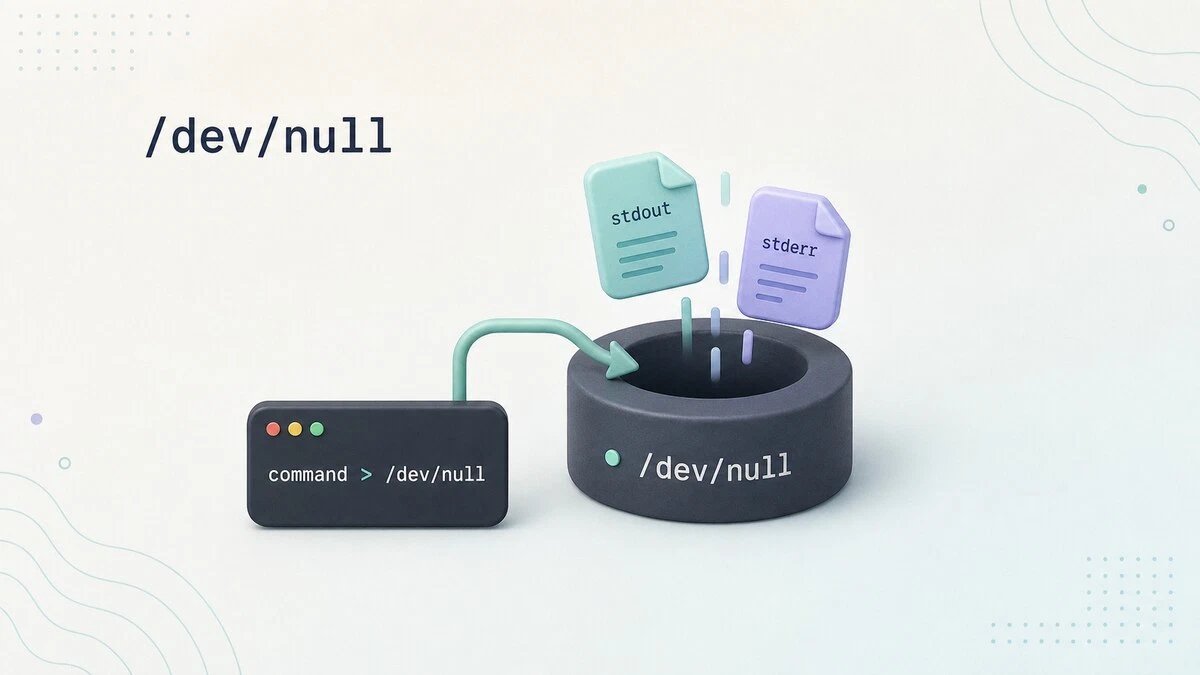
Read through almost any shell script or crontab and you will eventually find something like > /dev/null 2>&1 tacked onto the end of a command. It looks cryptic, but it is one of the most common patterns in Linux, and it does one simple thing: it throws output away. Understanding /dev/null clears up a whole class of these expressions at once.
This guide explains what /dev/null is and shows how to use it to silence command output and empty files.
What /dev/null Is
/dev/null is a special file known as the null device. It is not a regular file on disk, even though it lives in the filesystem at /dev/null. It is provided by the kernel and behaves in two ways:
- Anything written to it is discarded. The data simply disappears, and the write reports success.
- Anything read from it returns end-of-file immediately, so it acts as an empty source.
Because of this, /dev/null is often called the “black hole” of the system. It gives you a place to send output you do not care about, without writing it to a real file or printing it to the screen.
You can see that /dev/null is not a regular file by listing it with ls -l:
ls -l /dev/nullcrw-rw-rw- 1 root root 1, 3 Sep 30 19:31 /dev/nullThe c at the start of the permissions string marks a character device. Where a regular file would show its size, you see 1, 3 instead, the major and minor numbers the kernel uses to identify the null device. The rw-rw-rw- permissions let every user read from and write to it, which is why any command can send output there without sudo.
Reading from /dev/null
Reading from /dev/null immediately returns end-of-file. You can see that by counting how many bytes are available from it:
wc -c < /dev/null0The command prints 0 because there is no input to read. This behavior is useful when a command expects input but you want to give it an empty stream. A common case is running SSH inside a script where it might otherwise consume input meant for the rest of the script. Pointing its standard input at /dev/null makes reads from that stream return end-of-file immediately:
ssh user@host "uptime" < /dev/nullHere ssh reads from /dev/null instead of the script’s own input, so it cannot accidentally swallow lines meant for the rest of the script. The ssh -n option does the same thing, so ssh -n user@host "uptime" works the same way. Neither form prevents SSH from prompting for authentication.
Discarding Standard Output
Every command can produce two output streams
: standard output (stdout) for normal results and standard error (stderr) for error messages. To throw away the normal output of a command while still seeing errors, redirect stdout to /dev/null:
find / -name "*.log" > /dev/nullThis runs the search but discards the list of matching files. Any “Permission denied” messages still appear on screen, because those go to stderr, which is untouched. The > operator on its own redirects stdout, which has the file descriptor number 1, so > /dev/null is the same as 1> /dev/null.
Discarding Standard Error
To do the opposite and hide only the error messages while keeping the normal output, redirect stderr, which is file descriptor 2:
find / -name "*.log" 2> /dev/nullNow the matching files print normally, but the “Permission denied” noise from directories you cannot read is gone. This is a common way to clean up the output of commands that scan large parts of the filesystem.
Discarding Both Streams
When you want a command to run completely silently, send both streams to /dev/null. This is the > /dev/null 2>&1 pattern from the start of the article:
command > /dev/null 2>&1Reading it left to right: > /dev/null sends stdout to the null device, and 2>&1 then sends stderr to wherever stdout currently points, which is /dev/null. The order matters. If you reverse it to 2>&1 > /dev/null, stderr is pointed at the screen first, before stdout is redirected, so error messages still show up.
In the Bash shell there is a shorthand that redirects both streams at once:
command &> /dev/nullKeep in mind that &> is a Bash feature. POSIX shells such as dash, which is /bin/sh on Ubuntu and Debian, read command &> /dev/null as command & followed by a separate > /dev/null with no command attached. The command runs in the background, and its output still goes to the screen. In scripts that start with #!/bin/sh, use the longer > /dev/null 2>&1 form.
This matters most in cron jobs, which is where the pattern shows up most often. A cron job that prints anything tends to generate an email to the owner, so silencing both streams keeps a routine job quiet. Cron uses /bin/sh by default unless the crontab sets SHELL to another shell. The POSIX form works with the default shell:
0 3 * * * /path/to/backup.sh > /dev/null 2>&1For more on writing crontab entries, see the guide on scheduling cron jobs with crontab . For a fuller look at how these streams work, see the guide on redirecting stderr and stdout in Bash .
Emptying a File
Because reading from /dev/null produces no data, you can use it as an empty source to truncate a file. Redirecting it into a file replaces the contents with nothing:
cat /dev/null > app.logThe file app.log still exists, but it is now zero bytes. A shorter version uses an empty redirect, which has the same effect:
> app.logThis is handy for clearing a log file that has grown too large without deleting and recreating it, which keeps the file’s permissions and any open file handles intact. For more ways to do this safely, see the guide on truncating files in Linux .
Quick Reference
| Task | Command |
|---|---|
| Discard standard output | command > /dev/null |
| Discard standard error | command 2> /dev/null |
| Discard both streams in scripts and cron | command > /dev/null 2>&1 |
| Discard both streams in Bash | command &> /dev/null |
| Use an empty input stream | command < /dev/null |
| Empty a file with shell redirection | > file |
Troubleshooting
Output still appears in cron mail
Check whether the crontab entry uses &> /dev/null. Cron uses /bin/sh by default unless you override SHELL in the crontab. If that shell is dash, it treats &> as a background operator followed by a separate redirection. Replace it with > /dev/null 2>&1.
/dev/null is a regular file
If a command running as root deletes /dev/null and something writes to that path before it is recreated, the result is an ordinary file that collects output instead of discarding it. Check the first character of the ls -l output: a working null device starts with c, a regular file with -.
/dev/null is a regular file. It removes that file before creating the device, so if creation fails, /dev/null can remain missing.The following command checks that the path is a regular file rather than a symbolic link, then replaces it with a character device using major number 1, minor number 3, and permissions 666:
sudo sh -c 'test -f /dev/null && test ! -L /dev/null && rm -f /dev/null && mknod -m 666 /dev/null c 1 3'After the repair, verify the device again:
ls -l /dev/nullThe output should start with crw-rw-rw- and show device numbers 1, 3. On typical Linux hosts where /dev is mounted as devtmpfs, a reboot recreates the device filesystem and restores /dev/null. Containers and chroots can manage /dev differently, so reboot recovery does not apply to every environment.
FAQ
What does > /dev/null 2>&1 mean?
It discards all output from a command. > /dev/null sends standard output to the null device, and 2>&1 redirects standard error to the same place, so neither stream prints anything.
What is the difference between > /dev/null and 2> /dev/null?> /dev/null discards standard output and leaves error messages visible. 2> /dev/null discards standard error and leaves normal output visible.
Is /dev/null a real file?
It is a special device file provided by the kernel, not a regular file on disk. Writing to it discards data, and reading from it returns end-of-file immediately.
Are /dev/zero and /dev/null the same?
No. /dev/null returns nothing when read, while /dev/zero returns an endless stream of null bytes. Both discard anything written to them, but only /dev/zero produces data on read.
Conclusion
/dev/null is the standard place to send output you do not want, whether that is silencing a noisy command, keeping a cron job quiet, or emptying a log file. Once the > /dev/null 2>&1 pattern makes sense, most of the redirection you see in scripts becomes easy to read.
Tags
Linuxize Weekly Newsletter
A quick weekly roundup of new tutorials, news, and tips.
About the authors

Dejan Panovski
Dejan Panovski is the founder of Linuxize, an RHCSA-certified Linux system administrator and DevOps engineer based in Skopje, Macedonia. Author of 1000+ Linux tutorials with 20+ years of experience turning complex Linux tasks into clear, reliable guides.
View author page