Linux Wildcards and Globbing Explained
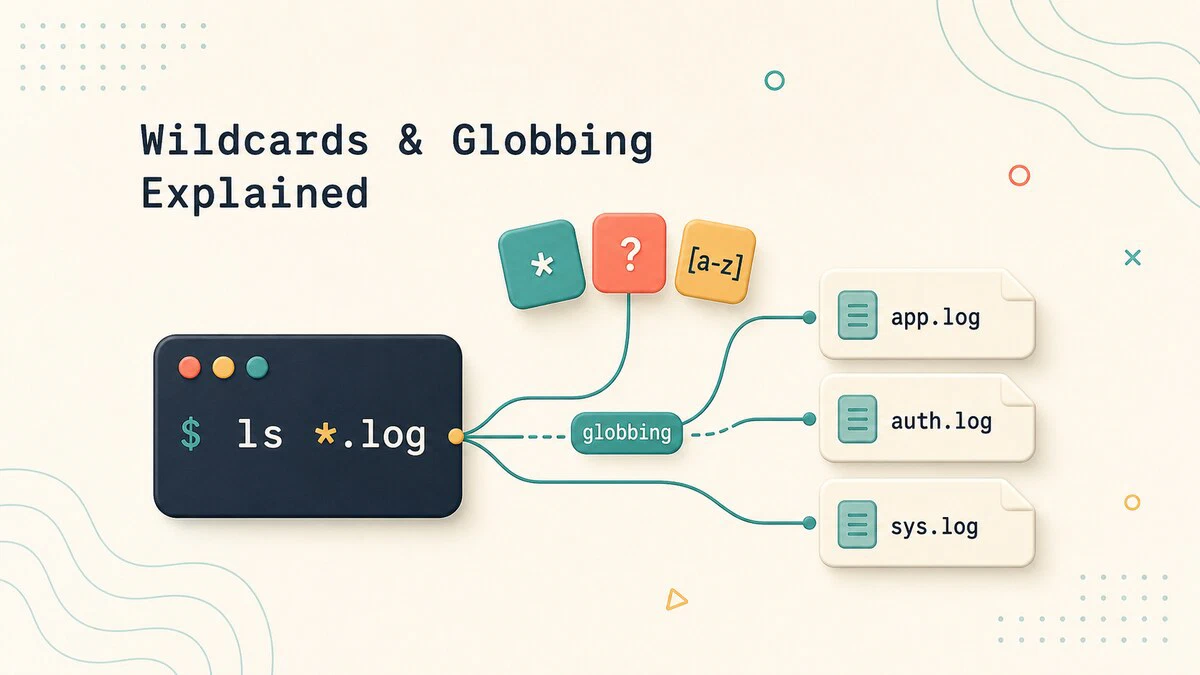
When you type rm *.log and the shell deletes every log file in the directory, the rm command never saw the *. The shell expanded the pattern into a list of matching file names first, then handed those names to rm. This expansion is called globbing, and the special characters that drive it are wildcards. Understanding when and how the shell expands them explains a lot of everyday behavior, including why a pattern sometimes matches nothing, why hidden files are skipped, and why quoting a pattern changes what happens.
This guide explains the wildcard patterns the shell understands, how globbing differs from regular expressions, and how to control expansion when you do not want it.
What Globbing Is
Globbing is the shell’s expansion of wildcard patterns into matching file and directory names, and it happens before the command runs. When you write a command containing *, ?, or [...], the shell looks at the current directory, replaces the pattern with every name that matches, and only then executes the command with that list of names as arguments.
This timing is the key point. The command receives a list of real file names, not the pattern, so a program like ls or rm has no idea a wildcard was ever involved. If no file matches, the shell normally leaves the pattern unchanged and passes the literal text through, which is a common source of confusing errors.
Before using a wildcard with a command that removes or overwrites files, print the expansion first:
printf '%s\n' *.logAfter you confirm the file names, use the same pattern with the command you intended to run.
The Wildcard Characters
Three wildcards cover most patterns you will write.
The asterisk * matches any sequence of characters, including none. List every file ending in .txt:
ls *.txtnotes.txt report.txt todo.txtThe question mark ? matches exactly one character. This matches file1.log and fileA.log but not file10.log, because ? stands for a single character only:
ls file?.logSquare brackets [...] match exactly one character from a set. List files that start with a, b, or c:
ls [abc]*You can give a range inside the brackets with a hyphen, so [0-9] matches any single digit and [a-z] any single lowercase letter:
ls report[0-9].pdfTo match any character except those in the set, begin it with ! (or ^ in bash), so [!0-9]* matches names that do not start with a digit.
Bash also uses shell pattern syntax in case statements
, where patterns match strings instead of expanding file names.
Brace Expansion
Brace expansion is related but works differently: it generates a list of strings from a pattern, whether or not any file matches. The shell expands {a,b,c} into each comma-separated item. This copies a file to two destinations in one command:
cp config.yaml{,.bak}That expands to cp config.yaml config.yaml.bak, a common shortcut for making a quick backup. Braces also take ranges, so {1..5} becomes 1 2 3 4 5:
mkdir project-{1..3}This creates project-1, project-2, and project-3. The important difference from wildcards is that brace expansion does not look at the filesystem; it just produces text. A wildcard only expands to names that actually exist, while braces expand regardless.
Hidden Files and No-Match Behavior
By default, * does not match names beginning with a dot, so ls * skips hidden files like .bashrc. This is deliberate, since it keeps dotfiles out of everyday listings. For a listing that includes hidden files, use ls -A. In Bash, you can also enable dotglob so wildcard patterns include dotfiles.
Be careful with patterns such as .*, especially with destructive commands. Some shells can match . and .. with that pattern, which means “this directory” and “the parent directory.” For hidden file patterns in scripts, prefer a more specific pattern such as .[!.]* when it fits your case.
When a pattern matches nothing, the shell passes the literal pattern to the command, which often produces a “No such file or directory” error mentioning the raw * or ?. Bash can change this with shell options: shopt -s nullglob makes an unmatched pattern expand to nothing instead, and shopt -s failglob makes it an error. These are useful in scripts where an unexpanded pattern would cause a subtle bug.
Globbing Is Not Regular Expressions
Wildcards look like regular expressions but are a different, simpler system, and confusing the two leads to wrong results. The same characters mean different things:
- In globbing,
*means “any sequence of characters.” In a regular expression,*means “zero or more of the preceding character.” - In globbing,
?means “exactly one character.” In a regular expression,?means “zero or one of the preceding character.”
So the glob *.txt and the regex .*\.txt describe the same idea in two different languages. Globbing applies to file name matching by the shell, while regular expressions are used by tools such as grep, sed, and awk to match text within files. See our guide on finding files in Linux
for matching names with find, and on the grep command
for matching text with regular expressions.
POSIX Character Classes
Inside the bracket syntax you can use named POSIX classes, which are clearer than ranges and adapt to locale. They are written as [[:class:]], and the common ones are [:digit:], [:alpha:], [:alnum:], [:upper:], [:lower:], and [:space:]. This matches any file whose name starts with a digit:
ls [[:digit:]]*The double brackets are required: the inner [:digit:] is the class, and the outer [...] is the bracket expression that contains it.
Extended Globbing
Bash offers more powerful patterns when you enable extended globbing with shopt -s extglob. These add grouping and quantifiers that resemble regular expressions. A pattern-list is one or more patterns separated with |, such as @(jpg|png):
?(pattern-list)- Matches zero or one occurrence.*(pattern-list)- Matches zero or more.+(pattern-list)- Matches one or more.@(pattern-list)- Matches exactly one of the given patterns.!(pattern-list)- Matches anything except the pattern.
For example, with extended globbing enabled, ls !(*.txt) lists every file that does not end in .txt, which is awkward to express otherwise:
shopt -s extglob
ls !(*.txt)
If you use extended globs in a bash -c one-liner, enable extglob before the shell parses the line that contains the pattern. One simple approach is to start Bash with the option already enabled:
bash -O extglob -c 'ls !(*.txt)'Prevent Expansion with Quoting
Because the shell expands wildcards before the command runs, you must quote a pattern when you want the command to receive it literally. A tool like find does its own pattern matching, so you quote the pattern to stop the shell from expanding it first:
find . -name "*.log"Without the quotes, the shell would expand *.log against the current directory before find ever saw it, and find would search for the wrong names. Single quotes, double quotes, or a backslash before the wildcard all prevent globbing.
Quick Reference
| Pattern or option | Meaning |
|---|---|
* | Any sequence of characters, including none |
? | Exactly one character |
[abc] | One character from the set |
[a-z] | One character in the range |
[!abc] | One character not in the set |
[[:digit:]] | One character in the POSIX class |
{a,b,c} | Each listed string (brace expansion) |
{1..5} | Each value in the range |
!(pattern-list) | Anything but the pattern, with extglob enabled |
shopt -s nullglob | Expand an unmatched pattern to nothing |
shopt -s failglob | Treat an unmatched pattern as an error |
shopt -s dotglob | Include dotfiles in wildcard matches |
FAQ
What is the difference between a wildcard and globbing?
A wildcard is a special character such as * or ?. Globbing is the process the shell performs to expand a pattern containing wildcards into the list of matching file names before running the command.
Why does my wildcard match nothing or cause an error?
When no file matches, the shell passes the literal pattern to the command, which often reports “No such file or directory” with the raw * shown. Confirm the files exist, or set shopt -s nullglob so an unmatched pattern expands to nothing.
Is shell globbing the same as a regular expression?
No. They share characters but assign different meanings: in globbing * is any run of characters, while in regex * is zero or more of the previous character. Globbing matches file names; regex matches text inside files.
Why does * not match hidden files?
By design, * does not match names that begin with a dot, to keep dotfiles out of normal listings. Use ls -A for listings, enable shopt -s dotglob in Bash, or match them with a careful dotfile pattern such as .[!.]*.
Conclusion
Wildcards are patterns and globbing is the shell expanding them into real file names before a command runs, which is why the command never sees the * and why quoting changes the outcome. Keep wildcard syntax separate from regular expressions, preview expansions before destructive commands, and quote patterns whenever a tool should match them itself.
Tags
Linuxize Weekly Newsletter
A quick weekly roundup of new tutorials, news, and tips.
About the authors

Dejan Panovski
Dejan Panovski is the founder of Linuxize, an RHCSA-certified Linux system administrator and DevOps engineer based in Skopje, Macedonia. Author of 1000+ Linux tutorials with 20+ years of experience turning complex Linux tasks into clear, reliable guides.
View author page