Rsync Command in Linux with Examples

Rsync is a fast, versatile command-line utility for synchronizing files and directories between two locations over a remote shell, or via a remote Rsync daemon. It provides fast incremental file transfer by transferring only the differences between the source and the destination.
You can use Rsync for mirroring data, incremental backups, copying files between systems, and as a superior alternative to scp
, sftp
, and cp
commands.
This guide covers how to use Rsync through practical examples and detailed explanations of the most common Rsync options.
Installing Rsync
Rsync comes pre-installed on most Linux distributions and macOS. If missing, install it using your distribution’s package manager.
Install Rsync on Ubuntu, Debian, and Derivatives
sudo apt install rsyncInstall Rsync on Fedora, RHEL, and Derivatives
sudo dnf install rsyncRsync Command Syntax
Rsync commands follow this structure:
# Local to Local:
rsync [OPTION]... [SRC]... DEST
# Local to Remote:
rsync [OPTION]... [SRC]... [USER@]HOST:DEST
# Remote to Local:
rsync [OPTION]... [USER@]HOST:SRC... [DEST]OPTION— The Rsync options (detailed below).SRC— Source path.DEST— Destination path.USER— Remote username.HOST— Remote hostname or IP address.
Rsync Options
| Option | Description |
|---|---|
-a, --archive | Archive mode; equivalent to -rlptgoD. Syncs directories recursively and preserves symbolic links, modification times, groups, ownership, and permissions. |
-z, --compress | Compresses data during transfer. Use only on slow connections — it adds unnecessary overhead on fast networks. |
-P | Equivalent to --partial --progress. Shows a progress bar and keeps partially transferred files. Useful for large files over slow or unstable connections. |
--delete | Deletes files from the destination that no longer exist at the source. Useful for mirroring. |
--dry-run | Simulates the transfer without making any changes. Use this to preview what rsync would do before running it for real. |
-v, --verbose | Prints detailed information about each transferred file. |
-q, --quiet | Suppresses non-error messages. |
-e | Specifies the remote shell to use. Defaults to SSH. |
Basic Usage
The most basic use case of Rsync is to copy a single file locally. Here is an example:
rsync -a /opt/filename.zip /tmp/
The user running the command must have read permissions on the source location and write permissions on the destination.
Omitting the filename from the destination path copies the file with the current name. To save the file under a different name, specify the new name in the destination path:
rsync -a /opt/filename.zip /tmp/newfilename.zipThe real power of Rsync comes when synchronizing directories. The example below shows how to create a local backup of website files:
rsync -a /var/www/domain.com/public_html/ /var/www/domain.com/public_html_backup/If the destination directory does not exist, Rsync will create it.
Rsync treats source paths with a trailing slash (/) differently:
- With
/— Rsync copies only the directory contents into the destination directory. - Without
/— Rsync copies the source directory itself into the destination directory.
Mirror a Directory with –delete
Use the --delete option to make the destination an exact mirror of the source. Files at the destination that no longer exist at the source will be deleted:
rsync -a --delete /var/www/domain.com/public_html/ /var/www/domain.com/public_html_backup/--delete permanently removes files from the destination. Always run with --dry-run first to verify what will be deleted.Dry Run
Before running any rsync command that modifies data — especially one using --delete — use --dry-run to simulate the transfer without making any changes:
rsync -a --dry-run /src_directory/ /dst_directory/Rsync prints the files it would transfer or delete, but does not touch anything on disk. This is the safest way to verify the command before executing it for real.
Remote Synchronization
To transfer data remotely with Rsync, it must be installed on both the source and the destination machine. Rsync uses SSH as the default remote shell.
In the following example, we are transferring a directory from a local to a remote machine:
rsync -a /opt/media/ remote_user@remote_host_or_ip:/opt/media/ssh command guide
.To transfer data from a remote to a local machine, use the remote location as the source:
rsync -a remote_user@remote_host_or_ip:/opt/media/ /opt/media/If SSH on the remote host is listening on a port other than the default 22, specify the port using the -e option:
rsync -a -e "ssh -p 2322" /opt/media/ remote_user@remote_host_or_ip:/opt/media/For large transfers, it is recommended to run the rsync command inside a screen
session or use the -P option to show progress and resume interrupted transfers:
rsync -a -P remote_user@remote_host_or_ip:/opt/media/ /opt/media/Excluding Files and Directories
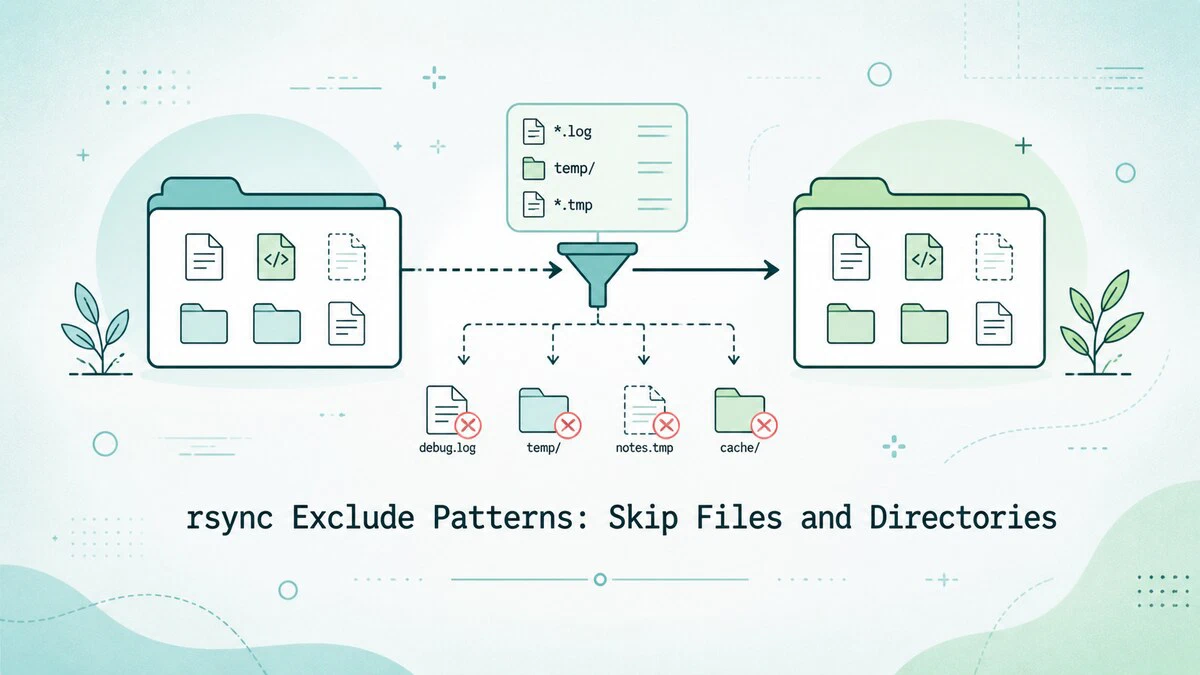
There are two ways to exclude files and directories from an rsync transfer. The first is to use the --exclude option and specify paths on the command line.
When excluding files or directories , use their relative paths to the source location.
The following example excludes the node_modules and tmp directories:
rsync -a --exclude=node_modules --exclude=tmp /src_directory/ /dst_directory/The second option is to use --exclude-from and list the paths to exclude in a file:
rsync -a --exclude-from='/exclude-file.txt' /src_directory/ /dst_directory/node_modules
tmpQuick Reference
| Task | Command |
|---|---|
| Copy a file locally | rsync -a /src/file.zip /dest/ |
| Sync a directory locally | rsync -a /src/ /dest/ |
| Mirror (delete removed files) | rsync -a --delete /src/ /dest/ |
| Dry run (preview only) | rsync -a --dry-run /src/ /dest/ |
| Transfer to remote | rsync -a /src/ user@host:/dest/ |
| Transfer from remote | rsync -a user@host:/src/ /dest/ |
| Show progress | rsync -a -P /src/ /dest/ |
| Use custom SSH port | rsync -a -e "ssh -p 2222" /src/ user@host:/dest/ |
| Exclude a directory | rsync -a --exclude=dir /src/ /dest/ |
| Exclude from file | rsync -a --exclude-from=list.txt /src/ /dest/ |
| Compress during transfer | rsync -a -z /src/ user@host:/dest/ |
For a printable quick reference, see the Rsync cheatsheet .
Troubleshooting
Permission denied
Ensure read permissions are set on the source and write permissions on the destination. For remote transfers, verify that you have SSH access to the remote host. Add -v for verbose output to help diagnose the issue.
No route to host / Connection refused
Check your network connectivity, firewall rules (SSH port must be open), and confirm the correct hostname or IP address. Test connectivity with ping or by SSHing into the host directly with ssh user@host.
Protocol version mismatch
This usually happens when one side is running an older rsync release. Update rsync on the older machine first and verify both sides are on compatible versions.
Files skipped or not transferred
Add -v to see details. Check for active --exclude rules, trailing slash differences, or symlink issues. Use --dry-run to preview the transfer without making changes.
Slow transfers
Avoid -z on fast networks — compression adds overhead. For large files on slow or unreliable connections, use -P to show progress and resume interrupted transfers.
Vanished files error
This occurs when source files change during the transfer. Rerun the command, or use --ignore-errors to continue past transient failures.
FAQ
What does the trailing slash on the source directory mean?
With a trailing slash (rsync -a /src/ /dest/), rsync copies the contents of src into dest. Without a trailing slash (rsync -a /src /dest/), rsync copies the src directory itself into dest, resulting in /dest/src/. This is one of the most common sources of confusion when using rsync.
How do I preview what rsync will do without transferring anything?
Add --dry-run to any rsync command. Rsync prints the files it would transfer or delete without modifying anything on disk.
How do I keep the destination in sync and remove files deleted from the source?
Use --delete: rsync -a --delete /src/ /dest/. Always run with --dry-run first to confirm which files will be removed.
How do I resume an interrupted transfer?
Use the -P option (--partial --progress). It keeps partially transferred files and resumes them on the next run: rsync -a -P user@host:/src/ /dest/.
What is the difference between rsync and scp?scp
copies files unconditionally. rsync transfers only the differences between source and destination, making it far more efficient for repeated syncs or large directories. rsync also supports exclusions, dry runs, and mirroring — features scp does not have.
Conclusion
Rsync is the standard tool for efficient file synchronization in Linux — locally or over SSH. Use -a for archive mode, --dry-run to verify before applying, and --delete carefully when mirroring.
For more details, see the Rsync User’s Manual or the Rsync cheatsheet .
If you have any questions, feel free to leave a comment below.
Tags
Linuxize Weekly Newsletter
A quick weekly roundup of new tutorials, news, and tips.
About the authors

Dejan Panovski
Dejan Panovski is the founder of Linuxize, an RHCSA-certified Linux system administrator and DevOps engineer based in Skopje, Macedonia. Author of 800+ Linux tutorials with 20+ years of experience turning complex Linux tasks into clear, reliable guides.
View author page