rsync Incremental Backups with --link-dest
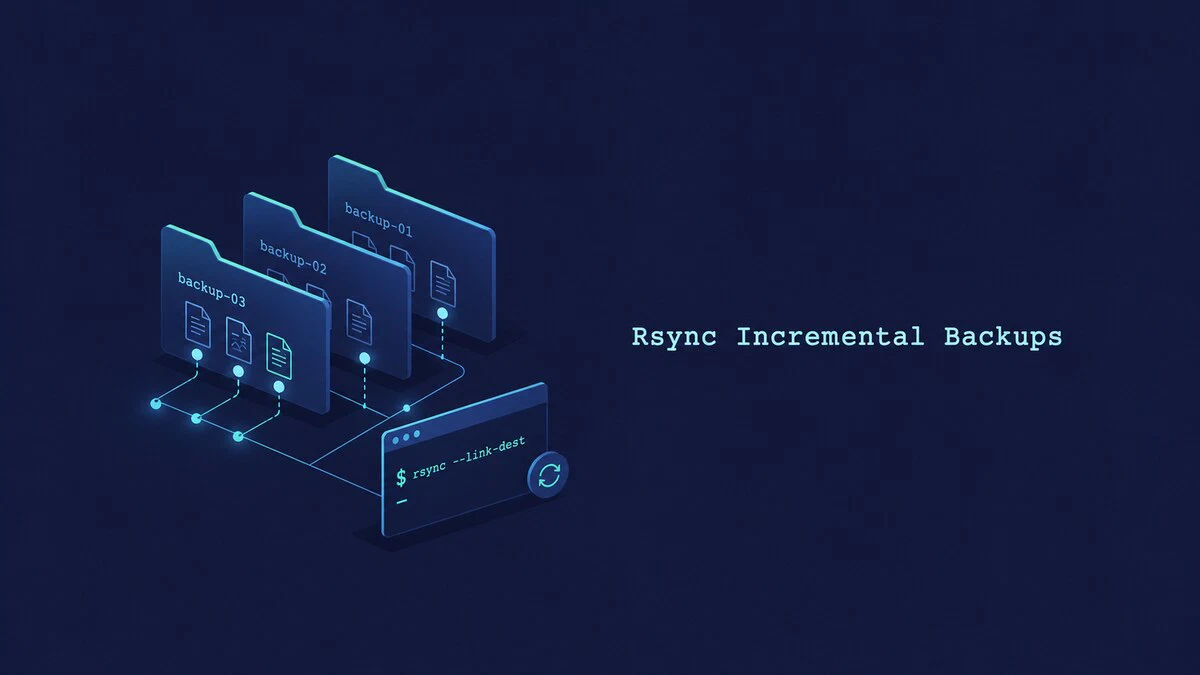
A plain rsync copy mirrors a source to a destination, but it keeps only one copy. The moment you sync again, the previous state is gone. Full copies on every run fix that, but they waste large amounts of disk space because most files do not change between backups.
The --link-dest option solves both problems. It lets you create a series of snapshots where each one looks like a complete, browsable full backup. Files that did not change since the previous run are stored as hard links instead of duplicate copies, so each new snapshot uses space mainly for new and modified files.
This guide explains how --link-dest works and walks through a complete incremental backup workflow: a snapshot script, restoring files, pruning old snapshots, and scheduling the job with cron.
If you are still deciding which rsync flags your backup script needs, our interactive rsync command builder lets you preview and copy the base command.
Quick Reference
For a printable quick reference, see the rsync cheatsheet .
| Task | Command |
|---|---|
| Create a linked snapshot | rsync -a --link-dest=/mnt/backup/latest /home/user/ /mnt/backup/SNAPSHOT/ |
| Check the latest snapshot | ls -l /mnt/backup/latest |
| Compare inode numbers | ls -li SNAPSHOT1/file SNAPSHOT2/file |
| Show total space used | du -sh --total /mnt/backup/20* |
| Preview snapshots older than 30 days | find /mnt/backup -maxdepth 1 -type d -name '20*' -mtime +30 -print |
| Restore a directory | rsync -a /mnt/backup/SNAPSHOT/documents/ /home/user/documents/ |
How –link-dest Works
When you run rsync with --link-dest=DIR, rsync compares each source file against the matching file in DIR. If the file is unchanged in both content and preserved attributes, rsync creates a hard link to the reference copy instead of transferring the data again. If the file is new or modified, rsync copies it normally.
A hard link is a second name for the same data on disk, so the linked file takes almost no extra space. The result is a destination directory that contains every file, looks like a full backup, and can be browsed or restored on its own, yet shares storage with the snapshot it was linked against.
The reference and destination snapshots must be on the same filesystem because hard links cannot cross filesystem boundaries. The pattern is always the same: each backup goes into a new timestamped directory, and --link-dest points at the previous snapshot.
A Basic Incremental Snapshot
Start with a single command so the pieces are clear. We will back up /home/user/ into a snapshot directory, linking unchanged files against a previous snapshot:
rsync -a --link-dest=/mnt/backup/2026-06-18 /home/user/ /mnt/backup/2026-06-19/The flags do the following:
-a- archive mode, which preserves permissions, ownership, timestamps, and symlinks, and recurses into directories.--link-dest=/mnt/backup/2026-06-18- the reference snapshot. Unchanged files are hard-linked from here.
Note the trailing slash on the source /home/user/. With the slash, rsync copies the contents of the directory into the destination; without it, rsync would create a user subdirectory inside the snapshot. Always use an absolute path for --link-dest, because a relative path is interpreted relative to the destination directory and is easy to get wrong.
Each snapshot in this workflow uses a new destination directory, so --delete is not required. If you reuse an existing destination and add --delete, the option removes extra files only from that destination. It does not delete files from the --link-dest reference snapshot.
A Reusable Snapshot Script
Running that command by hand and editing the dates each time is error-prone. The standard approach uses a timestamped directory for each run and a latest symlink that always points at the most recent snapshot, so the script never needs to know yesterday’s date.
Create the script with:
sudo nano /usr/local/bin/rsync-snapshot.shAdd the following:
#!/bin/bash
set -euo pipefail

SOURCE="/home/user/"
BACKUP_ROOT="/mnt/backup"
DATE="$(date +%Y-%m-%dT%H-%M-%S)"
DEST="$BACKUP_ROOT/$DATE"
LATEST="$BACKUP_ROOT/latest"

mkdir -p "$BACKUP_ROOT" "$DEST"

LINK_DEST=()
if [[ -d "$LATEST" ]]; then
  LINK_DEST=(--link-dest="$LATEST")
fi

rsync -a "${LINK_DEST[@]}" "$SOURCE" "$DEST/"

# Record when the snapshot completed, then update the latest symlink.
touch "$DEST"
ln -sfn "$DATE" "$LATEST"
The LINK_DEST array is empty on the first run, so rsync creates a full backup without referring to a missing directory. On later runs, the array adds --link-dest=/mnt/backup/latest, and unchanged files are hard-linked from the previous snapshot. The latest symlink is updated only after rsync finishes successfully.
Make the script executable:
sudo chmod +x /usr/local/bin/rsync-snapshot.shRun the first backup:
sudo /usr/local/bin/rsync-snapshot.shAfter a few runs, the backup root holds one directory per snapshot plus the latest symlink:
ls -l /mnt/backupdrwxr-xr-x 5 root root 4096 Jun 16 02:00 2026-06-16T02-00-01
drwxr-xr-x 5 root root 4096 Jun 17 02:00 2026-06-17T02-00-02
drwxr-xr-x 5 root root 4096 Jun 18 02:00 2026-06-18T02-00-01
lrwxrwxrwx 1 root root 19 Jun 18 02:00 latest -> 2026-06-18T02-00-01Each dated directory is a complete snapshot you can browse directly. The relative latest symlink also keeps working if the backup mount is attached at a different path.
Confirm the Space Savings
To see that snapshots share storage rather than duplicating it, measure them together with du:
du -sh --total /mnt/backup/2026-06-*2.1G /mnt/backup/2026-06-16T02-00-01
14M /mnt/backup/2026-06-17T02-00-02
9.8M /mnt/backup/2026-06-18T02-00-01
2.1G totalGNU du counts a hard-linked file once when all snapshots are passed to the same command. The first snapshot holds the full dataset, while the later lines mainly show data that is unique to those snapshots. The total line shows the space used across the complete set.
You can also compare inode numbers for an unchanged file:
ls -li /mnt/backup/2026-06-16T02-00-01/documents/report.odt \
  /mnt/backup/2026-06-17T02-00-02/documents/report.odt
If the first number on both lines is the same, the two paths are hard links to the same inode.
Restore Files from a Snapshot
Restoring is straightforward, because every snapshot is a normal directory tree. To recover a single file, copy it back from the snapshot you want:
cp /mnt/backup/2026-06-17T02-00-02/documents/report.odt /home/user/documents/To restore an entire directory, use rsync in the other direction:
rsync -a /mnt/backup/2026-06-17T02-00-02/documents/ /home/user/documents/There is no special restore procedure to remember. Pick the dated snapshot that holds the version you want and copy from it.
Before restoring a complete tree over existing data, run rsync with --dry-run and review the changes:
rsync -a --dry-run /mnt/backup/2026-06-17T02-00-02/ /home/user/Prune Old Snapshots
Snapshots accumulate, so prune the old ones on a schedule. Because the data is shared through hard links, deleting a snapshot only frees the blocks that are unique to it; files still referenced by a newer snapshot stay on disk. That makes pruning safe.
First, list the snapshot directories older than 30 days:
find /mnt/backup -maxdepth 1 -type d -name '20*' -mtime +30 -printCheck the output carefully. When the selection is correct, remove those directories with:
find /mnt/backup -maxdepth 1 -type d -name '20*' -mtime +30 -exec rm -rf -- {} +The -name '20*' filter matches the timestamped directories without touching the latest symlink. The script runs touch when a snapshot completes, so -mtime is based on the snapshot time instead of a timestamp copied from the source directory.
Automate with Cron
Run the snapshot script automatically by adding it to root’s crontab:
sudo crontab -eAdd a line to run the backup every day at 2:00 AM:
0 2 * * * /usr/bin/flock -n /run/lock/rsync-snapshot.lock /usr/local/bin/rsync-snapshot.shThe flock command prevents a second backup from starting if the previous run is still active. You can add the pruning command to the script after the snapshot completes or schedule it separately. For a refresher on crontab fields and scheduling, see our guide on scheduling cron jobs with crontab
. To pick a different time, the crontab generator
shows the next run times for any schedule.
Back Up to a Remote Server
The same workflow runs over SSH, but the destination directory, reference snapshot, and latest symlink all live on the remote server. Start by storing the timestamp in a shell variable:
DATE="$(date +%Y-%m-%dT%H-%M-%S)"Create the new snapshot directory on the remote server:
ssh user@backup-host "mkdir -p /mnt/backup/$DATE"Transfer the files and use the remote latest snapshot as the link destination:
rsync -a \
  --link-dest=/mnt/backup/latest \
  /home/user/ "user@backup-host:/mnt/backup/$DATE/"
On the first run, the remote latest path does not exist, so rsync may print a warning and create a full copy. After the transfer succeeds, update the symlink on the remote server:
ssh user@backup-host "touch /mnt/backup/$DATE && ln -sfn '$DATE' /mnt/backup/latest"Set up SSH key authentication before scheduling the job so it can connect without a password. Rsync must also be installed on both systems. Our guide on transferring files with rsync over SSH covers the remote-transfer options in more detail.
Troubleshooting
Every snapshot is a full-size copy
The --link-dest directory may be missing, on a different filesystem, or contain files with different preserved attributes. Confirm that latest points at a real snapshot with ls -l /mnt/backup/latest, then compare permissions, ownership, size, and modification time for a file that should be linked.
Permissions or ownership are wrong in the snapshot
Run the backup as root (or with sudo) so rsync can preserve ownership. Without sufficient privileges, -a cannot restore the original user and group.
Hard links are not created across filesystems
A hard link only works within a single filesystem. The reference snapshot and the new snapshot must live on the same volume, so keep all snapshots under one backup mount.
The latest symlink points to an incomplete snapshot
Update latest only after rsync exits successfully. The script in this guide uses set -e, so it stops on an rsync error before running the ln command.
The backup includes mounted filesystems under the source
Add --one-file-system (-x) if you do not want rsync to cross filesystem boundaries below the source directory. Review the source tree first because this also excludes intentionally mounted data.
FAQ
Does each snapshot store a full copy of my data?
No. Each snapshot appears complete, but unchanged files are hard links to data already stored in an earlier snapshot. Only new and modified files use additional space.
Can I delete an old snapshot without breaking newer ones?
Yes. Deleting a snapshot frees only the data unique to it. Files shared with newer snapshots through hard links remain intact.
How is –link-dest different from rsync’s –backup option?--backup saves replaced files into a separate directory during a single sync, while --link-dest builds independent, timestamped snapshots that each look like a full backup. For point-in-time history, --link-dest is the right tool.
Does –link-dest work over SSH?
Yes. When the destination is remote, the --link-dest path is resolved on the remote machine. The reference and new snapshot must still be on the same remote filesystem.
Conclusion
With --link-dest, rsync creates dated snapshots that are easy to browse and restore without storing another full copy of every unchanged file. Test the script and restore process before relying on it, and use rsync exclude patterns
to leave caches and other unnecessary files out of the backup.
Tags
Linuxize Weekly Newsletter
A quick weekly roundup of new tutorials, news, and tips.
About the authors

Dejan Panovski
Dejan Panovski is the founder of Linuxize, an RHCSA-certified Linux system administrator and DevOps engineer based in Skopje, Macedonia. Author of 1000+ Linux tutorials with 20+ years of experience turning complex Linux tasks into clear, reliable guides.
View author page