curl vs wget: Differences and When to Use Each
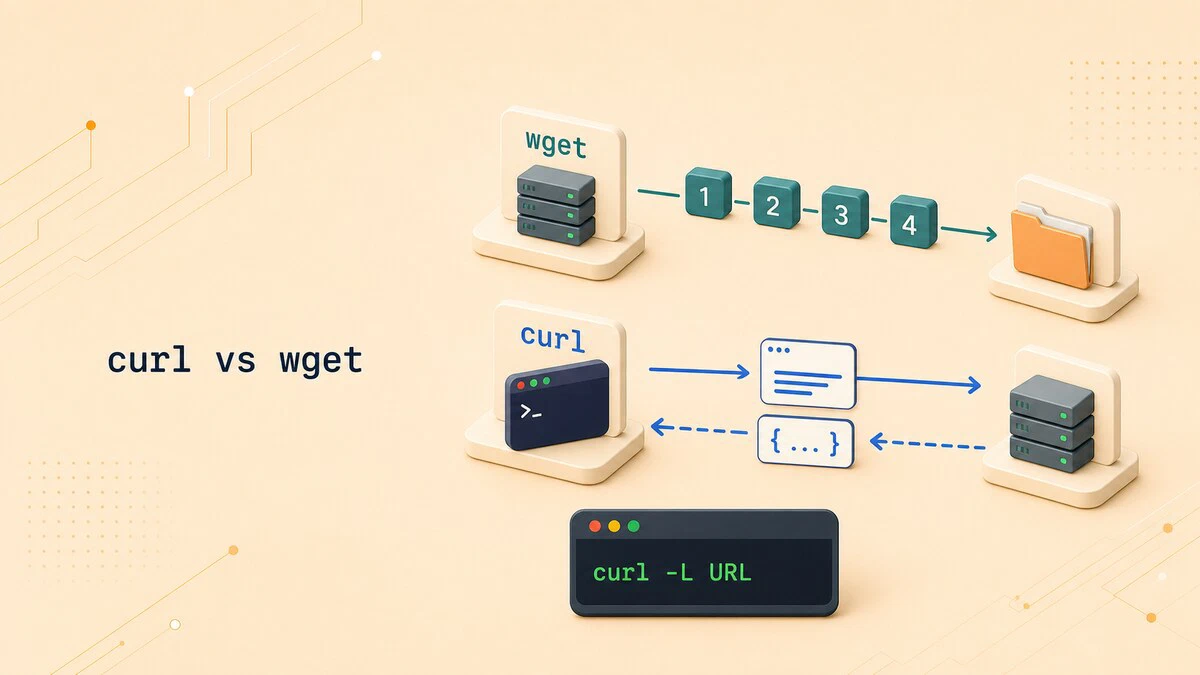
When a script needs to fetch a URL, both curl and wget may appear to do the same job. Their defaults and strengths are different, however. wget is designed around downloading files and recursively retrieving web content, while curl transfers data to or from a URL and gives you detailed control over requests.
This comparison explains the differences between curl and wget, then shows which command fits common download, scripting, and API tasks.
The Short Answer
Use wget when you want to save files, retrieve URLs from a list, mirror web content, or leave a download running in the background. Use curl when you need to send request data, set headers, upload content, work with an API, or pipe a response into another command.
The most visible difference is the default output. wget saves the response to a file, while curl writes it to standard output.
Key Differences
| Property | wget | curl |
|---|---|---|
| Primary purpose | Downloading files and mirroring sites | Transferring data to and from a server |
| Default behavior | Saves to a file | Prints to standard output |
| Recursive download | Yes, built in (-r) | No |
| Follows redirects | Yes, by default | Only with -L |
| Resume a download | -c | -C - |
| Protocols | HTTP, HTTPS, FTP, and FTPS | Many, including HTTP, FTP, SFTP, SCP, SMTP, and more |
| Background download | Yes (-b) | No |
| Request and upload controls | Supports headers, methods, and request bodies | Extensive controls for headers, authentication, uploads, and request data |
| Reusable library | Standalone program | Uses libcurl, which applications can use directly |
Downloading a Single File
Both tools handle a single file well, but their defaults differ. wget saves the file using the last component of the URL:
wget https://example.com/archive.tar.gzThe file is saved in the current directory as archive.tar.gz, with download progress shown in the terminal. A plain curl URL writes the response body to standard output. To save the file using the name from the URL, add -O:
curl -O https://example.com/archive.tar.gzTo choose the local filename, wget uses -O name and curl uses -o name. With curl, lowercase -o takes a filename, while uppercase -O derives the filename from the URL.
Following Redirects
Download URLs often redirect to a mirror or versioned path. wget follows HTTP redirects by default. curl requires -L (--location) to follow the Location header:
curl -L -O https://example.com/latest/archive.tar.gzWithout -L, curl returns the redirect response instead of requesting the final URL. This can leave you with an empty or unexpectedly small file when you expected the actual download.
Resuming an Interrupted Download
Both tools can continue a partial download when the server supports range requests. With wget, add -c:
wget -c https://example.com/large.isoWith curl, use -C -. The dash tells curl to determine the resume offset from the existing local file:
curl -C - -O https://example.com/large.isoDownloading Recursively
Recursive retrieval is one of wget’s main advantages. It can inspect downloaded HTML pages, follow links, and retrieve additional content. Curl transfers the URLs you provide but does not crawl pages to discover more URLs.
For example, the following command follows links below the starting location:
wget -r -np https://example.com/files/The -r flag enables recursion, and -np (--no-parent) prevents wget from following links above the starting path. Recursive retrieval can download much more content than expected, so restrict the depth, domains, or accepted file types when running it against a large site.
Curl can still download several known URLs in one invocation, including in parallel with --parallel, but it cannot discover those URLs by parsing a page.
Working with an API
For web APIs, curl provides clearer controls for request bodies, headers, authentication, response output, and uploads. This command sends a JSON body with a POST request:
curl -H "Content-Type: application/json" \
  -d '{"name":"linuxize"}' \
  https://api.example.com/users
The -d option supplies request data and makes curl send a POST request, so -X POST is unnecessary. Because the response is written to standard output, you can pipe it directly into a tool such as jq.
GNU Wget also supports custom methods, headers, and request bodies. It does not support the same range of protocols and upload formats, including multipart/form-data, so curl is generally the better API client. Our guide on using curl with REST APIs
covers request methods, authentication, and response handling in more detail.
Downloading in the Background
For a long download that should continue after the command returns to the shell, wget provides built-in background mode:
wget -b https://example.com/large.isoWget writes progress to wget-log unless you select another log file. Curl has no equivalent option built into the command; use shell job control, nohup, screen, or tmux when a curl transfer must run independently.
Conclusion
Choose wget for file-oriented downloads, recursive retrieval, and built-in background operation. Choose curl for APIs, uploads, pipelines, and detailed request control; the curl command examples and wget command examples guides cover each tool in depth.
Tags
Linuxize Weekly Newsletter
A quick weekly roundup of new tutorials, news, and tips.
About the authors

Dejan Panovski
Dejan Panovski is the founder of Linuxize, an RHCSA-certified Linux system administrator and DevOps engineer based in Skopje, Macedonia. Author of 1000+ Linux tutorials with 20+ years of experience turning complex Linux tasks into clear, reliable guides.
View author page