Fix SSH "Host Key Verification Failed" Error
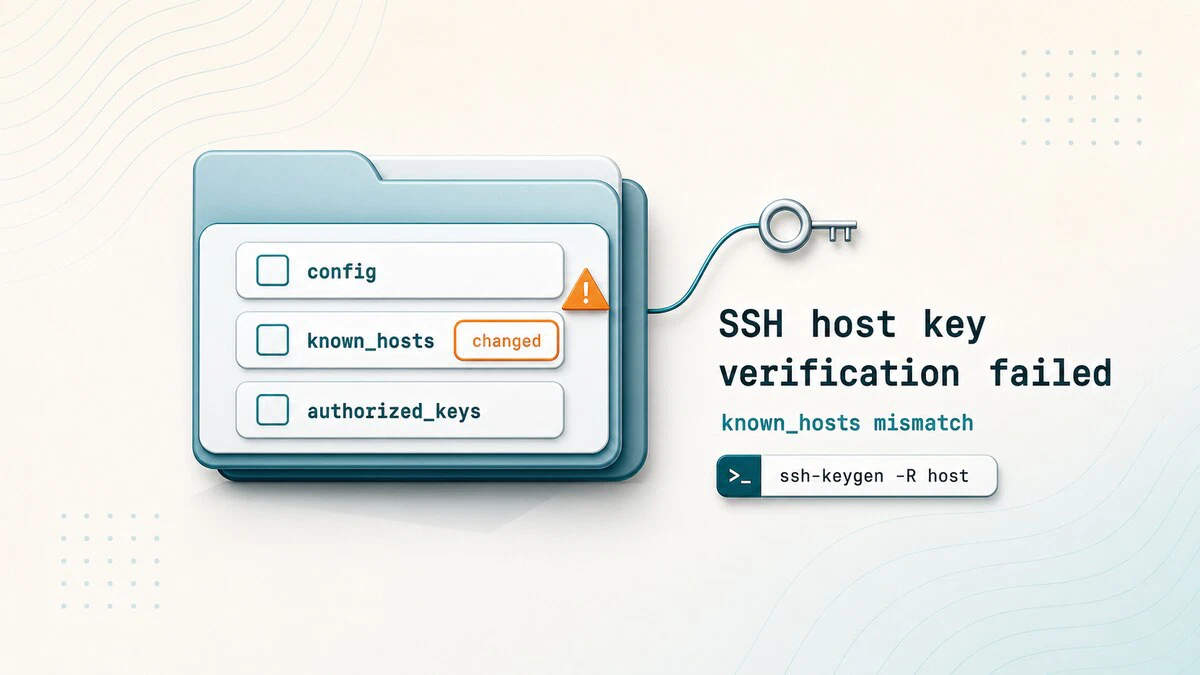
You connect to a server you have used many times, and instead of a password or shell prompt SSH stops with a loud warning that the remote host identification has changed, followed by Host key verification failed. SSH blocks the session before authentication begins. It does this on purpose: it remembers the public key of every server you trust, and when the key it sees does not match the one it stored, it assumes something is wrong and blocks the connection to protect you.
This guide explains why the error happens, how to tell a routine change apart from a real warning sign, and how to clear the stale entry safely so you can connect again.
Quick Reference
For a printable quick reference, see the SSH cheatsheet .
| Task | Command |
|---|---|
| Remove a host entry | ssh-keygen -R hostname |
| Remove by IP | ssh-keygen -R 192.168.1.10 |
| Show the server’s new key fingerprint | ssh-keyscan host | ssh-keygen -lf - |
| known_hosts file (user) | ~/.ssh/known_hosts |
| known_hosts file (system) | /etc/ssh/ssh_known_hosts |
What the Error Means
The full warning looks alarming, and it is meant to:
@@@@@@@@@@@@@@@@@@@@@@@@@@@@@@@@@@@@@@@@@@@@@@@@@@@@@@@@@@@
@    WARNING: REMOTE HOST IDENTIFICATION HAS CHANGED!     @
@@@@@@@@@@@@@@@@@@@@@@@@@@@@@@@@@@@@@@@@@@@@@@@@@@@@@@@@@@@
IT IS POSSIBLE THAT SOMEONE IS DOING SOMETHING NASTY!
Someone could be eavesdropping on you right now (man-in-the-middle attack)!
It is also possible that a host key has just been changed.
The fingerprint for the ED25519 key sent by the remote host is
SHA256:abc123....
Please contact your system administrator.
Add correct host key in /home/user/.ssh/known_hosts to get rid of this message.
Offending ED25519 key in /home/user/.ssh/known_hosts:14
Host key verification failed.
The first time you connect to a server, SSH records its public host key in ~/.ssh/known_hosts. On every later connection it compares the key the server presents against the saved one. When they differ, SSH refuses to continue and points to the exact line in known_hosts that no longer matches, here line 14.
The change is usually harmless and happens when:
- The server was reinstalled or rebuilt, so it generated a new host key.
- A cloud instance was destroyed and a new one took the same IP address.
- You connect by an IP or name that now points to a different machine.
It can also, rarely, mean a real man-in-the-middle attack. That is why you should confirm the new key is expected before you remove the old one.
Verify the New Host Key
Before removing anything, check what key the server now offers and compare it to a trusted source. The ssh-keyscan command fetches the host key, and piping it to ssh-keygen -lf - prints its fingerprint:
ssh-keyscan example.com | ssh-keygen -lf -256 SHA256:abc123def456... example.com (ED25519)Compare this fingerprint with one from a place you trust, such as your cloud provider’s console, the server’s setup output, or your administrator. If it matches, the change is legitimate and you can clear the old entry. If it does not, stop and investigate, since the warning may be real.
Remove the Stale Entry
The clean way to fix a confirmed key change is to remove only the offending entry with ssh-keygen -R. This works even when known_hosts uses hashed host names, and it leaves every other saved host untouched:
ssh-keygen -R example.com# Host example.com found: line 14
/home/user/.ssh/known_hosts updated.
Original contents retained as /home/user/.ssh/known_hosts.oldIf you connect to the server by IP address as well as by name, remove that entry too:
ssh-keygen -R 192.168.1.10Now reconnect. SSH no longer has a saved key for the host, so it asks you to confirm the new one:
ssh user@example.comThe authenticity of host 'example.com (192.168.1.10)' can't be established.
ED25519 key fingerprint is SHA256:abc123def456....
Are you sure you want to continue connecting (yes/no/[fingerprint])?Confirm that the fingerprint matches the one you verified earlier, then type yes. SSH saves the new key and connects normally from now on.
Editing known_hosts by Hand
You can also open ~/.ssh/known_hosts and delete the exact line named in the error, which was line 14 in the example above. This is fine when host names are stored in plain text, but many systems hash them for privacy, so the line will not be human readable. For that reason ssh-keygen -R is the more reliable choice, since it finds and removes the right entry regardless of hashing.
Troubleshooting
The error returns after removing the entry
You likely connect by both a host name and an IP address, and only one entry was removed. Run ssh-keygen -R for each form you use, then reconnect.
A system-wide entry is the problem
The matching key lives in /etc/ssh/ssh_known_hosts, not your personal file. Edit that file with sudo, or remove the entry with sudo ssh-keygen -f /etc/ssh/ssh_known_hosts -R hostname.
The fingerprint does not match what you expected
Do not connect. A mismatch you cannot explain may indicate interception. Confirm the correct key with the server’s administrator or your provider’s console first.
The new connection still fails after accepting the key
This is a different problem, usually authentication rather than the host key. See our guide on fixing SSH Permission denied (publickey)
.
FAQ
What is the known_hosts file?
It is the list of server public keys your SSH client has accepted, stored in ~/.ssh/known_hosts. SSH compares each server against this list and warns you when a key changes. The ~/.ssh folder
guide covers every file it contains.
Is it safe to delete the known_hosts entry?
Yes, once you have confirmed the new host key is genuine. Removing it only makes SSH ask you to trust the server again. Do not remove it blindly on a host whose change you cannot explain.
Why did the host key change?
The most common reasons are a server reinstall, a rebuilt cloud instance, or an IP address now used by a different machine. Each of these produces a new host key, which triggers the warning.
How do I check a server’s host key fingerprint?
Run ssh-keyscan host | ssh-keygen -lf - and compare the fingerprint with a trusted source such as your provider’s console or the server’s setup logs.
Conclusion
The Host key verification failed error is SSH refusing to connect because a server’s key no longer matches the one it saved. Verify the new fingerprint, then remove the stale entry with ssh-keygen -R and reconnect to trust the new key. For broader protection of your SSH access, see our guide on SSH hardening best practices
.
Tags
Linuxize Weekly Newsletter
A quick weekly roundup of new tutorials, news, and tips.
About the authors

Dejan Panovski
Dejan Panovski is the founder of Linuxize, an RHCSA-certified Linux system administrator and DevOps engineer based in Skopje, Macedonia. Author of 1000+ Linux tutorials with 20+ years of experience turning complex Linux tasks into clear, reliable guides.
View author page