Fix "sudo: command not found" on Linux
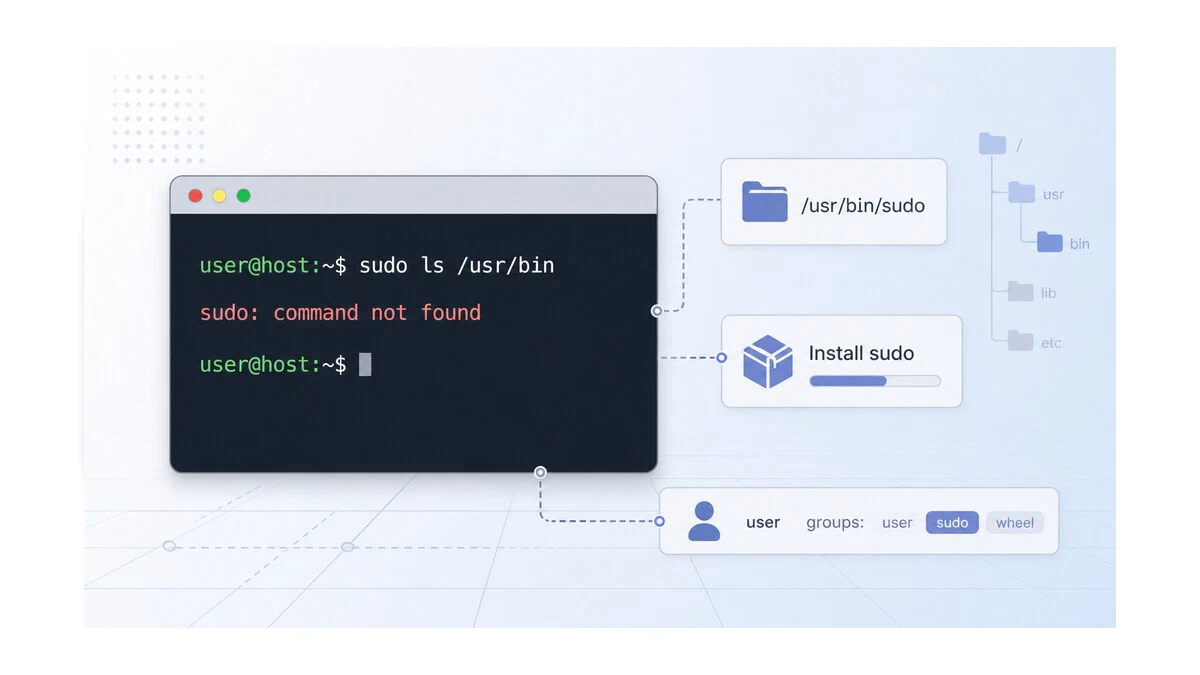
You log in to a fresh server, try to install a package, and the shell answers with sudo: command not found. It is a confusing message, because sudo feels like a built-in part of Linux. In reality sudo is a regular package that some minimal images and container base layers skip, and it is also one of the first commands to disappear when your shell environment is broken.
This guide explains the three reasons the error shows up: sudo is not installed, your user is not allowed to run it, or your PATH no longer points to /usr/bin. Each case has a clean fix.
Quick Reference
| What to check | Command | What to do |
|---|---|---|
| Is sudo installed? | ls -l /usr/bin/sudo | Install the sudo package as root if the file is missing |
| Is your user allowed to use sudo? | groups username | Add the user to sudo on Debian/Ubuntu or wheel on Fedora/RHEL/Arch |
| Is PATH broken? | echo $PATH | Restore /usr/bin, /usr/sbin, /bin, and /sbin in your shell startup file |
| Does sudo work by absolute path? | /usr/bin/sudo whoami | Fix the shell PATH if this works but sudo whoami fails |
Confirm the Real Cause
Before installing anything, check whether the sudo binary exists on the system:
ls -l /usr/bin/sudo-rwsr-xr-x 1 root root 277936 Jan 17 09:42 /usr/bin/sudoIf the file is there with the SUID bit (s in the owner permissions), sudo is installed and the error is environmental. If the file is missing, you need to install the package as the root user. Pick the section below that matches your situation.
Install sudo on Debian, Ubuntu, and Derivatives
Minimal Debian installs and many Docker base images leave sudo out. Switch to the root account first, because without sudo you cannot escalate privileges from a normal user:
su -Enter the root password, then install the package with apt:
apt update
apt install sudo
If su itself is rejected because root has no password (the default on Ubuntu desktop installs), boot into recovery mode or use a live USB to set a root password before retrying.
Install sudo on Fedora, RHEL, and Derivatives
On Fedora, RHEL, Rocky Linux, and AlmaLinux, switch to root and install with dnf:
su -
dnf install sudo
On older Red Hat-family systems you may see yum referenced in tutorials; dnf is the current package manager and the right choice on every supported release.
Install sudo on Arch Linux
Arch ships a minimal base, and sudo is a separate package:
su -
pacman -S sudo
Install sudo on Alpine Linux
Alpine, which is common inside containers, uses apk. Two options exist: the full sudo package, or the lighter doas replacement.
su -
apk add sudo
If you only need privilege escalation inside a container and want to keep the image small, apk add doas followed by a one-line /etc/doas.conf is often enough.
Add Your User to the sudo Group
Installing the package is only half the job. By default, only users that belong to a specific administrative group can run sudo. The group name varies by distribution.
On Debian and Ubuntu, the group is sudo:
usermod -aG sudo saraOn Fedora, RHEL, and Arch, the group is wheel:
usermod -aG wheel saraGroup changes only take effect on a new login session. Log out and back in, then verify membership:
groups sarasara : sara sudoThe presence of sudo (or wheel) in the list confirms the user can now run privileged commands.
Fix a Broken PATH
If /usr/bin/sudo exists but the shell still reports “command not found”, the problem is your PATH
. A typo in ~/.bashrc or ~/.zshrc can wipe out the standard directories. Check the current value:
echo $PATH/home/sara/bin:/home/sara/.local/binWhen /usr/bin and /usr/local/bin are missing, the shell cannot find any of the system binaries. Restore a sane PATH for the current session by calling sudo with its absolute path:
/usr/bin/sudo apt updateThat works as a one-off, but the durable fix is to repair the shell config. Open the file that broke the variable:
nano ~/.bashrcA safe baseline looks like this:
export PATH="$HOME/bin:$HOME/.local/bin:/usr/local/sbin:/usr/local/bin:/usr/sbin:/usr/bin:/sbin:/bin"The key detail is keeping $PATH itself in any line that extends it. A line like export PATH=$HOME/bin (without :$PATH) overwrites everything else and is the most common cause of this failure.
Source the file and try again:
source ~/.bashrc
sudo whoamirootA root response confirms sudo is back on the path and working.
Troubleshooting
sara is not in the sudoers file. This incident will be reported.
The user exists but is not authorized. Switch to root and either add the user to the admin group (as shown above) or edit /etc/sudoers with visudo and add a line such as sara ALL=(ALL:ALL) ALL. Never edit /etc/sudoers directly; visudo validates syntax and prevents lockout.
No root password and no sudo
On Ubuntu, root is disabled by default. Boot into the GRUB recovery menu, drop to a root shell, and run passwd root to set a password. Then install sudo and add your user to the group as shown above.
sudo: /etc/sudo.conf is owned by uid 1000, should be 0
File ownership in /etc was changed by mistake. As root, restore it with chown root:root /etc/sudo.conf /etc/sudoers and chmod 440 /etc/sudoers.
FAQ
Why does sudo work in one shell but not another?
The two shells likely load different startup files. Compare echo $PATH in each, and check ~/.bashrc, ~/.bash_profile, ~/.profile, and ~/.zshrc for conflicting PATH assignments.
Does adding a user to the sudo group take effect right away?
No. Group membership is read at login. Log out and back in, or start a new login shell with su - sara to pick up the change.
Is doas a real replacement for sudo?
For single-user systems and most container images, yes. doas is smaller and configured through a much shorter file. Multi-user servers with detailed access rules are still better served by sudo.
Conclusion
The “command not found” message points to one of three problems: a missing package, a missing group membership, or a broken PATH. Walking through them in that order resolves the error on almost every Linux system.
For follow-up reading, see our guides on creating a sudo user and the sudo command reference .
Tags
Linuxize Weekly Newsletter
A quick weekly roundup of new tutorials, news, and tips.
About the authors

Dejan Panovski
Dejan Panovski is the founder of Linuxize, an RHCSA-certified Linux system administrator and DevOps engineer based in Skopje, Macedonia. Author of 1000+ Linux tutorials with 20+ years of experience turning complex Linux tasks into clear, reliable guides.
View author page