git worktree: Work on Multiple Branches at Once
A common frustration when working with Git is needing to switch branches
while your current working tree has uncommitted changes. You can stash the changes
, switch branches, make the fix, switch back, and restore the stash, but that flow interrupts your work and can create conflicts. git worktree lets you check out another branch in a separate directory, so both workspaces remain available at the same time.
This guide explains how to create, list, lock, prune, and remove linked worktrees, with a hotfix workflow you can copy.
How git worktree Works
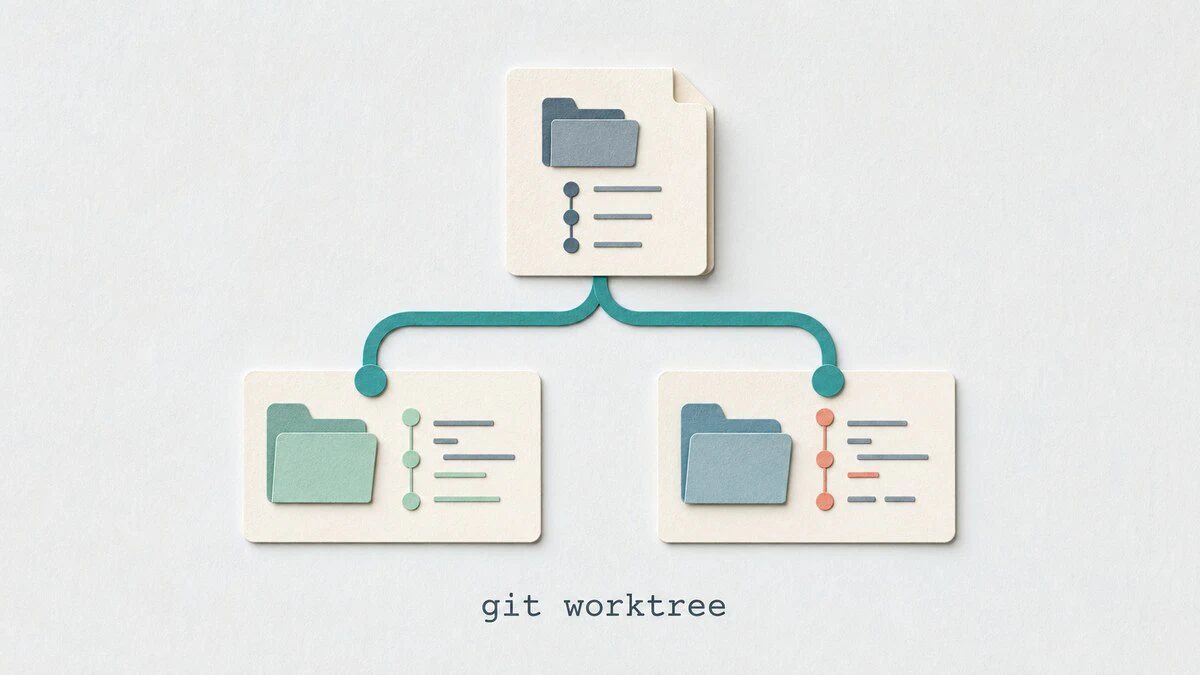
A Git repository normally has one working tree: the directory where you edit files. With git worktree, you can attach additional working trees to the same repository. Each linked worktree has its own working directory, index, and HEAD, while all worktrees share the same object store and repository history. You do not create another clone; you create another workspace for the same repository.
git worktree Syntax
The most-used forms of the command are:
git worktree add [OPTIONS] <path> [<commit-ish>]
git worktree list [OPTIONS]
git worktree remove [--force] <worktree>
git worktree prune [OPTIONS]
git worktree lock [--reason <string>] <worktree>
git worktree unlock <worktree>
Add a Worktree for an Existing Branch
Suppose you are working on a feature branch and want a separate checkout of main. Add it in a sibling directory without leaving your current branch:
git worktree add ../project-main mainPreparing worktree (checking out 'main')
HEAD is now at a1b2c3d Fix typo in READMEThe new directory ../project-main contains main, while your original working tree stays on the feature branch. Git refuses this command if main is already checked out in another worktree.
Add a Worktree with a New Branch
For a hotfix, create a new branch from main and check it out in one step:
git worktree add -b hotfix/payment-null ../project-hotfix mainPreparing worktree (new branch 'hotfix/payment-null')
HEAD is now at a1b2c3d Fix typo in READMEThe -b flag creates hotfix/payment-null from main and checks it out in the new directory. After making the fix and running your tests, commit and push from that worktree:
cd ../project-hotfix
# Edit the files and run your tests
git add .
git commit -m "Fix payment handler"
git push -u origin hotfix/payment-null
Your original directory remains on the feature branch throughout this workflow.
List All Worktrees
To display the main worktree and every linked worktree, run:
git worktree list/home/user/project abc1234 [feature/new-dashboard]
/home/user/project-hotfix def5678 [hotfix/payment-null]
/home/user/project-main a1b2c3d [main]The first entry is always the main worktree. Each linked worktree shows its path, current commit, and checked-out branch.
Run Tests Across Branches in Parallel
Worktrees are useful for running a test suite against two commits at the same time. For a temporary test directory that does not need its own branch, create a detached worktree:
git worktree add --detach ../project-test main
(cd ../project-test && npm ci && npm test) &
npm test &
wait
The first background job installs dependencies and runs the tests against main in ../project-test, while the second runs in your current worktree. Both worktrees share the Git object store but keep their working files and installed dependencies separate.
Remove a Worktree
When you are done with a linked worktree, remove it:
git worktree remove ../project-hotfixThis deletes the linked directory and unregisters it from the repository. It does not delete the hotfix/payment-null branch.
Git refuses to remove a worktree with modified or untracked files. Check its status before deciding whether to force removal:
git -C ../project-hotfix status--force option deletes the linked directory even when it contains modified or untracked files. Commit or copy anything you need before running it.If you are certain that the remaining files are disposable, force the removal with:
git worktree remove --force ../project-hotfixPrune Stale Worktree References
If you delete a worktree directory manually, Git retains its administrative entry. Preview the stale entries that qualify for removal with:
git worktree prune --dry-run --verboseAfter reviewing the output, remove those entries with:
git worktree prune --verboseThis command removes stale metadata, not active worktree directories. git gc also prunes missing entries older than the configured gc.worktreePruneExpire period, which defaults to three months.
Lock a Worktree
If a worktree lives on a removable drive or a network path that may be temporarily unavailable, lock it so prune does not remove it:
git worktree lock --reason "on external drive" ../project-hotfixUnlock it when the path is available again:
git worktree unlock ../project-hotfixA lock also protects the worktree from git worktree remove, and a single --force is not enough to override it:
fatal: cannot remove a locked working tree, lock reason: on external drive
use 'remove -f -f' to override or unlock first
Unlock the worktree first, or pass the force option twice:
git worktree remove --force --force ../project-hotfixQuick Reference
For a printable quick reference, see the Git cheatsheet .
| Command | Description |
|---|---|
git worktree add ../path branch | Check out an existing branch in a linked worktree |
git worktree add -b new-branch ../path main | Create a new branch from main in a linked worktree |
git worktree add --detach ../path main | Create a detached worktree for testing |
git worktree list | List the main and linked worktrees |
git worktree lock --reason "text" ../path | Protect a temporarily unavailable worktree from pruning |
git worktree remove ../path | Delete and unregister a clean linked worktree |
git worktree prune --dry-run --verbose | Preview stale administrative entries |
git worktree repair /new/path | Repair the link to a manually moved worktree |
Troubleshooting
Git reports that a branch is already checked out
A branch can normally be checked out in only one worktree. Create a new branch from it instead:
git worktree add -b new-branch ../project-new mainIf you only need the files for testing and do not plan to commit, use a detached worktree:
git worktree add --detach ../project-test mainGit cannot find a manually moved worktree
If you moved a linked directory without git worktree move, repair its administrative link from another worktree:
git worktree repair /new/pathUse the new location as the argument. Git reconnects the linked directory without checking it out again.
Conclusion
git worktree keeps parallel tasks isolated without creating another clone or disturbing your current files. Create a dedicated branch for changes, use detached worktrees for temporary tests, and see the git branch guide
when you need to rename, inspect, or delete the branches afterward.
Tags
Linuxize Weekly Newsletter
A quick weekly roundup of new tutorials, news, and tips.
About the authors

Dejan Panovski
Dejan Panovski is the founder of Linuxize, an RHCSA-certified Linux system administrator and DevOps engineer based in Skopje, Macedonia. Author of 1000+ Linux tutorials with 20+ years of experience turning complex Linux tasks into clear, reliable guides.
View author page