How to Generate a Random Password or String in Linux
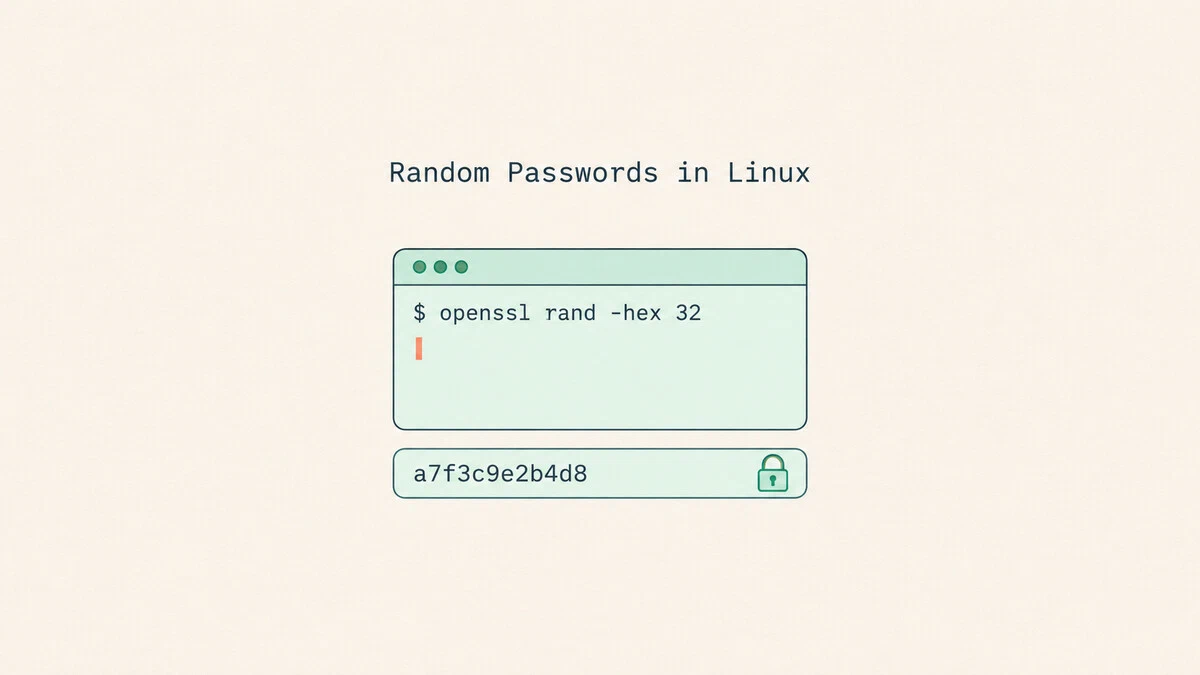
Setting up a new database user, a webhook token, or a Wi-Fi password starts with the same small task: you need a string that nobody can guess. Linux provides a cryptographically secure random number generator, and tools such as OpenSSL can turn its output into a usable password or token.
For a 64-character hexadecimal secret, run openssl rand -hex 32. The 32 requests 32 random bytes, which become 64 hex characters. Generate your own value each time; never reuse the sample passwords or tokens shown below.
This guide shows how to generate random passwords and strings with openssl rand, /dev/urandom, pwgen, and Python, and how to pick a length and format for the job.
Quick Reference
| Need | Command |
|---|---|
| 64-character hex secret | openssl rand -hex 32 |
| Base64 secret | openssl rand -base64 32 |
| Letters and digits only | LC_ALL=C tr -dc 'A-Za-z0-9' < /dev/urandom | head -c 20; echo |
| Letters, digits, and symbols | LC_ALL=C tr -dc 'A-Za-z0-9!@#%^&*_+=-' < /dev/urandom | head -c 24; echo |
| URL-safe token | python3 -c 'import secrets; print(secrets.token_urlsafe(32))' |
| Strong password, pwgen | pwgen -s 20 1 |
| Six-word passphrase | LC_ALL=C grep -E '^[a-z]+$' /usr/share/dict/words | shuf -r -n 6 --random-source=/dev/urandom | paste -sd '-' |
The pwgen and passphrase examples need an installed package or word list. The tr pipelines are for interactive use; see the scripting note below if you enable pipefail.
Generating a Random String with openssl rand
The openssl rand
command generates cryptographically secure random bytes and prints them in the encoding you choose. OpenSSL is commonly installed on Linux servers. Its basic syntax is:
openssl rand [-hex | -base64] NUM_BYTESThe number is the count of random bytes, not the length of the output string.
Hex Output
To generate a 32-byte secret encoded as hexadecimal, run:
openssl rand -hex 32396fb98dee783d8f87b1cf21a4358292986933eb02c0889d660bf9739a1fab6eEach byte becomes two hex characters, so 32 bytes produce a 64-character string with 256 bits of randomness. The trailing newline is not part of the secret. Hex uses only 0-9 and a-f, which avoids quoting problems in many configuration formats and URLs. Check your application’s required format before using it as a key; some applications expect raw bytes or a different encoding.
Base64 Output
Base64 packs more randomness into fewer characters:
openssl rand -base64 32ZqpkU6V71IW8AeuFKly7LDcSbVnM11N5QtyY+ReaP4A=The same 32 bytes now take 44 characters. The output can contain +, /, and a trailing =, which some systems reject or treat specially. When the length is a multiple of three bytes, there is no padding:
openssl rand -base64 241JWdgyyj/MzeCkkaBENScvGcUaq2+pS2OpenSSL wraps longer Base64 output at 64 characters. For example, 64 random bytes produce 88 Base64 characters. Remove the embedded newlines with tr -d '\n', then add one final newline for display:
openssl rand -base64 64 | tr -d '\n'; echoFor more on the tool itself, see how to use OpenSSL .
Generating a Password from /dev/urandom
The kernel exposes its random number generator as /dev/urandom. Reading from it gives you an endless stream of random bytes, and you can filter that stream down to the characters you want with the tr command
.
The following command keeps only letters and digits and stops after 20 characters:
LC_ALL=C tr -dc 'A-Za-z0-9' < /dev/urandom | head -c 20; echoUxr6MxKGnHbln5zsT8ezThe -d option deletes characters, and -c complements the set, so together they delete everything that is not in A-Za-z0-9. Setting LC_ALL=C makes tr process individual bytes in the C locale. The head command
with -c 20 takes the first 20 characters that survive, and the trailing echo adds a newline so the shell prompt does not end up on the same line.
To include symbols, add them to the set. Put the - at the end, otherwise tr reads it as a range:
LC_ALL=C tr -dc 'A-Za-z0-9!@#%^&*_+=-' < /dev/urandom | head -c 24; echod%WBPqAEu_zT1IKSBArpaw45Choose the symbol set based on where the password will be used. This command allows symbols but does not guarantee that every generated password contains one. Characters such as $, `, ", and \ need special care in shell scripts and connection strings. Even the smaller set shown here may need quoting in the target format.
head has enough characters, it closes the pipe and tr can exit with SIGPIPE. Under Bash’s set -o pipefail, this usually gives the pipeline status 141; with set -e as well, it can stop a script before echo runs. For scripts, use openssl rand, pwgen -s, or Python’s secrets module instead of suppressing every pipeline error./dev/urandom is sufficient. During very early boot, before the generator has initialized, use a tool that waits for initialization through getrandom() rather than reading /dev/urandom directly. The Linux random-device manual
explains this distinction.Generating Passwords with pwgen
pwgen is a small tool built only for this job. Install it on Ubuntu, Debian, and derivatives with:
sudo apt install pwgenOn Fedora, RHEL, and derivatives, install it with dnf. On RHEL and its rebuilds, enable the EPEL repository first:
sudo dnf install pwgenRun pwgen with -s for fully random passwords, followed by a length and a count. Adding -1 prints one password per line. This generates four 16-character passwords:
pwgen -s -1 16 4ZDME0Lduuhwh5yYY
Inmya73XqqxVXPLB
6vBzqplneF61cUlt
8KSwWRJtWgrRtbGLWithout -s, pwgen generates pronounceable passwords. The pwgen manual
warns against using those where an attacker can try guesses offline. Keep -s when generating secrets. For a single 20-character password, run:
pwgen -s 20 1K9nJCDHz576XAHs8XxhhThe options you will use most often are:
-s- Generate completely random passwords instead of pronounceable ones.-y- Include at least one symbol.-B- Avoid characters that are easy to confuse, such asl,1,O, and0.-c- Include at least one capital letter. This is the default when output goes to a terminal.-n- Include at least one digit. Also the default for terminal output.-1- Print one password per line.
For example, to generate a random 20-character password with symbols, run:
pwgen -sy 20 1?Ipk3Ty&a-e]v[<#'/F3Generating a Token with Python
Python’s secrets module
is designed for security tokens and is included with Python 3.6 and later. The token_urlsafe() function returns a Base64 string that uses - and _ instead of + and /, and removes padding. To generate a URL-safe token from 32 random bytes, run:
python3 -c 'import secrets; print(secrets.token_urlsafe(32))'RUxjHdkeXpC-KZ7Oojvxvppl-eN6jIggASQgT0bQnOYThe output has 43 characters, excluding the newline. As with openssl rand, the argument is the number of random bytes. The module also has token_hex() for hex output. Do not use the default generator in the random module for passwords; it is meant for simulations, not secrets.
If a service requires exactly 24 letters and digits, you can choose each character with secrets.choice():
python3 -c 'import secrets, string; alphabet = string.ascii_letters + string.digits; print("".join(secrets.choice(alphabet) for _ in range(24)))'QDTwYcBmJCmmSaemzRvV9mgOThis generates a fixed-length password without an endless pipeline, so it also works in scripts that enable set -e and pipefail.
Generating a Passphrase
A passphrase made of several random words is easier to type and remember than a string of symbols, which makes it a good fit for passwords people enter by hand, such as a disk encryption password or a password manager’s master password.
You need a word list at /usr/share/dict/words. On Ubuntu, Debian, and derivatives, install one with:
sudo apt install wamericanOn other distributions, install a dictionary package that provides this file, or replace the path below with your own word list. Use a list with many distinct entries, ideally one intended for passphrases. The following command keeps lowercase ASCII words, picks six at random, and joins them with dashes:
LC_ALL=C grep -E '^[a-z]+$' /usr/share/dict/words | shuf -r -n 6 --random-source=/dev/urandom | paste -sd '-'gaggle-sweepings-lumped-gladiolas-attained-loftierThe --random-source=/dev/urandom option makes shuf read its randomness directly from the kernel. With -r, each word is selected independently, so a word can appear more than once. Do not choose your own favorite words or reject unfamiliar combinations, since that makes the selection less random.
The strength depends on the number of randomly selected words and the size of the filtered list. Six independent selections from a list of 7,776 distinct words give about 77 bits of entropy. A different list gives a different result; the dashes do not add randomness. To count the distinct words available after filtering, run:
LC_ALL=C grep -E '^[a-z]+$' /usr/share/dict/words | sort -u | wc -l63875On Ubuntu 26.04, the wamerican list leaves 63,875 words after filtering, so a six-word passphrase from it has about 96 bits of entropy. If the file is missing, install the word list first. If filtering leaves very few words, use a larger list or one of the random-string methods above.
Choosing a Password Length
The right length depends on whether a person or a program will use the secret:
- Tokens and application secrets: 32 random bytes (
openssl rand -hex 32) are a useful default when the application accepts that format. Use the application’s own generator when it specifies one. Encryption algorithms require particular key lengths and formats. - Database and service passwords stored in configuration: 24 or more random characters from letters and digits.
- Passwords people type: 16 or more random characters, or a passphrase of six independently chosen words from a large list. Follow the service’s length and character limits.
A uniformly random 20-character string of letters and digits has about 119 bits of entropy. When a system restricts the character set, you can compensate by making the password longer. Generate a different password for every account or service.
.env file, list it in .gitignore and restrict its file permissions. Terminal output can also remain in scrollback or session recordings.Methods to Avoid
Several commands that circulate online look random but are not suitable for secrets:
date +%s | sha256sum- The input is the current time, which an attacker can guess within a small window. Hashing it does not add any randomness.echo $RANDOM- Bash’s$RANDOMreturns a number between 0 and 32767 and is not a cryptographically secure generator.uuidgen- UUIDs are identifiers, and their randomness depends on the version and implementation. A version 4 UUID has 122 random bits, but other versions can include time-derived data. Use a tool designed for secrets when generating passwords or tokens.
To set the generated password for a Linux account, see how to change a user password in Linux .
Conclusion
Save each generated value in your password manager or application’s secret store before closing the terminal. If a secret appears in a public repository or a shared terminal recording, replace it rather than relying on deleting the visible copy.
Linuxize Weekly Newsletter
A quick weekly roundup of new tutorials, news, and tips.
About the authors

Dejan Panovski
Dejan Panovski is the founder of Linuxize, an RHCSA-certified Linux system administrator and DevOps engineer based in Skopje, Macedonia. Author of 1000+ Linux tutorials with 20+ years of experience turning complex Linux tasks into clear, reliable guides.
View author page