How to Copy, Cut and Paste in Vim / Vi
Vim is a terminal-based text editor that comes preinstalled on macOS and almost all Linux distributions. Unlike typical editors that use Ctrl+c and Ctrl+v, Vim has its own set of commands for copying, cutting, and pasting text.
This guide explains how to copy, cut, and paste in Vim using normal mode commands, visual mode selections, and registers.
Vim Terminology
Vim uses different names for copy, cut, and paste operations:
- Yank (
y) - Copy text - Delete (
d) - Cut text (removes it and stores it in a register) - Put (
p) - Paste text from a register
All commands in this guide are run from normal mode. If you are in insert mode, press Esc to switch back to normal mode first.
Copying (Yanking)
To copy text, place the cursor at the desired position and press y followed by a motion command. The yanked text is stored in the default register.
Here are the most common yank commands:
yy- Yank the entire current line (including the newline character)3yy- Yank three lines starting from the current liney$- Yank from the cursor to the end of the liney^- Yank from the cursor to the start of the lineyw- Yank from the cursor to the start of the next wordyiw- Yank the current word (without surrounding spaces)yaw- Yank the current word (with surrounding spaces)yi(- Yank the text inside parenthesesyi{- Yank the text inside curly bracesy%- Yank to the matching bracket. Works with(),{}, and[]
To duplicate the current line, use yyp: yank the line with yy, then paste it below with p.
Cutting (Deleting)
The d key cuts (deletes) text. Like yank, it takes a motion command. The deleted text is stored in the default register, so you can paste it elsewhere.
Here are the most common delete commands:
dd- Delete the entire current line3dd- Delete three lines starting from the current lined$orD- Delete from the cursor to the end of the lined0- Delete from the cursor to the beginning of the linedw- Delete from the cursor to the start of the next worddiw- Delete the current wordx- Delete the character under the cursor
The motion commands that work with y also work with d. For example, di( deletes the text inside parentheses, and d% deletes to the matching bracket.
For more delete commands and pattern-based deletion, see How to Delete Lines in Vim .
Pasting (Putting)
To paste the contents of the default register, move the cursor to the desired location and use one of the following commands:
p- Paste after the cursor (or below the current line for full-line yanks)P- Paste before the cursor (or above the current line for full-line yanks)
When you yank or delete a full line with yy or dd, the put command pastes the text as a new line. When you yank or delete part of a line (such as with yw), it pastes the text inline at the cursor position.
Using Visual Mode
Visual mode lets you select text visually before copying or cutting it. Vim has three visual sub-modes:
v- Character-wise visual mode (select individual characters)V- Line-wise visual mode (select entire lines)Ctrl+v- Block visual mode (select a rectangular block of text)
To copy or cut text using visual mode:
Press
v,V, orCtrl+vto enter the visual mode you need.Use motion keys (
h,j,k,l, or arrow keys) to extend the selection.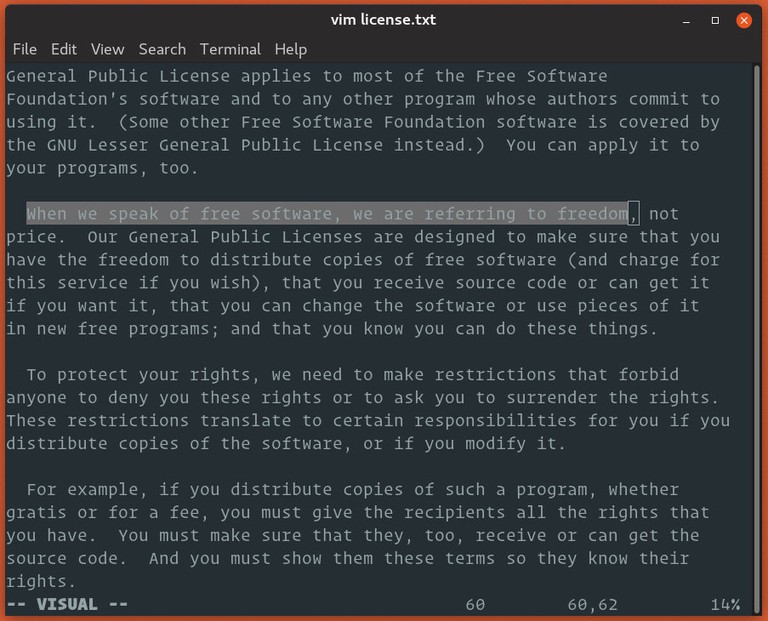
Press
yto yank (copy) ordto delete (cut) the selected text.Move the cursor to the target location.
Press
porPto paste.

Copy to and Paste from the System Clipboard
By default, Vim uses its own internal registers, which are separate from the system clipboard. To copy to the system clipboard in Vim, use the "+ register. To paste from the system clipboard, use the same register with the put command.
Common clipboard commands include:
"+y- Yank the selected text to the system clipboard"+yy- Yank the current line to the system clipboard"+p- Paste from the system clipboard after the cursor"+P- Paste from the system clipboard before the cursor"+d- Delete text and store it in the system clipboard
For example, to copy text from Vim to another application, select the text in visual mode and press "+y. You can then paste it into your browser, terminal, or editor with the normal paste shortcut for your desktop environment.
To paste text from another application into Vim, switch to normal mode and press "+p. If you are pasting into a terminal and clipboard support is not available, terminal paste shortcuts such as Ctrl+Shift+V may still work, depending on your terminal emulator.
+clipboard feature. Check with vim --version | grep clipboard. If you see -clipboard, install a Vim build with clipboard support, such as vim-gtk3 or gvim on Debian and Ubuntu systems.Select All and Copy
To select all text in Vim, press ggVG in normal mode. This command sequence moves to the first line, starts line-wise visual mode, and extends the selection to the last line.
Once the whole file is selected, you can copy it, cut it, or send it to the system clipboard:
ggVG- Select all text in the fileggVGy- Select all and yank to Vim’s default registerggVG"+y- Select all and copy to the system clipboardggVGd- Select all and delete the selected text
Use ggVG"+y when you want to copy the entire file from Vim to another application. Use ggVGy when you only need to copy all text inside Vim and paste it elsewhere in the same editing session.
Registers
Every time you yank or delete text, Vim stores it in a register. Understanding registers gives you much more control over copy and paste operations.
The Default Register
When you run yy, dd, dw, or any other yank/delete command without specifying a register, Vim stores the text in the default register ("). The p command pastes from this register.
Named Registers
Vim provides 26 named registers (a through z). You can store text in a specific register by typing " followed by the register letter before the command.
For example, to yank the current line into register a:
"ayyTo paste from register a:
"apNamed registers are useful when you need to store multiple pieces of text at the same time. You can yank one line into register a, another into register b, and paste each one independently.
Using an uppercase letter (e.g., "Ayy) appends to the register instead of overwriting it.
Viewing Register Contents
To see the contents of all registers, use the :registers command (or :reg for short):
:regTo view the contents of a specific register:
:reg aPasting from Insert Mode
You can paste the contents of a register without leaving insert mode by pressing Ctrl+r followed by the register name. For example, Ctrl+r " pastes from the default register, and Ctrl+r a pastes from register a.
Quick Reference
| Command | Description |
|---|---|
yy | Yank (copy) the current line |
yyp | Duplicate the current line |
3yy | Yank three lines |
yw | Yank to the start of the next word |
yiw | Yank the current word |
y$ | Yank to the end of the line |
dd | Delete (cut) the current line |
dw | Delete to the start of the next word |
D | Delete to the end of the line |
x | Delete the character under the cursor |
p | Paste after the cursor |
P | Paste before the cursor |
ggVG | Select all text in the file |
ggVGy | Select all and yank to the default register |
ggVG"+y | Select all and copy to the system clipboard |
"ayy | Yank the current line into register a |
"ap | Paste from register a |
"+y | Yank to the system clipboard |
"+yy | Yank the current line to the system clipboard |
"+p | Paste from the system clipboard |
:reg | View all register contents |
FAQ
What is the difference between p and P?
Lowercase p pastes after the cursor (or below the current line for full-line yanks). Uppercase P pastes before the cursor (or above the current line). The content is identical; only the position changes.
How do I copy text from Vim to another application?
Use the system clipboard register "+y to yank text, then paste with Ctrl+v in the other application. Your Vim build must have +clipboard support. Check with vim --version | grep clipboard.
How do I select all text in Vim?
Press ggVG in normal mode. To copy the selection, press y. To copy the entire file to the system clipboard, press "+y after selecting all text.
Does deleting text in Vim also copy it?
Yes. Every delete command (dd, dw, x, etc.) stores the deleted text in the default register. You can paste it with p. To delete without saving to a register, use the black hole register: "_dd.
How do I paste the same text multiple times?
The register contents are not cleared after pasting. You can press p as many times as you need to paste the same text repeatedly.
Can I undo a paste?
Yes. Press u in normal mode to undo
the last change, including a paste operation.
Conclusion
Vim uses yank (y), delete (d), and put (p) commands for copying, cutting, and pasting text. Named registers let you store multiple pieces of text, and the "+ register integrates with the system clipboard.
For day-to-day editing, start with yy, dd, p, and visual mode selections. When you need to move text between Vim and other applications, use the "+ register or a Vim build with clipboard support.
Tags
Linuxize Weekly Newsletter
A quick weekly roundup of new tutorials, news, and tips.
About the authors

Dejan Panovski
Dejan Panovski is the founder of Linuxize, an RHCSA-certified Linux system administrator and DevOps engineer based in Skopje, Macedonia. Author of 800+ Linux tutorials with 20+ years of experience turning complex Linux tasks into clear, reliable guides.
View author page