jq Command: Process JSON from the Terminal
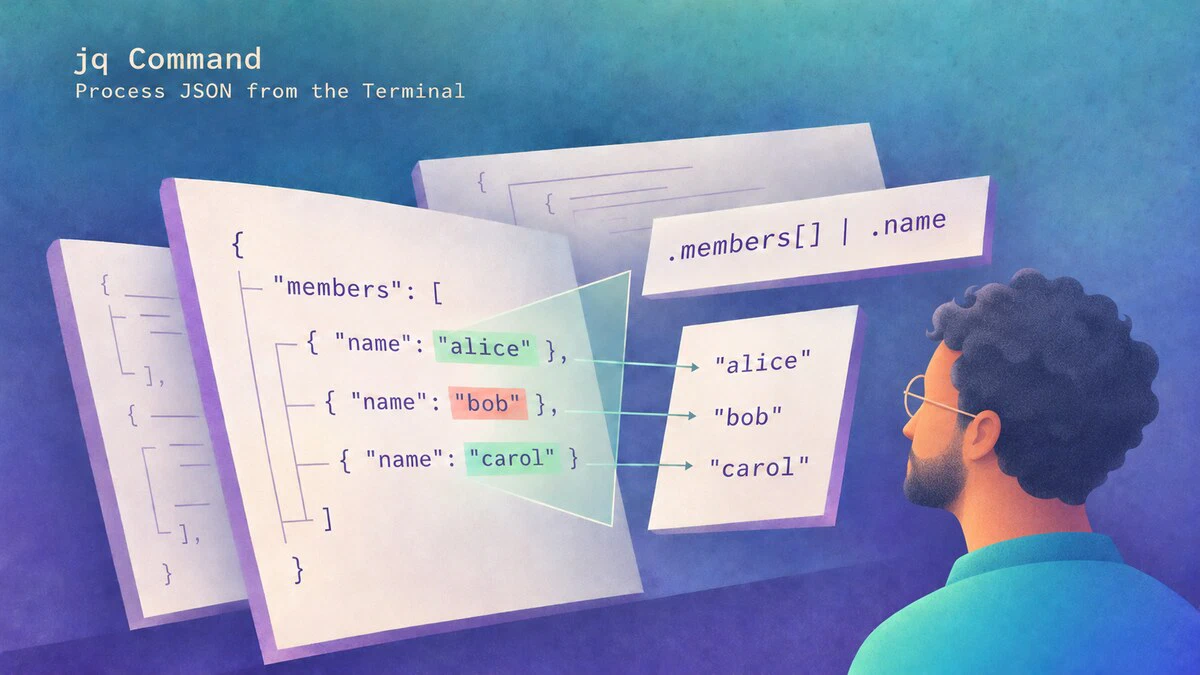
When you call an API, read a configuration file, or inspect a container, the data often comes back as JSON: nested, dense, and printed on a single unreadable line. You need a way to pull out the one field you care about, filter a list, or reshape the structure without writing a script. The jq command does exactly that. It is a small, fast tool that reads JSON, applies a filter you write, and prints the result. It plays the same role for JSON that sed and awk play for plain text.
This guide explains how to use jq to pretty-print JSON, select and filter fields, transform structures, and parse the kind of responses you get from real APIs.
jq Syntax
The command takes a filter and an optional input file:
jq [OPTIONS] FILTER [FILE...]With no FILE, jq reads from standard input, so it pairs naturally with a pipe from curl or cat. The FILTER is a small expression that describes what to extract or build. The simplest filter is ., the identity filter. It returns the input unchanged.
Installing jq
jq is available in Linux distribution repositories. On Ubuntu, Debian, and derivatives, install it with apt:
sudo apt update
sudo apt install jq
On Fedora, RHEL, and derivatives, use dnf:
sudo dnf install jqConfirm the installation and version:
jq --versionjq-1.8.1Your version number may differ depending on the distribution. The filters in this guide work with jq 1.6 and later.
A Sample JSON File
The file-based examples below use one small file so the filters are easy to follow. Save the following as team.json:
{
  "team": "linuxize",
  "active": true,
  "members": [
    { "id": 1, "name": "alice", "role": "admin", "active": true },
    { "id": 2, "name": "bob", "role": "editor", "active": false },
    { "id": 3, "name": "carol", "role": "editor", "active": true }
  ]
}
Pretty-Printing JSON
The most common first use of jq is to make compact JSON readable. Passing the identity filter . reformats the input with indentation. When the output goes to a terminal, jq also adds color:
jq '.' team.json{
"team": "linuxize",
"active": true,
"members": [
{
"id": 1,
"name": "alice",
"role": "admin",
"active": true
},
{
"id": 2,
"name": "bob",
"role": "editor",
"active": false
},
{
"id": 3,
"name": "carol",
"role": "editor",
"active": true
}
]
}The JSON values stay the same; the indentation makes the nested objects and array easier to follow. You can also pipe a single-line API response through jq '.' to read it this way.
Selecting a Field
To pull out one top-level value, name it after a dot. This returns the value of the team key:
jq '.team' team.json"linuxize"Notice that the output keeps the quotation marks. jq prints valid JSON by default, and a JSON string includes its quotes. Inside a shell script, you usually want the bare string. To get it, add the -r (raw output) flag:
jq -r '.team' team.jsonlinuxizeFor a nested value, chain the keys together. The .members[0].name filter reads the first member, then its name:
jq -r '.members[0].name' team.jsonaliceWorking with Arrays
The members key holds an array. Indexing with [0] returns one element, but the array iterator [] returns every element in turn. Most real filters start from it:
jq '.members[]' team.jsonThis prints each member object on its own, one after another. From there you can pipe each element into another filter with |, exactly like a shell pipe but inside jq. To print just the name of every member, iterate the array and read .name from each:
jq -r '.members[] | .name' team.jsonalice
bob
carolTo count the elements instead, apply the length function to the array:
jq '.members | length' team.json3Filtering with select
The select function keeps only the elements that match a condition. This filter walks every member and keeps the ones whose active field is true:
jq '.members[] | select(.active == true)' team.jsonThe output contains only alice and carol. The active value for bob is false. You can combine select with field access to get just the names of the active members:
jq -r '.members[] | select(.active) | .name' team.jsonalice
carolHere, select(.active) keeps values other than false and null. In this file, active is always a boolean, so the shorter form gives the same result. Use select(.active == true) when you need to match the boolean value explicitly.
The condition can test any field. To find every member with the editor role, compare the role string:
jq -r '.members[] | select(.role == "editor") | .name' team.jsonbob
carolBoth bob and carol have the editor role, even though only carol is active.
Transforming the Output
jq does more than extract values; it can build new JSON. Wrapping a filter in {} constructs an object from the fields you choose. This reshapes each member into a smaller object with renamed keys:
jq '.members[] | {user: .name, level: .role}' team.json{
"user": "alice",
"level": "admin"
}
{
"user": "bob",
"level": "editor"
}
{
"user": "carol",
"level": "editor"
}The output is a stream of three separate objects. To collect values into a single array, wrap the iteration in []:
jq '[.members[] | .name]' team.json[
"alice",
"bob",
"carol"
]The array now contains just the three names. You can get the same result with map. It applies a filter to every array element and collects the results:
jq '.members | map(.name)' team.jsonPass the array itself to map; you do not need an additional pair of array brackets around it.
When you need plain rows instead of JSON, the @csv and @tsv formats turn an array into a delimited line. Build an array per member and pass it to @csv with raw output:
jq -r '.members[] | [.id, .name, .role] | @csv' team.json1,"alice","admin"
2,"bob","editor"
3,"carol","editor"Each array becomes one CSV row. The numeric IDs stay unquoted, and the string fields are quoted and escaped as CSV requires.
Passing Shell Variables to jq
When a filter depends on a shell variable, pass the value with --arg instead of inserting it into the filter text. For example, we can choose a role before running the command:
role='editor'
jq -r --arg role "$role" '.members[] | select(.role == $role) | .name' team.jsonbob
carolThe shell expands "$role", and the single quotes keep the jq filter unchanged. Inside the filter, $role is a jq variable containing the string editor. This also handles spaces, quotes, and other special characters in the value.
Use --argjson when the value should be a JSON number, boolean, array, or object rather than a string. The following command builds an object without reading an input file:
jq -n --arg name 'alice' --argjson id '1' '{name: $name, id: $id}'{
"name": "alice",
"id": 1
}The name value is a string from --arg. The id value is a number, since --argjson parses its argument as JSON. The -n option runs the filter once with null as its input.
Handling Missing Values and Exit Status
Reading a missing object field returns null. You can supply a fallback with //; the sample file has no description field, so this command prints a default:
jq -r '.description // "No description"' team.jsonNo descriptionThe // operator uses the fallback for null and false, or when the left side produces no values. It keeps empty strings, zero, and empty arrays, so it is not a general test for empty data.
To handle an optional array, default it to [] before iterating:
jq -r '(.guests // [])[] | .name' team.jsonThere is no guests field in our file, so this command produces no output instead of a Cannot iterate over null error. It still reports an error if the field contains an incompatible type, such as a string.
For a shell condition, add -e so the result affects the exit status:
if jq -e '.members | any(.active == true)' team.json > /dev/null; then
    printf '%s\n' 'At least one member is active'
fiAt least one member is activeThe any filter returns true because alice and carol are active. With -e, jq exits with status 0 when its last output is neither false nor null, 1 when it is false or null, and 4 when it produces no result. Parse errors and other failures also return a nonzero status; a failure does not always mean a field was absent.
Parsing an API Response
jq reads standard input, so it can sit at the end of a pipe from any command that emits JSON. A common pattern is piping a curl request straight into a filter. For example, this reads the name of a public GitHub repository:
curl -fsS https://api.github.com/repos/jqlang/jq | jq -r '.full_name'jqlang/jqThe response contains a full_name field, and -r prints it without quotes. The curl options hide the progress meter (-s), keep error messages visible (-S), and fail on HTTP error responses without passing their bodies to jq (-f). To list the logins from an array endpoint, iterate the array and read each login:
curl -fsS 'https://api.github.com/repos/jqlang/jq/contributors?per_page=5' | jq -r '.[] | .login'This prints up to five contributor logins from the first response page. The list can change over time, and GitHub can rate-limit unauthenticated requests.
In a Bash script, use set -o pipefail if the pipeline must fail when either curl or jq fails. By default, a pipeline reports the status of its last command, so a failed request followed by jq receiving no input can otherwise appear successful. See our guide on making requests with curl
for more on the request side.
Common Options
The flags you will reach for most often are:
-r,--raw-output- Print strings without JSON quotes, which is what scripts usually need.-c,--compact-output- Print each result on one line instead of pretty-printed, useful for feeding JSON to another tool.-n,--null-input- Do not read input; build JSON from scratch in the filter.-s,--slurp- Read the entire input stream into a single array before filtering.-e,--exit-status- Set the exit status from the last output value;false,null, and no result produce nonzero statuses.--arg name value- Pass a shell value into the filter as a$namevariable, safely quoted.--argjson name value- Parse the argument as JSON and pass it as a variable, preserving numbers, booleans, arrays, and objects.
Quick Reference
| Filter | Result |
|---|---|
. | The whole input, pretty-printed |
.key | The value of a top-level field |
.a.b.c | A nested value |
.array[0] | One element by index |
.array[] | Every element in turn |
.array | length | Number of elements |
.array[] | select(.x == "y") | Elements matching a condition |
{new: .old} | A new object from chosen fields |
[.array[] | .field] | Values collected into an array |
.array | map(.field) | Values collected with an array filter |
.key // "default" | Fallback for a missing, null, or false value |
[.a, .b] | @csv | A CSV row from chosen values |
Troubleshooting
Cannot index string with string "key"
The filter expects an object but received a string. Pretty-print the input with jq '.' first to confirm the structure, then adjust the path.
Output still has quotes around stringsjq prints valid JSON by default, so strings keep their quotes. Add -r to print the raw string without them.
Cannot iterate over null
A value before the [] iterator is null. Either the key is missing, or its value is explicitly null. Check the spelling of each key, or iterate over (.key // [])[] when a missing array is expected.
jq: parse error: Invalid numeric literal when reading an API response
The response may be HTML, an error page, or malformed JSON. Inspect the response and HTTP status with curl before changing the filter. The -f flag prevents HTTP error bodies from reaching jq, but a successful HTTP response can still contain invalid JSON.
The shell breaks the filter into pieces
The filter contains characters the shell treats specially, such as |, $, or spaces. Wrap the whole filter in single quotes so the shell passes it to jq unchanged.
Saving changes empties the input file
jq has no in-place editing option. Never redirect its output to the same file it is reading: the shell truncates the file before jq reads it. Write to a separate file, check the result, and only then replace the original. If the file has already been emptied, restore it from a backup or version control.
Conclusion
Keep the jq manual nearby when a filter needs to grow beyond these examples; it includes runnable examples for sorting, grouping, reducing, and more.
Tags
Linuxize Weekly Newsletter
A quick weekly roundup of new tutorials, news, and tips.
About the authors

Dejan Panovski
Dejan Panovski is the founder of Linuxize, an RHCSA-certified Linux system administrator and DevOps engineer based in Skopje, Macedonia. Author of 1000+ Linux tutorials with 20+ years of experience turning complex Linux tasks into clear, reliable guides.
View author page