nvidia-smi Command in Linux: Monitor GPU Usage
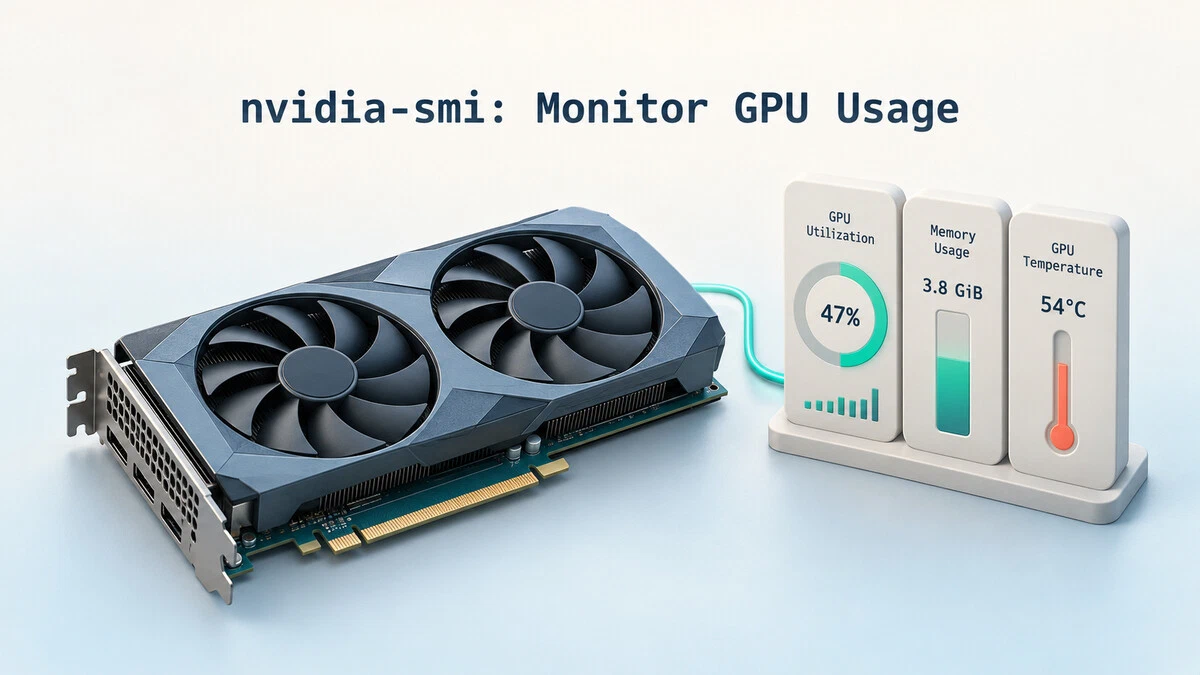
When a training job slows down or a render takes longer than expected, checking GPU usage helps you work out where to look next. A card with little free memory may not have room for your workload, while low utilization can mean the GPU is waiting for data from the CPU or disk.
The nvidia-smi command (NVIDIA System Management Interface) reports utilization, memory use, temperature, power draw, and which processes are using each NVIDIA GPU.
This guide explains how to read the nvidia-smi output, watch metrics as they change, and query specific fields for scripts and logging.
Prerequisites
You need a supported NVIDIA GPU, a working NVIDIA driver, and the driver utilities that provide nvidia-smi. The examples below work across Linux distributions once these are installed. You do not need the CUDA Toolkit just to monitor your GPU.
Package names depend on your distribution. Ubuntu provides the command through nvidia-utils-<branch> packages, with a -server variant for server drivers. Debian has a separate nvidia-smi package
. On Fedora, the RPM Fusion driver ships it in xorg-x11-drv-nvidia-cuda. Install utilities that match your driver branch and package source, rather than choosing a package solely because the shell suggests it.
If you have not installed a driver yet, follow the instructions for your distribution. For example, Ubuntu documents its recommended setup in the NVIDIA driver installation guide .
nvidia-smi Command Syntax
The general syntax is:
nvidia-smi [OPTIONS]Running the command without options shows a summary of all visible GPUs. Most monitoring commands do not require sudo.
Reading the Default Output
Run the command on its own to see a full snapshot of every GPU in the system:
nvidia-smiThe following example shows a card running a 550-series driver. The layout and available fields vary with the driver version and GPU:
+-----------------------------------------------------------------------------------------+
| NVIDIA-SMI 550.107.02             Driver Version: 550.107.02     CUDA Version: 12.4     |
|-----------------------------------------+------------------------+----------------------+
| GPU  Name                 Persistence-M | Bus-Id          Disp.A | Volatile Uncorr. ECC |
| Fan  Temp   Perf          Pwr:Usage/Cap |           Memory-Usage | GPU-Util  Compute M. |
|                                         |                        |               MIG M. |
|=========================================+========================+======================|
|   0  NVIDIA GeForce RTX 4070        Off |   00000000:01:00.0  On |                  N/A |
| 31%   54C    P2             68W /  200W |    3892MiB /  12282MiB |     47%      Default |
|                                         |                        |                  N/A |
+-----------------------------------------+------------------------+----------------------+

+-----------------------------------------------------------------------------------------+
| Processes:                                                                              |
|  GPU   GI   CI        PID   Type   Process name                              GPU Memory |
|        ID   ID                                                               Usage      |
|=========================================================================================|
|    0   N/A  N/A      2841      C   python                                       3876MiB |
+-----------------------------------------------------------------------------------------+
The top banner shows the driver version and its supported CUDA version. Recent drivers also report these values as KMD Version and CUDA UMD Version in the detailed nvidia-smi -q output. The banner does not tell you which CUDA Toolkit is installed, or whether you have one at all. If the toolkit compiler is installed, nvcc --version identifies the version on your path. A newer toolkit can also work with an older driver under NVIDIA’s CUDA compatibility rules
.
The first table describes each GPU. Temp is the core temperature, Pwr:Usage/Cap compares power draw against the limit, and Memory-Usage shows used and total VRAM. Here the card is at 54°C, drawing 68 W against a 200 W limit, and using 3892 MiB, or about 3.8 GiB, of memory.
GPU-Util is the percentage of the sampling interval during which one or more kernels were running. A value of 47% does not mean that 47% of the GPU cores are in use. Video encoder and decoder engines are tracked separately and do not show up in this figure. For a video workload, nvidia-smi -q -d UTILIZATION shows those figures when the GPU supports them.
The lower table lists GPU processes. Here a single python process (PID 2841) holds most of the allocated memory. The C type marks a compute process; G marks a graphics process. Memory can stay allocated while a process is idle, so memory use alone does not tell you how much work it is doing.
Watching GPU Usage in Real Time
A single snapshot rarely tells the whole story. To follow utilization as a workload runs, use the built-in loop flag -l, which repeats the report every N seconds:
nvidia-smi -l 1This prints a new report roughly once per second. For a live view that updates in place, use the watch command :
watch -n 1 nvidia-smiBoth approaches let you see memory climb as a model loads or utilization spike when a batch starts processing. Press Ctrl+C to stop either command.
Selecting a GPU
On a system with several cards, list the GPU indices and UUIDs first:
nvidia-smi -LUse -i with the index of the card you want to monitor. For example, to watch GPU 0:
nvidia-smi -i 0 -l 1You can also pass the UUID reported by -L. Use a UUID or PCI bus ID when a script must keep targeting the same physical card, since indices can change after a reboot.
Querying Specific Fields
The default table is built for humans. For logging or scripting, ask for exactly the fields you want in CSV form with --query-gpu and --format:
nvidia-smi --query-gpu=timestamp,name,utilization.gpu,memory.used,memory.total,temperature.gpu --format=csvFor the same workload, the CSV output would look like this:
timestamp, name, utilization.gpu [%], memory.used [MiB], memory.total [MiB], temperature.gpu
2026/10/25 10:25:22.331, NVIDIA GeForce RTX 4070, 47 %, 3892 MiB, 12282 MiB, 54
Each row represents one GPU. We requested the fields in the order shown in the header. You can add index or uuid to distinguish cards with the same model name, or power.draw to include power consumption.
To get raw numbers without units or the header row, which is easier to parse in a script, add nounits and noheader to the format:
nvidia-smi --query-gpu=utilization.gpu,memory.used --format=csv,nounits,noheaderOnly the two values remain:
47, 3892The first value is utilization in percent; the second is used memory in MiB. Removing units does not change their meaning, and unsupported fields can still return N/A rather than a number.
You can list the fields recognized by your installed driver with nvidia-smi --help-query-gpu. For scripts that must work across driver releases, NVIDIA recommends using NVML
, since nvidia-smi output is not guaranteed to remain compatible.
Logging GPU Metrics to CSV
Combine a query with -l and -f to write samples to a file. The following command records GPU 0 every five seconds. Choose a new filename if you want to keep an earlier log, because -f overwrites an existing file:
nvidia-smi -i 0 --query-gpu=timestamp,uuid,utilization.gpu,memory.used,temperature.gpu,power.draw --format=csv -l 5 -f gpu-metrics.csvThe command runs in the foreground and writes to gpu-metrics.csv in the current directory. Press Ctrl+C to stop logging. Keeping the timestamp and UUID makes it easier to compare samples from different runs.
Inspecting Per-Process GPU Memory
When several jobs share one card, you often need to know which process is holding memory. The --query-compute-apps mode lists active compute processes and their GPU memory allocations. It does not include graphics-only processes or report a utilization percentage for each job:
nvidia-smi --query-compute-apps=pid,process_name,used_memory --format=csvFor our Python job, the result would be:
pid, process_name, used_gpu_memory [MiB]
2841, python, 3876 MiB
The used_memory query field appears as used_gpu_memory in the header. Here PID 2841 has 3876 MiB allocated. With the PID in hand, use the ps command
to inspect the full command line:
ps -p 2841 -o user,pid,argsReplace 2841 with the PID from your output. In a container, a reported PID may belong to the host’s PID namespace, so you may need to run ps on the host to find it.
To see utilization for each process rather than memory alone, run nvidia-smi pmon. It prints one line per process every second, with SM, memory, encoder, and decoder usage, and it includes graphics processes. NVIDIA lists only limited support for GeForce cards, so some values may be missing on consumer GPUs. Press Ctrl+C to stop it.
Quick Reference
| Task | Command |
|---|---|
| Full snapshot | nvidia-smi |
| Refresh every second | nvidia-smi -l 1 |
| Live in-place view | watch -n 1 nvidia-smi |
| Query specific fields (CSV) | nvidia-smi --query-gpu=utilization.gpu,memory.used --format=csv |
| Raw values for scripts | nvidia-smi --query-gpu=utilization.gpu --format=csv,nounits,noheader |
| Per-process memory | nvidia-smi --query-compute-apps=pid,process_name,used_memory --format=csv |
| List GPUs | nvidia-smi -L |
| Monitor GPU 0 | nvidia-smi -i 0 -l 1 |
| Encoder and decoder utilization | nvidia-smi -q -d UTILIZATION |
| Save samples every five seconds | nvidia-smi --query-gpu=timestamp,utilization.gpu,memory.used --format=csv -l 5 -f gpu-metrics.csv |
Troubleshooting
nvidia-smi: command not found
The command may be missing from your PATH, or the driver utilities may not be installed. Check with command -v nvidia-smi, then install the matching utilities through the same package source as your driver. Under WSL, the executable may be at /usr/lib/wsl/lib/nvidia-smi.
NVIDIA-SMI has failed because it couldn’t communicate with the NVIDIA driver
The utility is installed, but it cannot reach a working driver. On a regular Linux host, check whether the module is loaded with lsmod | grep nvidia. If it is missing, check the driver installation for your running kernel and any Secure Boot module-signing errors. In a container, first confirm that nvidia-smi works on the host, then check the container’s GPU access. WSL uses the Windows host driver; do not install a Linux display driver inside WSL.
Failed to initialize NVML: Driver/library version mismatch
The loaded kernel module and user-space NVIDIA libraries are from different driver versions. This often happens after a driver update. Save your work and reboot to load the updated module. If the error remains, check for mixed driver package sources or an incomplete update.
Metrics show N/A or the process list is empty
An unsupported metric is not a zero reading. Support depends on your GPU, driver, and environment. WSL has a limited set of supported queries
, including limitations on utilization and active compute-process reporting. MIG-enabled GPUs also have restrictions on utilization queries. In containers, compare the result with the host and check that the NVIDIA Container Toolkit exposes the GPU and the utility driver capability needed for nvidia-smi.
Conclusion
Watch a workload through both loading and processing before judging its GPU use, since allocated memory can stay high while utilization falls between batches. If you want a local workload to try, see how to run LLMs with Ollama on Ubuntu .
Tags
Linuxize Weekly Newsletter
A quick weekly roundup of new tutorials, news, and tips.
About the authors

Dejan Panovski
Dejan Panovski is the founder of Linuxize, an RHCSA-certified Linux system administrator and DevOps engineer based in Skopje, Macedonia. Author of 1000+ Linux tutorials with 20+ years of experience turning complex Linux tasks into clear, reliable guides.
View author page