Bash Subshells: Isolate Variables and Directory Changes
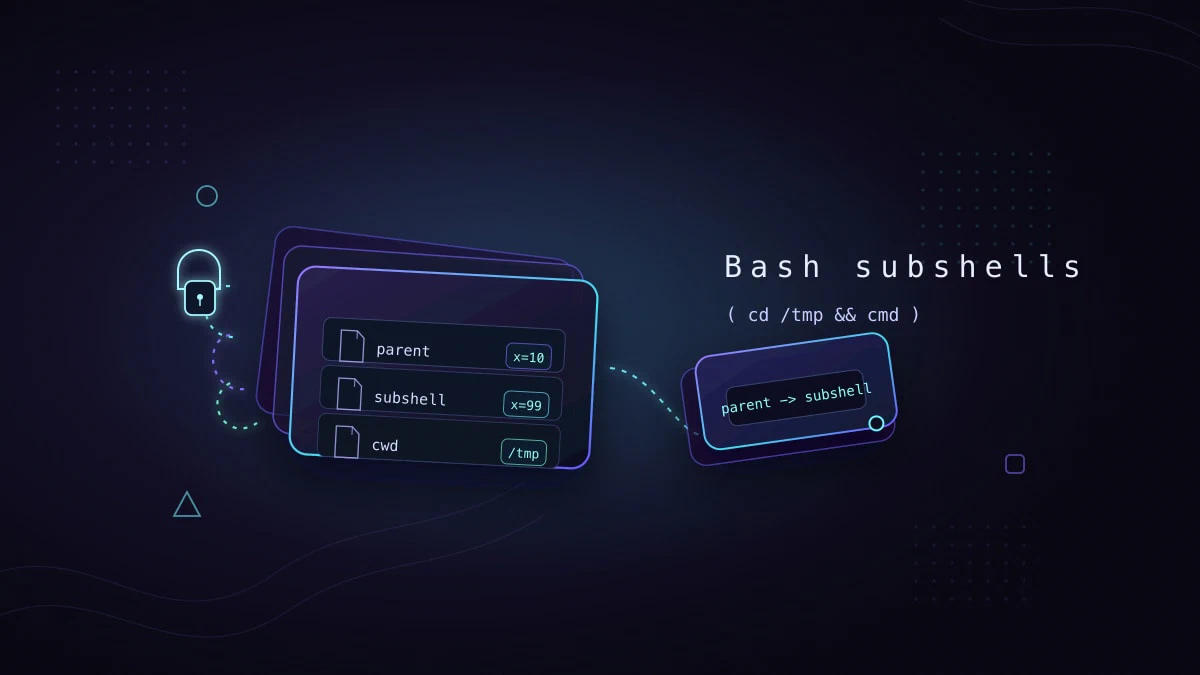
When a Bash script needs to change directory, adjust variables, or set temporary environment values for one task, those changes can easily leak into the rest of the script. A subshell gives you a clean boundary. Bash runs the commands in a child shell environment, and any changes made there disappear when that child exits.
Subshells explain why some variable assignments seem to vanish, why a cd inside parentheses does not affect the current shell, and why loops fed by pipelines can lose counter values. This guide explains how Bash subshells work, how to create them, and where they show up in everyday scripts.
Syntax
Use parentheses to run a list of commands in a subshell:
(command1; command2; command3)You will usually format multi-command subshells across several lines:
(
  command1
  command2
  command3
)
The parent shell waits for the subshell to finish unless you send it to the background with &.
Create a Subshell with Parentheses
Wrap commands in parentheses when you want their side effects to stay contained:
(cd /tmp && ls)systemd-private-abc123 snap-private-def456After the command finishes, your shell is still in the original directory. The cd happened inside the subshell and had no effect on the parent shell.
Compare that with a command group in curly braces, which runs in the current shell:
{ cd /tmp && ls; }The curly-brace form changes the current directory of the running shell. The parenthesis form does not. Use parentheses when you want isolation, and use braces when you want a grouped command to affect the current shell.
Variable Isolation
Variables set inside a subshell do not affect the parent:
x=10

(x=99; echo "inside subshell: $x")

echo "parent shell: $x"inside subshell: 99
parent shell: 10The subshell starts with a copy of x=10, changes its own copy to 99, and then exits. The parent shell’s x is unchanged.
This isolation is useful when a script needs temporary environment settings:
(
  export LANG=C
  export LC_ALL=C
  sort -k2 data.txt
)
The locale changes affect only the sort command inside the subshell. The parent shell’s locale settings are not touched, so you do not need to save and restore them manually.
Capture Output with Command Substitution
Command substitution runs commands in a subshell-like environment and captures their standard output:
files=$(printf '%s\n' /etc/*.conf)
printf '%s\n' "$files"
Every $(...) expression captures output and returns it to the parent shell. Variable and directory changes inside the command substitution do not leak out.
For example, this command prints /tmp from inside the command substitution, but the parent shell’s current directory is unchanged:
pwd
current_tmp=$(cd /tmp && pwd)
pwd
printf '%s\n' "$current_tmp"
The first two pwd commands run in different environments. The cd /tmp affects only the command substitution, while the captured output is stored in current_tmp.
Subshell Exit Codes
The exit code of a subshell is the exit code of the last command it ran:
if (cd /nonexistent 2>/dev/null); then
  echo "directory exists"
else
  echo "directory missing"
fidirectory missingThe subshell’s exit code is used directly in the if condition. This pattern lets you test an operation such as cd without exposing the directory change to the current shell. For more about shell statuses, see the Bash exit code guide
.
Run a Subshell in the Background
Parentheses combined with & run a group of commands asynchronously:
(
  sleep 5
  echo "background task done"
) &

echo "parent continues immediately"parent continues immediately
background task doneThe parent shell starts the subshell, continues to the next command, and does not wait for the group to finish. Without parentheses, & would apply only to the command before it, not to the whole multi-line block.
Subshells and Pipelines
Bash normally runs each command in a multi-command pipeline in a separate subshell. This matters most when the right side of the pipe changes a variable:
count=0
printf '%s\n' alpha beta gamma | while read -r line; do
  count=$((count + 1))
done

echo "lines: $count"lines: 0The while loop reads the three lines, but the loop runs in a subshell because it is part of a pipeline. The increments happen there and disappear when the loop exits.
The usual fix is to avoid piping into the loop. Use process substitution so the loop itself runs in the current shell:
count=0
while read -r line; do
  count=$((count + 1))
done < <(printf '%s\n' alpha beta gamma)

echo "lines: $count"lines: 3If the input already lives in a file, simple input redirection is even clearer:
count=0
while read -r line; do
  count=$((count + 1))
done < /etc/passwd

echo "lines: $count"
Process substitution and input redirection are usually easier to reason about than relying on Bash options. The lastpipe option can run the last pipeline command in the current shell, but only in Bash versions that support it and only when job control is not active. For more pipeline behavior, see Linux pipes explained
.
Subshells vs source
Running a script with bash script.sh starts a separate Bash process. Variables, functions, and directory changes made by that script do not affect the shell that launched it. This is similar to the isolation you get from a subshell.
Sourcing a file is different:
source script.shThe source command
runs the file in the current shell. Use source when you want a file to define variables or functions that remain available afterward. Use a subshell when you want the opposite: a temporary place for changes that should disappear.
Quick Reference
For a printable quick reference, see the Bash cheatsheet .
| Task | Pattern |
|---|---|
| Run commands in a subshell | (command1; command2) |
| Isolate a directory change | (cd /path && command) |
| Group a multi-line subshell | ( commands ) |
| Capture command output | value=$(command) |
| Run a group in the background | (commands) & |
| Keep loop variables after reading command output | while read -r line; do ...; done < <(command) |
| Run a group in the current shell | { command1; command2; } |
| Run a file in the current shell | source file.sh |
Troubleshooting
A variable set in a pipeline is empty afterward
The loop or command that set the variable probably ran in a subshell. Replace command | while read -r line; do ...; done with process substitution: while read -r line; do ...; done < <(command). For line-reading details, see the Bash read command
.
cd inside parentheses does not change my directory
That is expected. Parentheses create a subshell, so the directory change is local to that child shell. Use { cd /path && command; } if you intentionally want the current shell to change directories.
lastpipe does not work in my terminallastpipe is not available in older Bash versions, including the default Bash 3.2 on macOS. Even on newer Bash versions, it only applies when job control is not active. In portable scripts, prefer process substitution or input redirection.
Conclusion
Subshells are useful when you want temporary shell changes without cleanup code. Use parentheses for isolation, command substitution to capture output, and process substitution or input redirection when a pipeline would otherwise hide variable changes.
Tags
Linuxize Weekly Newsletter
A quick weekly roundup of new tutorials, news, and tips.
About the authors

Dejan Panovski
Dejan Panovski is the founder of Linuxize, an RHCSA-certified Linux system administrator and DevOps engineer based in Skopje, Macedonia. Author of 1000+ Linux tutorials with 20+ years of experience turning complex Linux tasks into clear, reliable guides.
View author page