How to Manage Node.js Processes with PM2
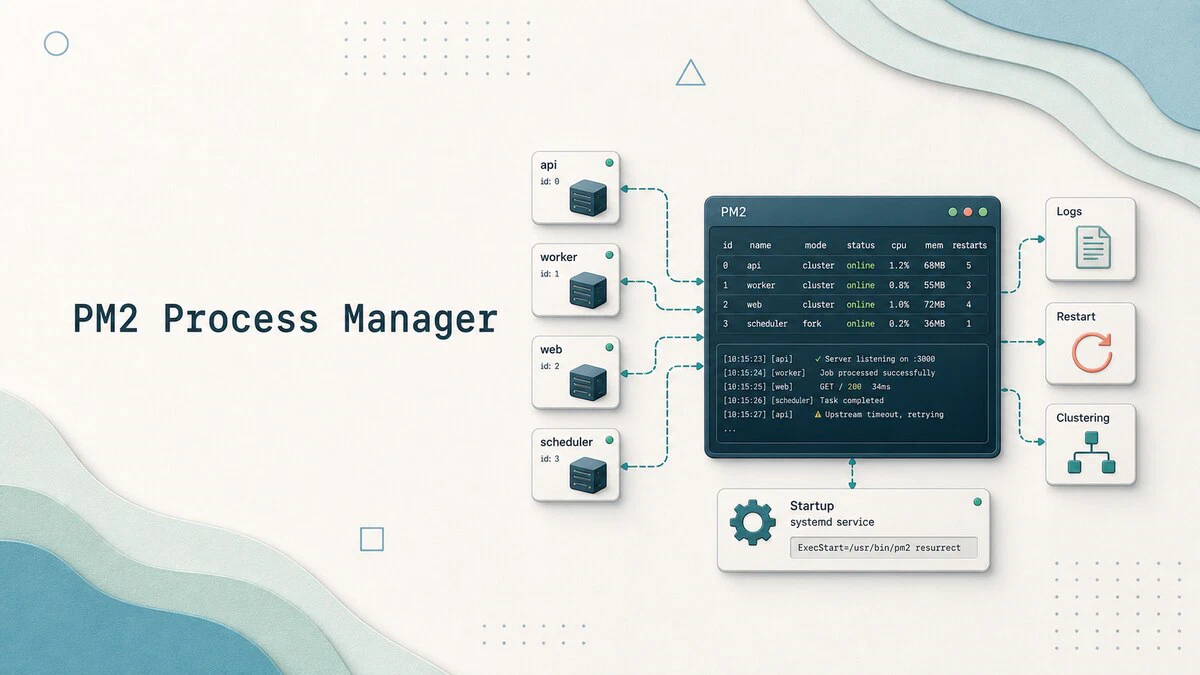
A Node.js app can run fine with node app.js during development, but production needs something that can restart crashes, collect logs, and come back after a reboot. A single Node.js process runs one event loop, so busy services can hit a single-process ceiling before the server itself is out of capacity. PM2 is a Node.js process manager that covers those operational pieces: it restarts crashed apps, captures stdout and stderr into rotated log files, runs networked apps in cluster mode across CPU cores, and survives a reboot through a systemd unit. The CLI is short enough to learn in an afternoon, and it covers everything from local development to a multi-server fleet.
This guide explains how to install PM2 on Linux, start and manage Node.js processes, set up clustering for multi-core servers, and persist the process list across reboots.
Install PM2
PM2 is published as an npm package. PM2 7 requires Node.js 18 or newer. With Node.js already installed, add PM2 globally:
sudo npm install -g pm2If your projects use pnpm, pnpm add -g pm2 installs the same package. See the pnpm command guide
for its global install setup.
Confirm the version:
pm2 --version7.0.3The pm2 command is now on $PATH for every user. PM2 stores per-user state under ~/.pm2, so each Linux user has an isolated process list, log directory, and pid file.
Start an Application
The simplest invocation starts a single Node.js process and gives it a name you can refer to later:
pm2 start app.js --name myapp[PM2] Starting /home/sara/myapp/app.js in fork_mode (1 instance)
[PM2] Done.
┌────┬───────┬─────────┬───────┬──────┬──────────┬────────┐
│ id │ name │ mode │ pid │ ↺ │ status │ cpu │
├────┼───────┼─────────┼───────┼──────┼──────────┼────────┤
│ 0 │ myapp │ fork │ 12345 │ 0 │ online │ 0% │
└────┴───────┴─────────┴───────┴──────┴──────────┴────────┘The --name flag is optional but worth setting on every start: PM2 falls back to the script filename otherwise, and “myapp” is easier to type than “server”.
pm2 start also accepts npm scripts. If your package.json has "start": "node app.js":
pm2 start npm --name myapp -- startThe -- separator is required so PM2 stops parsing flags and passes the remainder to npm.
Inspect Processes
pm2 ls (or pm2 list) prints the current process table:
pm2 ls┌────┬─────────┬─────────┬─────────┬─────────┬──────────┬────────┐
│ id │ name │ mode │ pid │ uptime │ status │ memory │
├────┼─────────┼─────────┼─────────┼─────────┼──────────┼────────┤
│ 0 │ myapp │ fork │ 12345 │ 3m │ online │ 64.0mb │
│ 1 │ worker │ fork │ 12346 │ 1m │ online │ 42.0mb │
└────┴─────────┴─────────┴─────────┴─────────┴──────────┴────────┘For per-process detail, including environment variables, restart count, and log paths, ask for a detailed view:
pm2 show myappThe output also reports the script path, the working directory, and the last few exit codes, which together cover most “why is it restarting” investigations.
Read Logs
PM2 captures stdout and stderr into log files under ~/.pm2/logs. The streaming view is the fastest way to see what is happening right now:
pm2 logs myapp0|myapp | App listening on http://127.0.0.1:3000
0|myapp | request from 127.0.0.1 GET /The prefix combines the PM2 id with the app name, which matters in cluster mode where multiple instances share a name. Add --lines 100 to start from the last 100 lines, or --err to tail only stderr.
For long-lived apps, install the log rotation module:
pm2 install pm2-logrotate
pm2 set pm2-logrotate:max_size 10M
pm2 set pm2-logrotate:retain 7
The settings cap each log file at 10 MB and keep seven rotated copies, which is enough to investigate problems without filling the disk.
Restart, Reload, and Stop
Three verbs cover most lifecycle work:
pm2 restart myapp
pm2 reload myapp
pm2 stop myapp
restart kills and respawns the process. It is the fastest option but drops in-flight requests.
reload is the zero-downtime variant. PM2 starts the new process, waits until it reports ready, and only then terminates the old one. It only works in cluster mode (more below), so the listening socket can be passed across processes.
stop shuts the process down but keeps the entry in the table, so a later pm2 start myapp brings it back without re-typing the script path. To remove the entry completely, use pm2 delete myapp.
Run in Cluster Mode
A single Node.js process runs one event loop. On multi-core servers, PM2’s cluster mode forks the application into multiple processes that share the listening socket:
pm2 start app.js -i 4 --name myappPass max instead of a number to spawn one process per logical CPU:
pm2 start app.js -i max --name myappCluster mode requires the application to handle being one of several processes. Most HTTP frameworks (Express, Fastify, Koa) work out of the box because Node.js handles the socket distribution. Code that uses in-process state (counters, caches, WebSocket session maps) needs an external store such as Redis or a sticky-session mechanism for the cluster to behave correctly.
Manage Multiple Apps with an Ecosystem File
For more than a single app, switch from CLI flags to a configuration file:
pm2 ecosystemThe command writes ecosystem.config.js in the current directory. Edit it to list your apps:
module.exports = {
  apps: [
    {
      name: "api",
      script: "./api/server.js",
      instances: "max",
      exec_mode: "cluster",
      env: {
        NODE_ENV: "production",
        PORT: 3000,
      },
    },
    {
      name: "worker",
      script: "./worker/index.js",
      instances: 1,
      env: {
        NODE_ENV: "production",
      },
    },
  ],
};
Start everything at once:
pm2 start ecosystem.config.jsThe file is the right place to record per-environment overrides, log paths, memory limits (max_memory_restart: "512M"), and cron-style restart schedules. Commit it alongside the application.
Survive a Reboot
PM2 does not start itself at boot. To make it do so, generate a systemd unit:
pm2 startup systemd[PM2] To setup the Startup Script, copy/paste the following command:
sudo env PATH=$PATH:/usr/bin /usr/lib/node_modules/pm2/bin/pm2 startup systemd -u sara --hp /home/saraRun the printed command exactly as shown. It installs and enables a systemd unit named pm2-<user>.service. Then save the current process list so PM2 knows what to start:
pm2 saveAfter a reboot, the systemd unit launches PM2 as your user, which resurrects each saved app. Verify the unit is enabled:
systemctl status pm2-sara● pm2-sara.service - PM2 process manager
Loaded: loaded (/etc/systemd/system/pm2-sara.service; enabled; preset: enabled)
Active: active (running)Monitor Resources
For an at-a-glance view of CPU and memory per app, run the built-in dashboard:
pm2 monitThe terminal UI shows a live process list with CPU and memory graphs, plus a log tail per app. Press q to quit.
For programmatic access, pm2 jlist prints the same data as JSON, which feeds into your own dashboards or monitoring scripts.
Troubleshooting
pm2: command not found after install
npm’s global bin directory is not on $PATH. Run npm config get prefix and add <prefix>/bin to $PATH, or install Node.js through the official NodeSource setup, which places npm under /usr/bin by default.
Process keeps restarting
The script crashes on startup. Run pm2 logs myapp --err to see the most recent stderr output, then fix the underlying error. Use pm2 show myapp for the restart count.
pm2 reload falls back to restart
Reload only works in cluster mode. Add -i 2 (or more) when starting the app, and the next reload will be zero-downtime.
Quick Reference
| Task | Command |
|---|---|
| Install PM2 globally | sudo npm install -g pm2 |
| Start an app | pm2 start app.js --name myapp |
| List processes | pm2 ls |
| Stream logs | pm2 logs myapp |
| Restart | pm2 restart myapp |
| Zero-downtime reload | pm2 reload myapp |
| Stop | pm2 stop myapp |
| Delete from list | pm2 delete myapp |
| Cluster mode (4 instances) | pm2 start app.js -i 4 |
| Save process list | pm2 save |
| Generate systemd unit | pm2 startup systemd |
FAQ
Should I use PM2 in a Docker container?
Usually no. Containers already provide isolation, and an orchestrator (Docker, systemd, Kubernetes) restarts crashed containers. Running PM2 inside hides crashes from the orchestrator and makes the container harder to debug.
Does PM2 support TypeScript?
Yes. Either compile to JavaScript first and point PM2 at the compiled file, or use --interpreter ts-node when starting. Compiling is faster at runtime and simpler in production.
How do I pass environment variables to a PM2 app?
Add an env block to the ecosystem file, or prefix the CLI invocation: NODE_ENV=production pm2 start app.js. The ecosystem file is the durable option.
Conclusion
PM2 turns a Node.js process into a managed service with one short command, and the ecosystem file scales the same workflow to many apps on the same server. Pair it with cluster mode for multi-core HTTP services, generate the systemd unit so reboots do not take the site down, and the rest is operational hygiene.
For related setup, see our guides on installing Node.js on Ubuntu and deploying a Node.js application on Ubuntu 26.04 .
Tags
Linuxize Weekly Newsletter
A quick weekly roundup of new tutorials, news, and tips.
About the authors

Dejan Panovski
Dejan Panovski is the founder of Linuxize, an RHCSA-certified Linux system administrator and DevOps engineer based in Skopje, Macedonia. Author of 1000+ Linux tutorials with 20+ years of experience turning complex Linux tasks into clear, reliable guides.
View author page