lsblk Command in Linux: List Block Devices
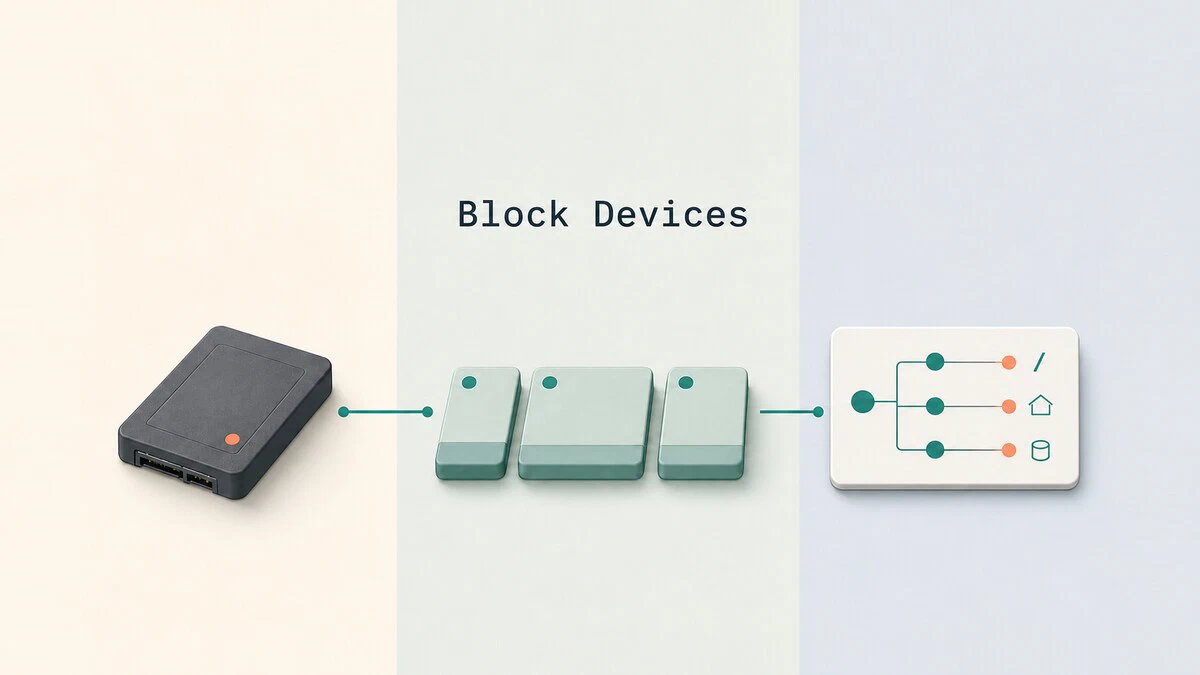
When you plug in a new drive, set up a fresh partition, or try to remember which disk is mounted where, you need a quick way to see every block device attached to the system. The lsblk command reads information from sysfs and the udev database and prints a tidy tree of disks, partitions, loop devices, and LVM volumes, together with their sizes and mount points.
This guide explains how to use lsblk to inspect block devices, pick the columns you need, and format the output for scripts.
lsblk Syntax
The general form of the command is:
lsblk [OPTIONS] [DEVICE...]With no arguments, lsblk lists every block device except RAM disks and empty devices. You can pass one or more device paths to limit the output, for example lsblk /dev/sda.
Unlike fdisk
, lsblk does not need root privileges for most queries, which makes it safer for quick checks.
Basic Usage
Run lsblk with no options to see a tree of all devices on the system:
lsblkNAME MAJ:MIN RM SIZE RO TYPE MOUNTPOINTS
sda 8:0 0 465.8G 0 disk
├─sda1 8:1 0 512M 0 part /boot/efi
├─sda2 8:2 0 16G 0 part [SWAP]
└─sda3 8:3 0 449.3G 0 part /
sdb 8:16 1 14.3G 0 disk
└─sdb1 8:17 1 14.3G 0 part /media/john/usb
sr0 11:0 1 1024M 0 romEach row describes one device. The tree characters on the left show which partitions belong to which disk. The TYPE column tells you whether the entry is a whole disk, a partition, an optical rom, an LVM lvm volume, a crypt container, and so on. The MOUNTPOINTS column is empty when the partition is not mounted.
The RM column is 1 when the kernel marks a device as removable, and RO is 1 for read-only devices. Some USB drives report RM as 0, so use the TRAN column when you specifically need to identify USB storage.
Hide Partitions and Child Devices
When you only care about top-level devices, pass the -d (or --nodeps) flag to hide their partitions, holders, and slaves:
lsblk -dNAME MAJ:MIN RM SIZE RO TYPE MOUNTPOINTS
sda 8:0 0 465.8G 0 disk
sdb 8:16 1 14.3G 0 disk
sr0 11:0 1 1024M 0 romThis is handy when you do not want partition noise. It does not filter by device type, so entries such as the sr0 optical drive can still appear.
Snap packages mount as loop devices, so on an Ubuntu desktop the list can fill with loop0 through loop20 before you reach the real disks. Exclude them by major number with -e (or --exclude):
lsblk -e 7Major number 7 is the loop driver. You can pass several numbers as a comma-separated list, for example lsblk -e 7,11 to drop optical drives as well.
Show Filesystem Information
Passing -f (or --fs) replaces the default columns with filesystem details such as the type, label, UUID, and how full each mounted filesystem is:
lsblk -fNAME FSTYPE FSVER LABEL UUID FSAVAIL FSUSE% MOUNTPOINTS
sda
├─sda1 vfat FAT32 4F3A-91BC 470.1M 8% /boot/efi
├─sda2 swap 1 9f4b5a44-6d1e-44a8-a0ae-2c3d3e4f1234 [SWAP]
└─sda3 ext4 1.0 root be2e1f8e-7a0b-4ab1-9f1d-5c6d7e8f9012 312.5G 25% /
sdb
└─sdb1 vfat FAT32 USB 1A2B-3C4D 12.8G 10% /media/john/usbThis is usually the fastest way to find a UUID for /etc/fstab or to confirm which filesystem type sits on a given partition.
Pick Specific Columns
The default columns cover the common cases, but you can choose exactly what to show with the -o (or --output) option. Pass a comma-separated list of column names:
lsblk -o NAME,SIZE,TYPE,MOUNTPOINTSNAME SIZE TYPE MOUNTPOINTS
sda 465.8G disk
├─sda1 512M part /boot/efi
├─sda2 16G part [SWAP]
└─sda3 449.3G part /
sdb 14.3G disk
└─sdb1 14.3G part /media/john/usb
sr0 1024M romTo see the full list of columns lsblk understands, run:
lsblk --list-columnsOn util-linux versions older than 2.41, that option does not exist yet, and lsblk --help prints the column list instead.
Useful columns include UUID, LABEL, MODEL, SERIAL, VENDOR, FSTYPE, PARTTYPE, HOTPLUG, and TRAN (transport, for example sata, nvme, or usb).
To add columns to the default set rather than replace it, prefix the list with +. For example, this command adds the model and serial number:
lsblk -o +MODEL,SERIALThe -O (or --output-all) flag has a different purpose: it displays every available column.
Show Device Paths
By default, lsblk prints short names such as sda1. If you want the full /dev path in the NAME column, add -p (or --paths):
lsblk -pNAME MAJ:MIN RM SIZE RO TYPE MOUNTPOINTS
/dev/sda 8:0 0 465.8G 0 disk
├─/dev/sda1 8:1 0 512M 0 part /boot/efi
├─/dev/sda2 8:2 0 16G 0 part [SWAP]
└─/dev/sda3 8:3 0 449.3G 0 part /Full paths are easier to copy into a script or a mount command.
List a Single Device
You can pass a device path to inspect only that device and its partitions:
lsblk /dev/sdaThis narrows the output to one disk, which is useful on servers with many drives.
Flat and ASCII Output
The tree layout is readable in a terminal but awkward to parse in scripts. Use -l (or --list) to print one device per line with no tree characters:
lsblk -lNAME MAJ:MIN RM SIZE RO TYPE MOUNTPOINTS
sda 8:0 0 465.8G 0 disk
sda1 8:1 0 512M 0 part /boot/efi
sda2 8:2 0 16G 0 part [SWAP]
sda3 8:3 0 449.3G 0 part /If your terminal does not render Unicode box-drawing characters correctly, swap them for plain ASCII with -i (or --ascii).
Machine-Readable Output
For scripts, the -J (or --json) flag prints the same information as structured JSON that is easy to parse with tools such as jq:
lsblk -J -o NAME,SIZE,FSTYPE /dev/sda{
"blockdevices": [
{
"name": "sda",
"size": "465.8G",
"fstype": null,
"children": [
{
"name": "sda1",
"size": "512M",
"fstype": "vfat"
},
{
"name": "sda2",
"size": "16G",
"fstype": "swap"
},
{
"name": "sda3",
"size": "449.3G",
"fstype": "ext4"
}
]
}
]
}Each disk becomes an object, and its partitions appear in the children array, so the tree relationship survives the conversion. Fields that do not apply are null rather than empty strings, which keeps the types stable for jq.
You can also use -P (pairs) for line-oriented KEY="value" output, or -r (raw) for space-separated fields with no padding.
The default columns can change between util-linux releases. In scripts, always select the columns you expect with -o, then choose a predictable format such as -J, -P, or -l.
For example, to list only mounted ext4 partitions in a script:
lsblk -lnp -o NAME,FSTYPE,MOUNTPOINTS | awk '$2 == "ext4" && $3 != "" {print $1, $3}'The -n (or --noheadings) flag drops the header row so that the output is pure data.
Show Sizes in Bytes
Sizes are printed in human-readable units by default, for example 465.8G. For exact values, use -b (or --bytes):
lsblk -b -o NAME,SIZEThis is the form you want when comparing sizes in a script, since 465.8G is not directly comparable with 449.3G as a string.
Quick Reference
Common lsblk flags and what they do:
-a- Include empty devices and RAM disks that are normally hidden.-b- Print sizes in bytes instead of human-readable units.-d- Hide partitions, holders, and slaves.-e LIST- Exclude devices by major number (7 is loop).-f- Show filesystem information (type, label, UUID, usage).-i- Use plain ASCII characters for the tree instead of Unicode.-J- Output as JSON.-l- Use a flat list instead of the tree layout.-n- Omit the header row.-o LIST- Choose which columns to display.-o +LIST- Add columns to the default output.-O- Display every available column.-p- Print full device paths such as/dev/sda1.-P- Output asKEY="value"pairs for shell scripts.-r- Raw output with no padding.-S- Show information about SCSI devices only.-t- Print topology information (alignment, I/O sizes).
FAQ
How is lsblk different from fdisk -l?lsblk reads from sysfs and udev and shows a tree of devices with mount points and filesystem details, all without root privileges for the common cases. fdisk -l
reads the partition table directly from the device and focuses on partition layout, sector offsets, and disk identifiers. Use lsblk for a quick overview and fdisk when you care about the raw partition table.
Why is a device missing from lsblk output?
Run lsblk -a to include empty devices and RAM disks that are normally hidden. If you just connected or changed a device, run udevadm settle before trying lsblk again so udev can finish processing the event. A drive that the kernel never detected cannot appear in the list; check the cable or port and inspect recent messages with sudo dmesg | tail -n 30.
How can I get only the UUID of a partition?
Combine -n to drop the header, -o UUID to pick the column, and the device path:lsblk -no UUID /dev/sda3.
Does lsblk show LVM and encrypted volumes?
Yes. LVM logical volumes appear as children of their physical volume with type lvm, and LUKS-encrypted containers show as crypt. The tree layout makes the stacking relationship easy to follow.
Can lsblk show disk model or serial number?
Yes. Add them to the output list: lsblk -o NAME,MODEL,SERIAL,SIZE. Some virtual devices do not expose these fields, so they may be empty.
Conclusion
lsblk is the fastest way to answer the “what disks and partitions does this machine have?” question, and its JSON and column-selection options make it equally useful inside scripts. Pair it with df
for usage stats and with mount
when you are ready to attach a new device.
Tags
Linuxize Weekly Newsletter
A quick weekly roundup of new tutorials, news, and tips.
About the authors

Dejan Panovski
Dejan Panovski is the founder of Linuxize, an RHCSA-certified Linux system administrator and DevOps engineer based in Skopje, Macedonia. Author of 1000+ Linux tutorials with 20+ years of experience turning complex Linux tasks into clear, reliable guides.
View author page