Block Devices, Partitions, and Filesystems in Linux Explained
You attach a new disk to a server, run lsblk
, and the drive is there. Then you try to copy a file onto it and nothing works, because there is no path to copy to. The disk is visible to the kernel, but it has no partition, no filesystem, and no place in the directory tree.
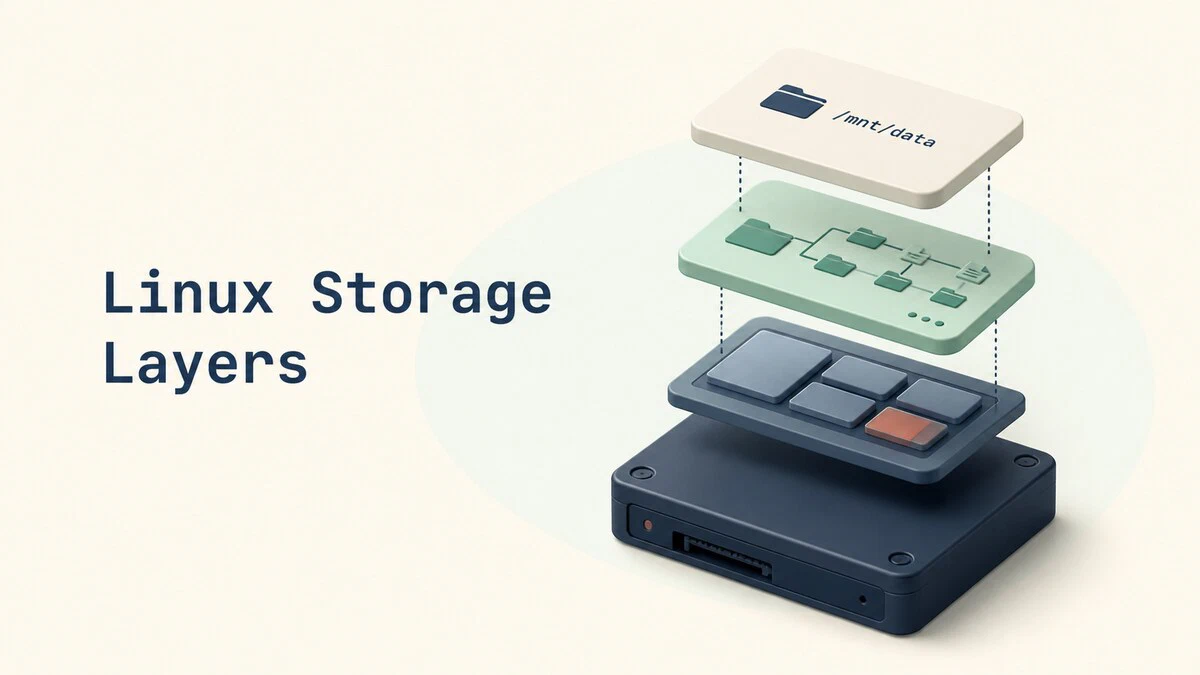
Linux storage is built from four layers stacked on top of each other, and most confusion comes from treating them as one thing. This guide explains what a block device, a partition, a filesystem, and a mount point each are, how they connect, and which command shows you the state of each layer.
What a Block Device Is
A block device is how the kernel represents a piece of storage that can be read and written in fixed-size chunks called blocks, rather than one byte at a time. Hard drives, SSDs, USB sticks, SD cards, and the virtual disks of a cloud instance are all block devices.
Every block device gets a file under /dev. The name depends on the driver that claims the hardware:
/dev/sda,/dev/sdb- SATA, SAS, and USB storage/dev/nvme0n1- the first namespace of the first NVMe drive/dev/vda- a virtual disk on a KVM or cloud guest/dev/mmcblk0- an SD card or eMMC device
These files are not ordinary files. Running ls -l on one shows what they really are:
ls -l /dev/sda /dev/nullbrw-rw---- 1 root disk 8, 0 Aug 14 09:12 /dev/sda
crw-rw-rw- 1 root root 1, 3 Aug 14 09:12 /dev/nullThe first character of the permission string is the giveaway. b marks a block device and c marks a character device such as /dev/null. The pair of numbers where a file size would normally appear, 8, 0, is the major and minor number that identifies the driver and the specific device it handles.
The kernel also publishes every block device under /sys/block, which is where tools such as lsblk read their information from. A block device at this stage is just an addressable range of storage. Nothing on it means anything yet.
Partitions Divide a Disk
A partition is a labeled region of a block device. The disk keeps a small table near its start that records where each region begins and ends, and the kernel exposes each region as its own block device: /dev/sda1, /dev/sda2, and so on. NVMe and SD devices insert a p before the number, so the first partition of /dev/nvme0n1 is /dev/nvme0n1p1.
Two partition table formats are in common use:
- MBR (also called msdos) is the older format. It supports four primary partitions, works around that limit with extended partitions, and cannot address a disk larger than 2 TiB with standard 512-byte sectors.
- GPT is the modern format. It commonly provides 128 partition entries, supports disks far larger than MBR, and stores a backup copy of the table at the end of the disk. UEFI firmware supports both GPT and legacy MBR, though GPT is the standard choice for current UEFI installations.
To see which format a disk uses, run fdisk
with the -l flag:
sudo fdisk -l /dev/sdaThe output starts with the disk size and model, then prints a Disklabel type line that reads either gpt or dos, followed by the partition list.
Partitioning is a convention rather than a hard requirement. You can create a filesystem directly on a whole disk, and some storage appliances do exactly that. On a system that boots from the disk, though, partitions are what separate the EFI system partition, the boot files, and the root filesystem from each other.
A partition still holds no structure. It marks out space and stops there.
Filesystems Give a Partition Structure
A filesystem is the format written inside a partition that turns raw space into directories, filenames, permissions, and timestamps. Creating one is called formatting, and the mkfs family of commands does it:
mkfs, confirm the device name with lsblk -f, verify that it is the intended empty partition, and make sure it is not mounted.sudo mkfs.ext4 /dev/sdb1This writes ext4 metadata across /dev/sdb1, including the superblock, the inode tables, and the free-space maps. From that moment the partition can hold files, and each file gets an inode
that stores its metadata.
Linux supports many filesystem types, and the choice matters:
ext4- the default on most Debian and Ubuntu installations, stable and well understoodxfs- the default on RHEL and derivatives, strong with large files and parallel writesbtrfs- supports snapshots, checksums, and built-in volume managementvfat- used for EFI System Partitions and broadly compatible removable drivesexfat- suited to large removable drives shared with Windows and macOSswap- not a filesystem for files at all, but a formatted area the kernel uses as swap space
Formatting also assigns the filesystem a UUID, and optionally a label. Both identify the filesystem itself rather than the device it happens to sit on. This distinction matters more than it first appears: device names are assigned in detection order, so a disk that is /dev/sdb today can come up as /dev/sdc after you add another drive or reboot a cloud instance. The UUID does not move. That is why configuration files should reference UUID= instead of /dev/sdb1.
Mount Points Attach a Filesystem to the Tree
Linux has no drive letters. Every filesystem on the machine appears somewhere inside a single tree that starts at /. A mount point is the directory where a filesystem is attached, and mounting
is the act of attaching it. Create the mount point, then attach the filesystem:
sudo mkdir -p /srv/data
sudo mount /dev/sdb1 /srv/data
The first command creates the directory if it does not already exist. After the second command, everything written under /srv/data lands on /dev/sdb1, while the rest of the tree stays on whatever filesystem holds /. The reader cannot tell from the path alone which disk a file lives on, which is the point of the design.
A mount point is an ordinary directory. There is no special flag that makes /srv/data mountable, and any empty directory works.
A manual mount command lasts until reboot. To make it persistent, the filesystem needs an entry in /etc/fstab
, which the system reads at boot and mounts automatically.
Walking Through One Real Layout
Putting the four layers side by side makes the stack easier to read. The -o flag selects the columns, and adding TYPE shows what each row actually is:
lsblk -o NAME,TYPE,FSTYPE,LABEL,MOUNTPOINTSNAME TYPE FSTYPE LABEL MOUNTPOINTS
nvme0n1 disk
├─nvme0n1p1 part vfat /boot/efi
├─nvme0n1p2 part ext4 boot /boot
└─nvme0n1p3 part LVM2_member
├─vg0-root lvm ext4 root /
└─vg0-swap lvm swap [SWAP]
sdb disk
└─sdb1 part xfs data /srv/dataRead it from the outside in. nvme0n1 and sdb have TYPE of disk and no filesystem of their own, because they are the block devices. The indented rows marked part are partitions. The FSTYPE column tells you which of those partitions were formatted, and with what. The MOUNTPOINTS column tells you where each formatted filesystem was attached.
nvme0n1p3 shows all four layers coming apart cleanly. It is a partition, it has a format, but that format is LVM2_member rather than a filesystem you can browse, and it has no mount point. Its two children are the layer that carries the actual filesystems.
The sdb disk is the simple case: one disk, one partition, one XFS filesystem labeled data, mounted at /srv/data.
Where LVM, RAID, and Encryption Fit
The four layers describe the common path, but Linux lets you insert extra layers between the partition and the filesystem. Each one consumes a block device and produces a new one.
LVM groups one or more physical volumes into a volume group, then carves logical volumes out of it. The logical volume is a block device at /dev/mapper/vg0-root, and you format that instead of the partition. Logical volumes can be resized and moved between disks without repartitioning, which is why servers so often use them.
Software RAID combines several devices into one /dev/md0 device with mirroring or striping across the members. The filesystem sits on /dev/md0 and never sees the individual disks.
LUKS encryption wraps a device in an encrypted container. Unlocking it produces a decrypted block device under /dev/mapper, and the filesystem goes there. lsblk shows the container with TYPE of crypt.
These stack in any sensible order, and a common server layout runs all of them at once: partition, then LUKS, then LVM, then ext4. Each layer only needs to know about the block device directly beneath it.
Quick Reference
| Layer | What it is | Typical name | Inspect with |
|---|---|---|---|
| Block device | Raw addressable storage exposed by the kernel | /dev/sda, /dev/nvme0n1 | lsblk -d, ls -l /dev/sd* |
| Partition | A labeled region of a block device | /dev/sda1, /dev/nvme0n1p1 | sudo fdisk -l, lsblk |
| Filesystem | The format written inside a partition | ext4, xfs, btrfs, vfat | lsblk -f, blkid |
| Mount point | The directory where a filesystem is attached | /, /boot, /srv/data | findmnt, df -h |
FAQ
What is the difference between a partition and a filesystem?
A partition reserves a region of a disk and records its boundaries in the partition table. A filesystem is the structure written inside that region so it can store files. A freshly created partition has no filesystem, which is why mkfs is a separate step after fdisk or parted.
Is /dev/sda a file or a device?
Both, in a sense. /dev/sda is a special file that acts as the interface to the device, so tools can open, read, and write it with ordinary file operations. The leading b in ls -l output marks it as a block device rather than a regular file.
Why does my disk name change between reboots?
Kernel device names are assigned in detection order, not fixed to the hardware. Adding a drive or rebooting a virtual machine can shift /dev/sdb to /dev/sdc. Refer to filesystems by UUID= or LABEL= in /etc/fstab and scripts so the reference survives reordering.
How do I tell which disk a directory lives on?
Pass the path to findmnt --target, for example findmnt --target /srv/data, and it prints the source device, filesystem type, and mount options for the filesystem containing that path. Running df -h /srv/data
shows the source device, capacity, usage, and mount point instead.
Can I create a filesystem without partitioning first?
Yes. Running mkfs.ext4 /dev/sdb creates an ext4 filesystem directly on the whole disk with no partition table. Filesystem-aware tools such as lsblk -f and blkid still detect it, while partitioning tools report that no partition table is present. This is destructive and should only be done intentionally on a verified empty data disk. Use partitions for boot disks and workflows that expect a partition table.
Conclusion
Once you can name which layer a problem sits on, the next check becomes clearer: a missing device is a kernel or cabling question, an unknown partition or filesystem needs inspection before you change it, and a known unmounted filesystem calls for mount. Start with lsblk -f on any unfamiliar machine, since it shows three of the four layers in a single screen.
Tags
Linuxize Weekly Newsletter
A quick weekly roundup of new tutorials, news, and tips.
About the authors

Dejan Panovski
Dejan Panovski is the founder of Linuxize, an RHCSA-certified Linux system administrator and DevOps engineer based in Skopje, Macedonia. Author of 1000+ Linux tutorials with 20+ years of experience turning complex Linux tasks into clear, reliable guides.
View author page