lsusb, lspci, and lshw: List Hardware in Linux
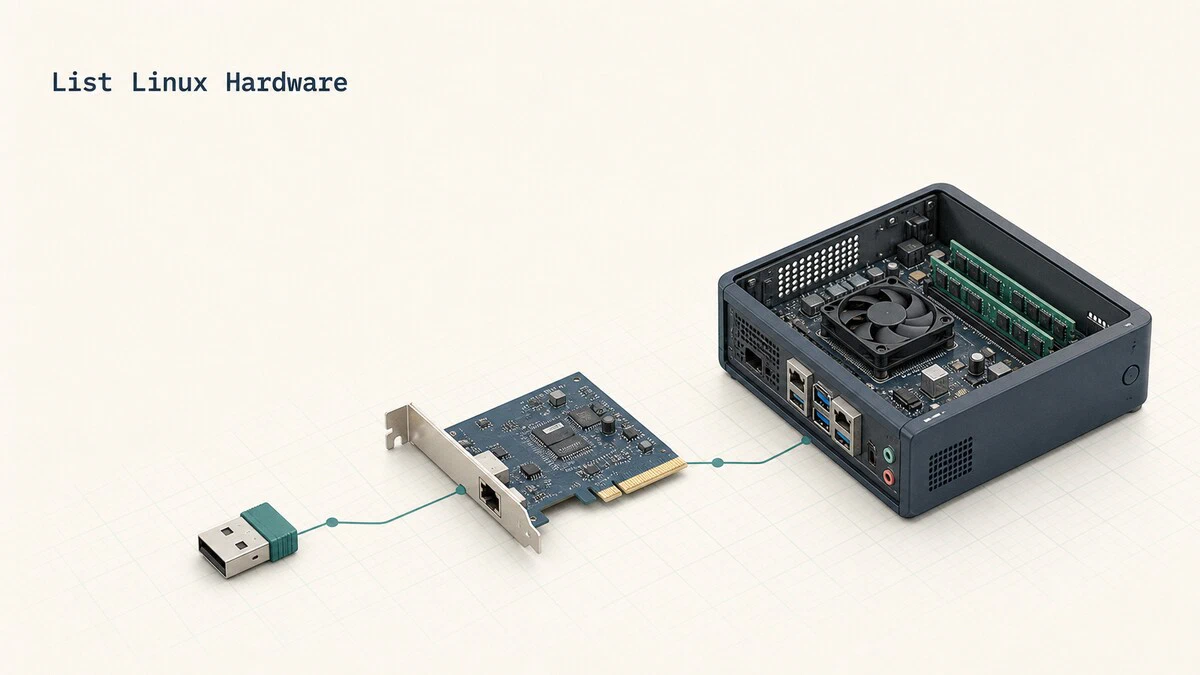
Sooner or later you need to know exactly what is inside a machine: which Wi-Fi chip refuses to work, whether the system sees a plugged-in USB device at all, or what to put in a purchase order for more RAM. Three commands answer these questions from the terminal, each covering a different part of the hardware inventory: lsusb for USB devices, lspci for PCI devices such as network cards and GPUs, and lshw for a complete inventory of everything.
This guide explains how to use all three, and which one to reach for depending on the question you are asking.
Installing the Tools
The three commands live in three small packages, most of which are preinstalled on desktop distributions.
On Ubuntu, Debian, and Derivatives:
sudo apt install usbutils pciutils lshwOn Fedora, RHEL, and Derivatives:
sudo dnf install usbutils pciutils lshwListing USB Devices with lsusb
Run lsusb without arguments to list every device on the USB buses:
lsusbBus 002 Device 001: ID 1d6b:0003 Linux Foundation 3.0 root hub
Bus 001 Device 004: ID 046d:c52b Logitech, Inc. Unifying Receiver
Bus 001 Device 003: ID 13d3:56a6 IMC Networks Integrated Camera
Bus 001 Device 002: ID 8087:0aaa Intel Corp. Bluetooth 9460/9560
Bus 001 Device 001: ID 1d6b:0002 Linux Foundation 2.0 root hubEach line shows the bus and device number, then the ID in vendor:product form, then a human-readable name looked up from the USB ID database. The 1d6b root hubs are the controllers themselves, not devices you plugged in.
The classic use is answering “does the system see this thing at all”: run lsusb, plug the device in, run it again, and compare. If a new line appears, the system has enumerated the device, so drivers, firmware, and application support are the next places to check. Enumeration does not prove that the device or cable is fully healthy, but it confirms that the USB host received a response. If nothing appears, try another port or cable before blaming the OS. Recent kernel messages from dmesg
show the same plug events with more detail.
The tree view adds the piece the flat list lacks, which drivers claimed each device and at what speed it connected:
lsusb -t/: Bus 02.Port 1: Dev 1, Class=root_hub, Driver=xhci_hcd/6p, 10000M
/: Bus 01.Port 1: Dev 1, Class=root_hub, Driver=xhci_hcd/12p, 480M
|__ Port 4: Dev 2, If 0, Class=Wireless, Driver=btusb, 12M
|__ Port 5: Dev 3, If 0, Class=Video, Driver=uvcvideo, 480M
|__ Port 9: Dev 4, If 2, Class=Human Interface Device, Driver=usbhid, 12MA device present in lsusb but showing no Driver= entry here has been enumerated but has no kernel driver bound to that interface. That can indicate a missing kernel module or firmware package, although some devices are intentionally controlled by a userspace driver such as libusb. A USB 3 drive showing 480M instead of 5000M is connected through a USB 2 port or cable, a common reason external disks underperform.
For full descriptors of a single device, filter by its ID and add -v:
sudo lsusb -v -d 046d:c52bThe verbose output is long; without root, parts of it are hidden.
Listing PCI Devices with lspci
PCI is where the built-in hardware lives: network controllers, graphics cards, storage controllers, and sound chips. The bare command lists them all:
lspci00:00.0 Host bridge: Intel Corporation Device a706
00:02.0 VGA compatible controller: Intel Corporation Raptor Lake-P [Iris Xe Graphics]
00:14.3 Network controller: Intel Corporation Raptor Lake PCH CNVi WiFi
00:1f.3 Audio device: Intel Corporation Raptor Lake-P/U/H cAVS
01:00.0 Non-Volatile memory controller: Samsung Electronics Co Ltd NVMe SSD Controller PM9A1The leading 00:14.3 style address identifies the device’s slot and function, and the text after the class name identifies the chip. This is the fastest way to find out exactly which Wi-Fi or Ethernet chip a machine has, which is the first thing any driver search needs.
The single most useful option is -k, which shows the kernel driver bound to each device:
lspci -k00:14.3 Network controller: Intel Corporation Raptor Lake PCH CNVi WiFi
Subsystem: Intel Corporation Device 0094
Kernel driver in use: iwlwifi
Kernel modules: iwlwifiKernel modules lists what could drive the device, and Kernel driver in use shows what actually is. For a device that normally needs a kernel driver, modules listed but no driver in use can indicate missing firmware, a blacklisted module, or a binding problem. Some PCI functions do not need their own driver, so confirm the expected behavior before treating the missing line as an error. On systems with two GPUs, lspci -k is also the quick way to see which one is bound to which driver.
Two more options come up regularly. -nn appends the numeric [vendor:device] IDs, which are what you paste into a search engine or a driver compatibility list when the text name is ambiguous:
lspci -nn | grep -i network00:14.3 Network controller [0280]: Intel Corporation Raptor Lake PCH CNVi WiFi [8086:51f1]And -s narrows the output to one slot, combined with -v or -vv for details like memory ranges, capabilities, and the current link speed of the slot:
sudo lspci -vv -s 01:00.0Getting a Full Inventory with lshw
Where lsusb and lspci each cover one bus, lshw walks everything the kernel knows: CPU, memory, firmware, disks, controllers, and the buses in between. Run it as root or the output will be incomplete. The full report is pages long, so start with the summary table:
sudo lshw -shortH/W path Device Class Description
===========================================================
system ThinkPad T14 Gen 4
/0/0 memory 64KiB BIOS
/0/4 processor 13th Gen Intel Core i7-1355U
/0/13 memory 32GiB System Memory
/0/13/0 memory 16GiB SODIMM DDR5 5600 MHz
/0/13/1 memory 16GiB SODIMM DDR5 5600 MHz
/0/100/2 display Raptor Lake-P [Iris Xe Graphics]
/0/100/14.3 wlp0s20f3 network Raptor Lake PCH CNVi WiFi
/0/100/1d/0 /dev/nvme0 storage SAMSUNG MZVL21T0HCLR-00B00This one screen answers most inventory questions: what model the machine is, which memory modules lshw detected, and what storage and network hardware is present. The two 16 GiB entries show how the detected memory is populated, but they do not confirm whether the machine has another empty slot. Check the vendor’s service manual before planning an upgrade.
To dig into one category, filter by class:
sudo lshw -C memory
sudo lshw -C network
The class view for memory may include per-slot details such as speed and part numbers when the system firmware exposes them. For reports, lshw exports machine-readable and browsable formats:
sudo lshw -json > hardware.json
sudo lshw -sanitize -html > hardware.html
The JSON output preserves detailed fields for local inventory tooling. Use the sanitized HTML file when sharing a report because -sanitize removes potentially sensitive values such as serial numbers and IP addresses.
For completeness: CPU details have their own dedicated tools, covered in our guide on getting CPU information on Linux
, and sudo dmidecode reads the firmware’s DMI tables directly when you need BIOS versions or serial numbers that lshw summarizes.
Quick Reference
| Task | Command |
|---|---|
| List USB devices | lsusb |
| USB tree with drivers and speeds | lsusb -t |
| Full descriptors for one USB device | sudo lsusb -v -d 046d:c52b |
| List PCI devices | lspci |
| PCI devices with kernel drivers | lspci -k |
| PCI devices with numeric IDs | lspci -nn |
| Details for one PCI slot | sudo lspci -vv -s 01:00.0 |
| Hardware summary table | sudo lshw -short |
| One hardware class in detail | sudo lshw -C network |
| Machine-readable inventory | sudo lshw -json |
| Sanitized HTML report | sudo lshw -sanitize -html |
Conclusion
lsusb confirms detection, lspci -k connects chips to drivers, and lshw turns a closed case into a readable inventory; between the three, “what hardware is this and is it working” stops requiring a screwdriver. When a device shows up in these listings but misbehaves, the kernel log usually explains why, so dmesg
is the natural next stop.
Tags
Linuxize Weekly Newsletter
A quick weekly roundup of new tutorials, news, and tips.
About the authors

Dejan Panovski
Dejan Panovski is the founder of Linuxize, an RHCSA-certified Linux system administrator and DevOps engineer based in Skopje, Macedonia. Author of 1000+ Linux tutorials with 20+ years of experience turning complex Linux tasks into clear, reliable guides.
View author page