What Is .bashrc? When It Runs and What to Put in It
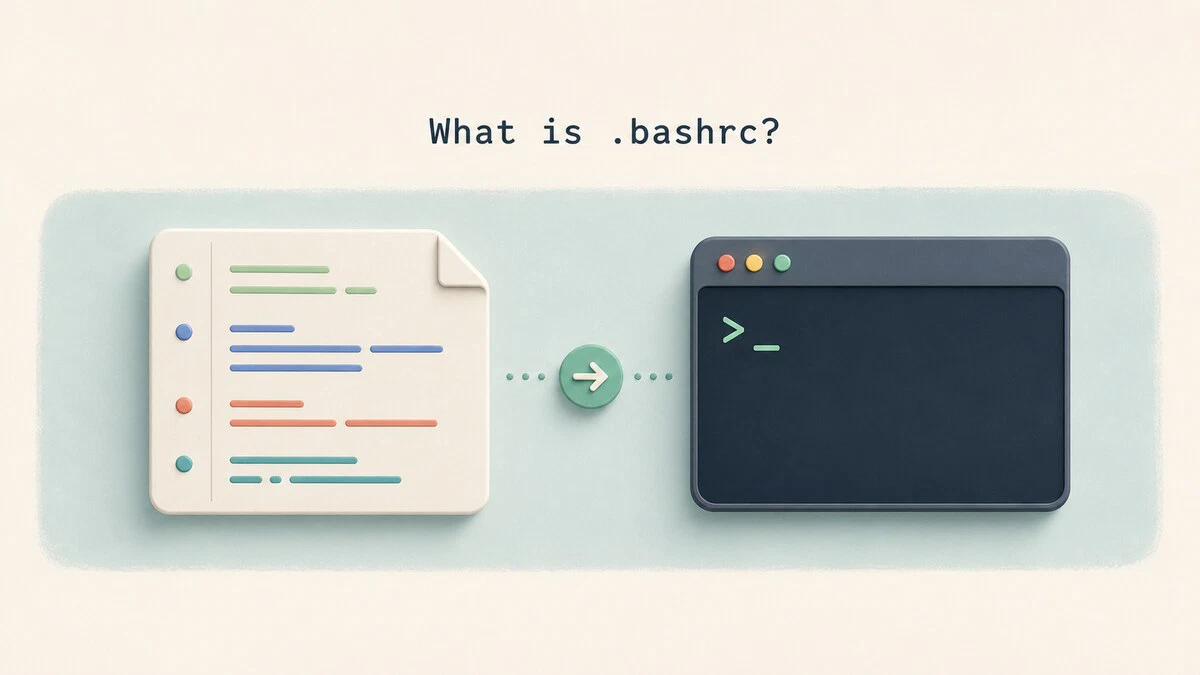
You define an alias in your terminal, use it happily for an hour, then open a new tab and it is gone. Shell settings typed at the prompt live only as long as that shell does. To make them permanent, they have to go in a file that Bash reads every time it starts a new session. On most Linux systems that file is ~/.bashrc.
This guide covers where .bashrc lives, when Bash reads it, what belongs inside it, and how to apply your changes without opening a new terminal.
What .bashrc Does
.bashrc is a per-user Bash startup script, not a generic Linux configuration file. When Bash loads it, each command runs in the current shell. That is why aliases, functions, prompt settings, and shell options become part of the session without a separate import step. Other shells use their own files, such as ~/.zshrc for zsh.
The rc suffix comes from RUNCOM, an early CTSS program that executed commands stored in a file. The name survives in Unix configuration files such as .vimrc, .screenrc, and .inputrc.
Where the .bashrc File Is Located
.bashrc sits in your home directory. The leading dot makes it a hidden file, so a plain ls will not show it:
ls -la ~/.bashrc-rw-r--r-- 1 dejan dejan 3771 Aug 14 09:12 /home/dejan/.bashrcEvery user account has its own copy, and editing yours has no effect on anyone else on the system. The file is plain text, so any editor works:
nano ~/.bashrcIf the file does not exist, nothing is broken. Bash simply skips it. Most distributions ship a template in /etc/skel/ that is copied into each new home directory, so you can restore the default version with:
cp /etc/skel/.bashrc ~/.bashrcYou can also create the file from scratch and start with an empty one.
When Bash Reads .bashrc
Bash reads ~/.bashrc when it starts an interactive shell that is not a login shell. In everyday terms, that means opening a new terminal window or tab in your desktop environment, or typing bash inside a shell you already have open.
Two common cases do not fit that description. Logging in over SSH
or at a console starts a login shell. Bash reads /etc/profile, then the first readable file it finds from ~/.bash_profile, ~/.bash_login, and ~/.profile. Running a local script starts a non-interactive shell, which normally reads none of those files. If BASH_ENV is set, Bash reads the file named by that variable before running the script.
Because most people want the same interactive settings in both login and non-login shells, the usual arrangement is to keep those settings in ~/.bashrc and have the login file source it. For the full startup order and the reasoning behind that setup, see .bashrc vs .bash_profile
.
The Guard at the Top of the File
Open the default ~/.bashrc on Debian or Ubuntu and the first real line is this:
# If not running interactively, don't do anything
case $- in
    *i*) ;;
      *) return;;
esac
The $- variable holds the current shell option flags, and it contains i only in an interactive shell. If the i flag is missing, return stops reading the file right there.
That guard exists because of one specific Bash behavior: when Bash detects that its standard input is connected to a network connection, as happens with ssh user@host 'command', it reads ~/.bashrc even though the shell is not interactive. Without the guard, everything below it could run during remote commands and file transfers that start Bash on the server.
Keep the guard where it is, and add interactive settings below it. A setting required by a non-interactive remote command is an exception, but anything placed above the guard must stay silent.
What to Put in .bashrc
Anything that shapes how an interactive shell behaves belongs here. The most common additions follow.
Aliases
Aliases are short names for longer commands:
alias ll='ls -alF'
alias gs='git status'
alias ..='cd ..'
Functions
When a shortcut needs arguments or more than one command, use a function instead of an alias:
mkcd () {
  mkdir -p "$1" && cd "$1"
}
Running mkcd projects/api now creates the directory and moves into it.
Interactive PATH Additions
To make Bash find executables in a directory of your own at the interactive prompt, add it to $PATH
:
export PATH="$HOME/.local/bin:$PATH"Putting $PATH at the end preserves the existing directories. Placing your directory first means your version of a command wins over a system one with the same name.
This change applies to shells that read .bashrc. If the path must also reach GUI programs or other shells, set it in ~/.profile or ~/.bash_profile instead.
Environment Variables
Environment variables needed by programs you start from interactive Bash can go here. Export them so child processes inherit their values:
export EDITOR=nano
export LESS='-R'
For variables that must exist across the entire login session, including applications not launched from a terminal, use a login or desktop environment file instead.
Do not put API keys, tokens, or passwords in .bashrc. The file often ends up in a dotfiles repository. Keep secrets in a separate file that is excluded from version control and protected with chmod 600, or use a dedicated secret manager.
The Shell Prompt
PS1 defines the prompt string. The following example shows the username, host, and current directory in color:
PS1='\[\e[32m\]\u@\h\[\e[0m\]:\[\e[34m\]\w\[\e[0m\]\$ 'The \[ and \] markers tell Bash that the enclosed escape sequences take up no screen width. Leaving them out makes long command lines wrap incorrectly.
Shell Options
shopt toggles Bash behaviors that are off by default:
shopt -s autocd        # type a directory name to cd into it
shopt -s cdspell       # fix minor typos in cd arguments
shopt -s globstar      # ** matches files across subdirectories
shopt -s histappend    # append to the history file instead of overwriting
History settings such as HISTSIZE and HISTCONTROL also live in this file. See the history command guide
for working with the entries themselves.
Apply Changes Without Restarting the Terminal
Bash reads ~/.bashrc at startup, so an edit has no effect on shells that are already running. Before loading an edited file, check its syntax:
bash -n ~/.bashrcNo output means Bash found no syntax errors. You can then source the file instead of closing the terminal:
source ~/.bashrcThe dot command is the POSIX spelling of source and does the same thing in Bash:
. ~/.bashrcEither command runs the file in your current shell, so aliases, functions, and variables become available immediately. Sourcing does not undo anything: if you deleted an alias from the file, it stays defined in the current session until you run unalias or open a new terminal.
Split .bashrc Into Separate Files
A .bashrc that has grown past a couple of hundred lines is easier to manage in pieces. Debian and Ubuntu already use this pattern for aliases, and their default file includes:
if [ -f ~/.bash_aliases ]; then
    . ~/.bash_aliases
fi
For a more general split, create a directory for the extra files:
mkdir -p ~/.bashrc.dThen add a loop to ~/.bashrc that sources every readable shell file in the directory:
if [ -d ~/.bashrc.d ]; then
    for rc in ~/.bashrc.d/*.sh; do
        [ -r "$rc" ] && . "$rc"
    done
    unset rc
fi
Files are sourced in alphabetical order, so a 10-path.sh runs before a 20-aliases.sh. This keeps work-specific settings in one file that you can drop in or remove without editing .bashrc itself. A bash -n ~/.bashrc check does not read the sourced files, so check each of them separately after an edit.
Fedora and RHEL already source files from ~/.bashrc.d/ in their default configuration, so check your existing file before adding another loop.
What Not to Put in .bashrc
Commands that print output are the main thing to avoid. A neofetch call or an echo "Welcome back" line placed above the interactivity guard looks harmless in a terminal, but it also runs during scp, rsync, and ssh host 'command' sessions. The extra text can corrupt the protocol stream and make those tools fail. Keep printed output below the guard, or move a login banner to the login profile.
Long-running commands are worth avoiding too. Everything in .bashrc runs before you get a prompt, so a network call or a version-manager initialization that takes half a second adds that delay to every terminal you open.
Quick Reference
For a printable quick reference, see the Bash cheatsheet .
| Setting | Example | Purpose |
|---|---|---|
| Alias | alias ll='ls -alF' | Short name for a longer command |
| Function | mkcd () { mkdir -p "$1" && cd "$1"; } | Shortcut that takes arguments |
| Interactive PATH | export PATH="$HOME/.local/bin:$PATH" | Add an executable directory to interactive Bash |
| Environment variable | export EDITOR=nano | Setting inherited by programs launched from Bash |
| Prompt | PS1='\u@\h:\w\$ ' | Format of the shell prompt |
| Shell option | shopt -s autocd | Toggle a Bash behavior |
| Source a file | . ~/.bash_aliases | Load settings from another file |
| Syntax check | bash -n ~/.bashrc | Check the file without running it |
| Reload | source ~/.bashrc | Apply edits to the current shell |
Troubleshooting
Changes do not take effect
Bash reads ~/.bashrc only when a shell starts. Run bash -n ~/.bashrc, then source ~/.bashrc in the current terminal, or open a new one.
Settings work in a new terminal but not over SSHssh user@host opens a login shell, which reads the first available file from ~/.bash_profile, ~/.bash_login, and ~/.profile rather than ~/.bashrc. Debian and Ubuntu ship a ~/.profile that sources ~/.bashrc already, so the default setup works. On other systems, or after replacing the login file, add . ~/.bashrc to it so both shell types load the same interactive configuration.
scp or rsync fails after editing .bashrc
Something in the file may be printing output during the remote session. Move any echo, neofetch, or banner command below the interactivity guard, then test with ssh user@host 'true', which should print nothing at all.
A syntax error appears in every new terminal
Bash reports the offending line number. Open a shell that skips the file with bash --norc, fix the line, then run bash -n ~/.bashrc before reloading. A missing fi or an unclosed quote is the usual cause.
The file was deleted or emptied
Copy the distribution default back with cp /etc/skel/.bashrc ~/.bashrc and reload it.
A command is found in one terminal but not another
The two shells may read different startup files, or the $PATH addition may be below an early return or inside a conditional that does not match. Run echo "$PATH" in both shells to compare.
FAQ
Does .bashrc run when I execute a script?
Normally, no. A local script runs in a non-interactive shell, which does not read ~/.bashrc unless the script sources it or BASH_ENV points to it. Bash may also read .bashrc when a remote shell daemon starts a non-interactive command, but the interactivity guard usually stops the file immediately.
I use zsh. Where do these settings go?
Use ~/.zshrc, which serves the same role for zsh. Aliases, functions, and PATH changes carry over unchanged, but prompt escapes and some shopt options do not.
Should I put .bashrc in version control?
Yes, as long as it holds no secrets. A dotfiles repository makes it easy to set up a new machine. Keep tokens and passwords in a separate file that is listed in .gitignore and sourced from .bashrc.
Why is my .bashrc not read on macOS?
Terminal and iTerm2 normally open a login shell. If you configured them to use Bash, Bash reads the first available login file instead of ~/.bashrc. Current macOS releases use zsh by default, and its interactive configuration belongs in ~/.zshrc.
Conclusion
Treat ~/.bashrc as code that runs every time you open an interactive Bash shell. Keep it fast, keep secrets out of it, and check each edit with bash -n ~/.bashrc before loading the change.
Tags
Linuxize Weekly Newsletter
A quick weekly roundup of new tutorials, news, and tips.
About the authors

Dejan Panovski
Dejan Panovski is the founder of Linuxize, an RHCSA-certified Linux system administrator and DevOps engineer based in Skopje, Macedonia. Author of 1000+ Linux tutorials with 20+ years of experience turning complex Linux tasks into clear, reliable guides.
View author page