How to Rename Files and Directories in Linux
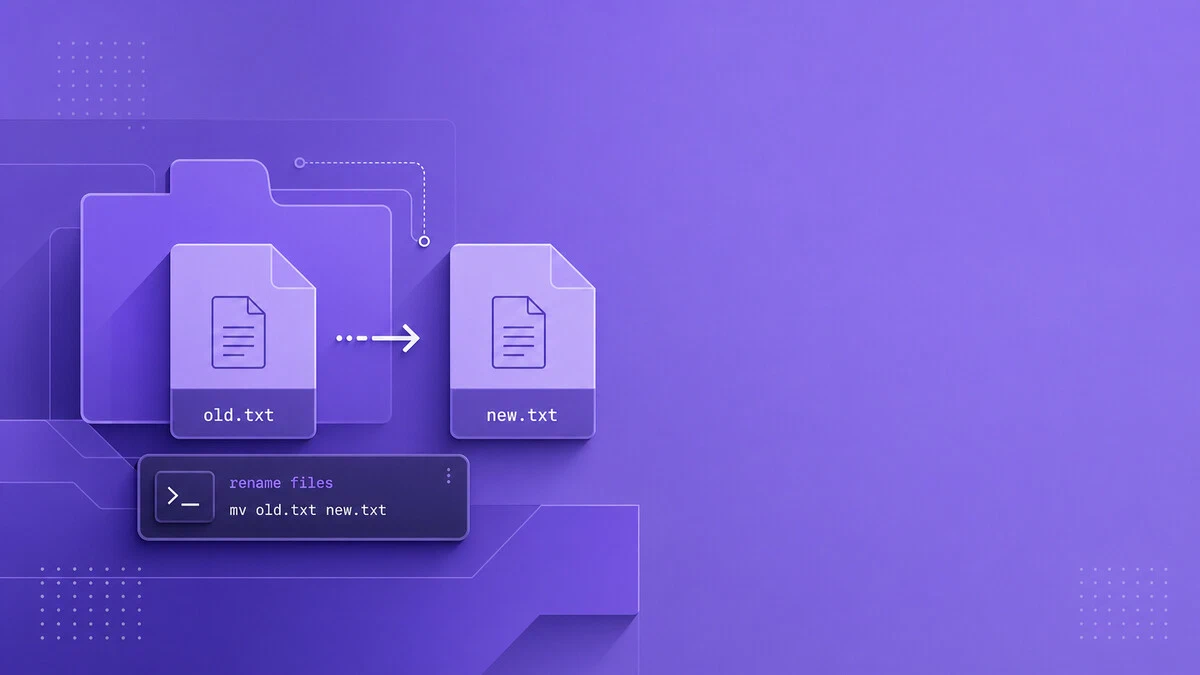
Renaming files is one of the most fundamental tasks you need to perform on a Linux system. You can rename files using a GUI file manager or via the command-line terminal.
Renaming a single file is trivial, but efficiently renaming multiple files at once can be a challenge and requires a solid understanding of command-line tools.
In this tutorial, we will show you how to use the mv and rename commands to rename files and directories.
Quick Reference
For a printable quick reference, see the mv cheatsheet .
| Task | Command |
|---|---|
| Rename a single file | mv old.txt new.txt |
| Rename a directory | mv olddir newdir |
| Rename in a root-owned directory | sudo mv old.txt new.txt |
| Preview batch rename (Perl) | rename -n 's/old/new/' *.txt |
| Change file extension (Perl) | rename 's/\.html$/.php/' *.html |
| Batch rename with shell loop | for f in *.html; do mv -n -- "$f" "${f%.html}.php"; done |
| Replace spaces with underscores (Perl) | rename 'y/ /_/' * |
| Convert filenames to lowercase (Perl) | rename 'y/A-Z/a-z/' * |
| Convert filenames to uppercase (Perl) | rename 'y/a-z/A-Z/' * |
Change extension (util-linux rename) | rename .html .php *.html |
| Preview batch rename (util-linux) | rename -nv .html .php *.html |
Renaming Files with the mv Command
The mv command
(short for move) is used to rename or move files from one location to another. The syntax for the mv command is as follows:
mv [OPTIONS] SOURCE DESTINATIONThe SOURCE can be one or more files or directories, and DESTINATION can be a single file or directory.
How mv interprets arguments:
- If multiple files are specified as
SOURCE, theDESTINATIONmust be a directory. In this case, theSOURCEfiles are moved to the target directory. - If
SOURCEis a file andDESTINATIONis a directory, the file is moved into that directory. - If
SOURCEis a file andDESTINATIONdoes not exist, the file is renamed.
Renaming a Single File
To rename the file file1.txt to file2.txt, run:
mv file1.txt file2.txtIf a file named file2.txt already exists, mv overwrites it without asking. The following options make the rename safer:
-i- Prompt before overwriting an existing file.-n- Do not overwrite an existing file.-v- Print the old and new name of each renamed file.
For example, to rename the file and see what mv did, you would type:
mv -v file1.txt file2.txtThe output shows the original and new filenames:
renamed 'file1.txt' -> 'file2.txt'When a filename contains spaces, wrap it in quotes. Otherwise, the shell splits the name into separate arguments:
mv "my notes.txt" my-notes.txtIf the filename starts with a dash (-), add -- before it so mv does not treat the name as an option:
mv -- -file.txt file.txtTo rename a file in a directory owned by root or another user, run the command with sudo
:
sudo mv /opt/app/config.old /opt/app/config.ymlRenaming a Directory
Directories are renamed the same way as files. To rename the projects directory to archive, run:
mv projects archiveUnlike the cp command
, mv does not need a recursive option for directories. The files inside the directory are not touched, and only the directory name changes.
There is one catch. If a directory named archive already exists, mv does not rename projects. It moves projects inside archive, and you end up with archive/projects. Check that the new name is free with ls
before running the command.
To make mv treat the destination strictly as a new name, use the -T option:
mv -T projects archiveWith -T, the command does not move projects inside an existing archive directory. If archive exists and is not empty, it fails with an error. For more directory examples, including batch renames with find, see our guide on how to rename directories in Linux
.
Renaming Multiple Files with the mv Command
The mv command can rename only one file at a time. However, it can be combined with other commands such as find
or shell loops for batch renaming.
Example: Change .html Files to .php (Bash Loop)
The following loop changes .html extensions to .php without overwriting files that already have the target name:
for f in *.html; do
    mv -n -- "$f" "${f%.html}.php"
done
The first line creates a for
loop and iterates through a list of all files ending with .html. The second line runs for each item of the list and renames the file, replacing .html with .php. The ${f%.html} part uses shell parameter expansion
to remove the .html suffix from the filename. The -n option leaves an existing .php file unchanged. The done keyword marks the end of the loop.
Example: Recursive Renaming with find + mv
To apply the same change in the current directory and all subdirectories without overwriting existing files, run:
find . -depth -name "*.html" -exec sh -c 'f=$1; mv -n -- "$f" "${f%.html}.php"' sh {} \;The find command passes all files ending with .html in the current directory and its subdirectories to mv one by one using the -exec option. The matched filename is passed to the shell as $1, which avoids embedding the filename directly in the script. The -n option prevents an existing .php file from being replaced.
As you can see from the examples above, renaming multiple files using the mv command is not an easy task as it requires a good knowledge of Bash scripting.
Renaming Files with the rename Command
The rename command is used to rename multiple files. This command is more advanced than mv as it requires some basic knowledge of regular expressions.
There are multiple versions of the rename command with different syntax. In this tutorial, we will be using the Perl version of the rename command.
If you do not have this version installed on your system, you can easily install it using the package manager of your distribution.
Install
renameon Ubuntu, Debian, and DerivativesTerminalsudo apt install renameInstall
renameon Fedora, RHEL, and DerivativesOn Fedora, install the Perl version with:
Terminalsudo dnf install prenameOn RHEL 8, RHEL 9, and their derivatives, the package comes from the EPEL repository. Enable EPEL for your release before running the same command. The executable is named
prename, so useprenamein place ofrenamein the examples below.Install
renameon Arch LinuxTerminalsudo pacman -S perl-renameThe command is installed as
perl-rename, so useperl-renamein place ofrenamein the examples below.
The syntax for the rename command is as follows:
rename [OPTIONS] perlexpr filesfilesare renamed according to the specified Perl regular expression. See the perlre documentation for the full Perl regular expression syntax.filescan be glob patterns or explicit file lists.
The following example will change all files with the extension .html to .php:
rename 's/\.html$/\.php/' *.htmlThe expression s/\.html$/\.php/ is a Perl substitution with three parts separated by /:
s- substitution operator: find and replace.\.html$- the search pattern.\.matches a literal dot (without the backslash,.would match any character).$anchors the match to the end of the filename, so only a trailing.htmlis matched.\.php- the replacement string (literal text).
Use the -n option to preview changes before applying:
rename -n 's/\.html$/\.php/' *.htmlThe output will look something like this:
rename(file-90.html, file-90.php)
rename(file-91.html, file-91.php)
rename(file-92.html, file-92.php)
rename(file-93.html, file-93.php)
rename(file-94.html, file-94.php)
Always preview when working on large file sets.
By default, the rename command does not overwrite existing files. Pass the -f option to allow existing files to be overwritten:
rename -f 's/\.html$/\.php/' *.htmlUse with caution as this will overwrite files without prompting.
Below are a few more common examples of how to use the rename command:
Replace spaces in filenames with underscores
Terminalrename 'y/ /_/' *The
y/searchlist/replacementlist/operator is a transliteration: it replaces each character in the search list with the corresponding character in the replacement list.y/ /_/replaces every space with an underscore, one character at a time.Convert filenames to lowercase
Terminalrename 'y/A-Z/a-z/' *y/A-Z/a-z/replaces each uppercase letterAthroughZwith its lowercase equivalentathroughz.Convert filenames to uppercase
Terminalrename 'y/a-z/A-Z/' *
The util-linux rename Command
On Fedora, RHEL, Arch Linux, and some other distributions, the rename command that comes preinstalled is part of util-linux. This version does not use regular expressions. It replaces the first occurrence of a string in each filename with another string.
To check which version you have, run rename --version. The util-linux version prints something like rename from util-linux 2.40.2.
The syntax for the util-linux rename command is as follows:
rename [OPTIONS] SUBSTRING REPLACEMENT FILE...To change the extension of all .html files to .php, you would type:
rename .html .php *.htmlThe -n option on its own prints nothing. Combine it with -v to preview the changes:
rename -nv .html .php *.htmlThe preview lists each original filename and its proposed replacement:
`about.html' -> `about.php'
`index.html' -> `index.php'
Each line shows the current filename on the left and the new name on the right. Nothing is renamed until you run the command without -n.
Unlike the Perl version, util-linux rename overwrites existing files without asking. Use -o (--no-overwrite) to skip files whose new name already exists, or -i to be prompted before each overwrite.
When the substring is an empty string, the replacement is added to the start of the filename. The following command adds a 2026- prefix to all .jpg files:
rename '' 2026- *.jpgBest Practices
- Preview changes with
rename -nwhen using Perlrename, orrename -nvwhen using util-linuxrename. - Use
mv -nor util-linuxrename -owhen existing destination files must not be overwritten. - Use quoted variables to handle filenames with spaces safely.
- Avoid running batch renames as root unless necessary.
Troubleshooting
mv silently overwrites an existing file
By default, mv replaces the destination file without warning. Use the -n (--no-clobber) flag to prevent overwriting: mv -n old.txt existing.txt. Use -i to be prompted before overwriting.
“rename: command not found”
The Perl rename utility is not installed. Install it with sudo apt install rename on Ubuntu and Debian or sudo dnf install prename on Fedora. On RHEL 8/9 and derivatives, enable EPEL before installing prename. On Arch Linux, install perl-rename and use the perl-rename command.
“mv: cannot move … Permission denied”
Renaming a file requires write permission on the directory that contains it, not on the file itself. Check the directory owner and permissions with ls -ld and run the command with sudo if the directory belongs to root or another user.
rename changes nothing or gives unexpected results
There are two different rename commands on Linux: the Perl version and the util-linux version (found on some distributions by default). Their syntax is incompatible. Check which one you have with rename --version. If it shows util-linux, use the syntax from the util-linux section above or install the Perl version.
Filenames with spaces are not handled correctly
Always quote variables when using mv in loops: mv -- "$f" "$newname". The -- signals the end of options so filenames starting with - are handled safely.
FAQ
What is the difference between mv and rename for renaming files?mv renames one file at a time and is available on every Linux system. Both versions of rename work on multiple filenames, but the Perl version applies regular expressions while the util-linux version replaces substrings. Use mv for simple one-off renames and the version of rename installed on your system for batch changes.
Why does the rename command have different syntax on different systems?
There are two separate tools both called rename. The Perl version uses rename 's/old/new/' files syntax. The util-linux version uses rename old new files syntax. Check which is installed with rename --version before writing scripts that depend on it.
How do I rename files without accidentally overwriting existing ones?
With mv, use the -n flag: mv -n source dest. Perl rename refuses to overwrite an existing file unless you pass -f. With util-linux rename, use -o to skip existing destinations or -i to confirm each overwrite.
How do I recursively rename files in subdirectories?
After previewing the changes, use find to pass matching files to Perl rename:
find . -depth -type f -name "*.html" -exec rename 's/\.html$/.php/' {} +On Fedora, use prename in place of rename. On Arch Linux, use perl-rename. With util-linux rename, use -o to protect existing files:
find . -depth -type f -name "*.html" -exec rename -o .html .php {} +Can I undo a rename operation?
Linux has no built-in undo for mv or rename. Preview changes with rename -n for Perl rename or rename -nv for util-linux rename, and consider making a backup of the directory before running batch operations.
Conclusion
Use mv for simple single-file renames and the appropriate rename implementation for batch changes. Preview Perl operations with rename -n and util-linux operations with rename -nv; for moving files between directories, see the mv command guide
.
Tags
Linuxize Weekly Newsletter
A quick weekly roundup of new tutorials, news, and tips.
About the authors

Dejan Panovski
Dejan Panovski is the founder of Linuxize, an RHCSA-certified Linux system administrator and DevOps engineer based in Skopje, Macedonia. Author of 1000+ Linux tutorials with 20+ years of experience turning complex Linux tasks into clear, reliable guides.
View author page